HitList Developer Guide
Table of Contents
- HitList Developer Guide
- Acknowledgements
- Setting up, getting started
- Design
- Implementation
- Person
- Group
- Company Profile
- Design considerations for Company Parameters:
- Design considerations for Company Commands:
- Adding a company
- Deleting a company
- Listing company profiles
- Finding company profiles
- Design considerations for Roles Parameters:
- Design considerations for Roles Commands:
- Adding a role to a specified company
- Deleting a role from a specified company
- [Proposed] Undo/redo feature
- Documentation, logging, testing, configuration, dev-ops
- Appendix: Requirements
- Appendix: Instructions for manual testing
Acknowledgements
- This project is based on the AddressBook-Level3 project created by the SE-EDU initiative.
- The UML diagrams in this document were generated using Gemini and subsequently adapted by the team.
Setting up, getting started
Refer to the guide Setting up and getting started.
Design
Architecture
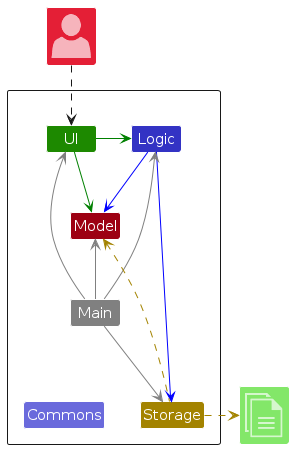
The Architecture Diagram given above explains the high-level design of the App.
Given below is a quick overview of main components and how they interact with each other.
Main components of the architecture
Main (consisting of classes Main and MainApp) is in charge of the app launch and shut down.
- At app launch, it initializes the other components in the correct sequence, and connects them up with each other.
- At shut down, it shuts down the other components and invokes cleanup methods where necessary.
The bulk of the app's work is done by the following four components:
UI: The UI of the App.Logic: The command executor.Model: Holds the data of the App in memory.Storage: Reads data from, and writes data to, the hard disk.Commonsrepresents a collection of classes used by multiple other components.
How the architecture components interact with each other
The Sequence Diagram below shows how the components interact with each other for the scenario where the user issues the command delete 1.
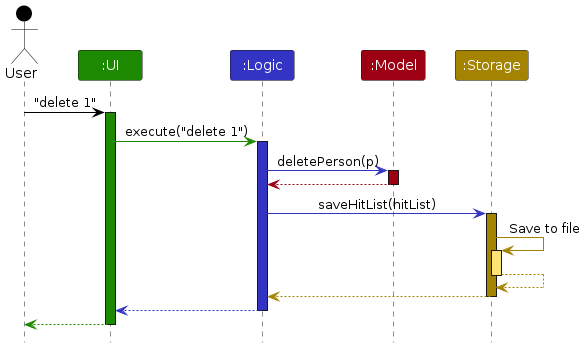
Each of the four main components (also shown in the diagram above),
- defines its API in an
interfacewith the same name as the Component. - implements its functionality using a concrete
{Component Name}Managerclass (which follows the corresponding APIinterfacementioned in the previous point).
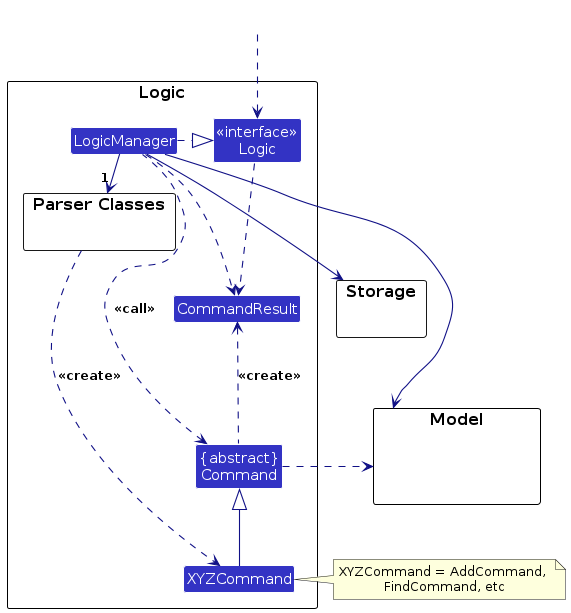
For example, the Logic component defines its API in the Logic.java interface and implements its functionality using the LogicManager.java class which follows the Logic interface. Other components interact with a given component through its interface rather than the concrete class (reason: to prevent outside component's being coupled to the implementation of a component), as illustrated in the (partial) class diagram below.
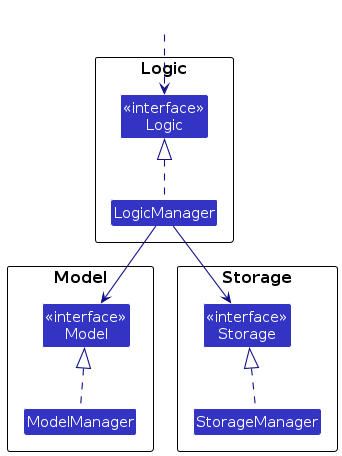
The sections below give more details of each component.
UI component
API : Ui.java
The UI consists of a MainWindow that is made up of parts e.g.CommandBox, ResultDisplay, PersonListPanel, CompanyListPanel, StatusBarFooter etc. All these, including the MainWindow, inherit from the abstract UiPart class which captures the commonalities between classes that represent parts of the visible GUI.
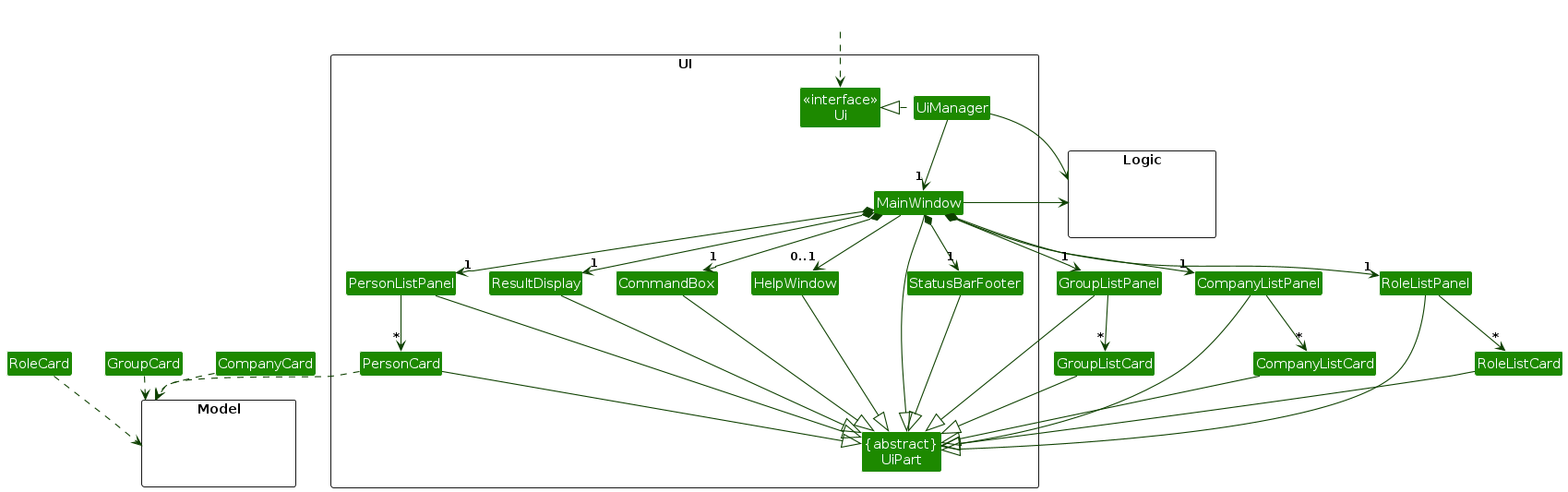
The UI component uses the JavaFx UI framework. The layout of these UI parts are defined in matching .fxml files that are in the src/main/resources/view folder.
For example, the layout of the MainWindow is specified in MainWindow.fxml
The UI component,
- executes user commands using the
Logiccomponent. - listens for changes to
Modeldata so that the UI can be updated with the modified data. - keeps a reference to the
Logiccomponent, because theUIrelies on theLogicto execute commands. - depends on some classes in the
Modelcomponent, as it displaysPerson, andCompanyobject residing in theModel.
Logic component
API : Logic.java
Here's a (partial) class diagram of the Logic component:
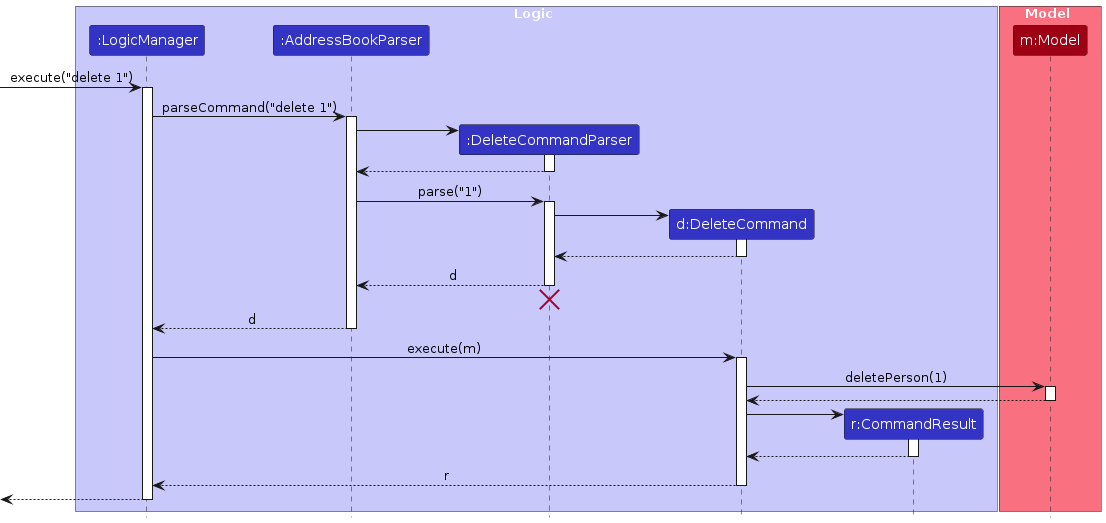
The sequence diagram below illustrates the interactions within the Logic component, taking execute("delete 1") API call as an example.
Note
DeleteCommandParser should end at the destroy marker (X) but due to a limitation of PlantUML, the lifeline continues till the end of diagram.
How the Logic component works:
- When
Logicis called upon to execute a command, it is passed to aHitListParserobject which in turn creates a parser that matches the command (e.g.,DeleteCommandParser) and uses it to parse the command. - This results in a
Commandobject (more precisely, an object of one of its subclasses e.g.,DeleteCommand) which is executed by theLogicManager. - The command can communicate with the
Modelwhen it is executed (e.g. to delete a person). - Note that although this is shown as a single step in the diagram above (for simplicity), in the code it can take several interactions (between the command object and the
Model) to achieve. - The result of the command execution is encapsulated as a
CommandResultobject which is returned back fromLogic.
Here are the other classes in Logic (omitted from the class diagram above) that are used for parsing a user command:
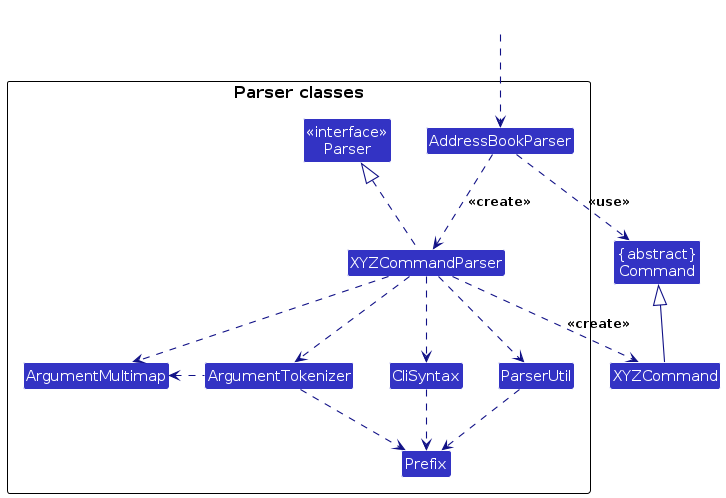
How the parsing works:
- When called upon to parse a user command, the
HitListParserclass creates anXYZCommandParser(XYZis a placeholder for the specific command name e.g.,AddCommandParser) which uses the other classes shown above to parse the user command and create aXYZCommandobject (e.g.,AddCommand) which theHitListParserreturns back as aCommandobject. - All
XYZCommandParserclasses (e.g.,AddCommandParser,DeleteCommandParser, ...) inherit from theParserinterface so that they can be treated similarly where possible e.g, during testing.
Model component
API : Model.java
Note
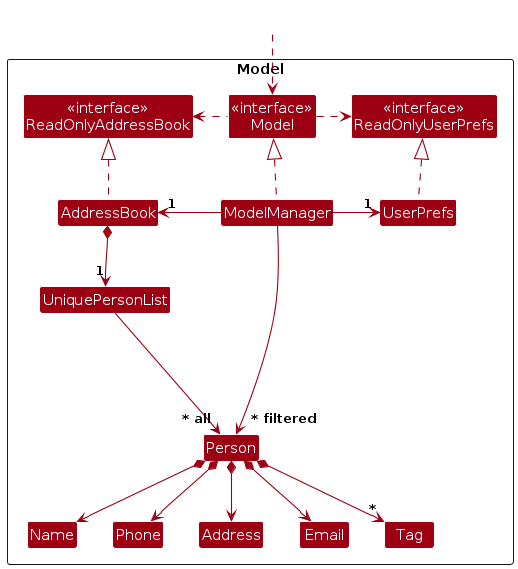
The Model component,
- stores HitList data i.e., all
Person,GroupandCompanyobjects (which are contained in aUniquePersonList,UniqueGroupListandUniqueCompanyListobject). - stores the currently 'selected'
Person,GrouporCompanyobjects (e.g., results of a search query) as a separate filtered list which is exposed to outsiders as an unmodifiableObservableList<Person>,ObservableList<Group>orObservableList<Company>that can be 'observed' e.g. the UI can be bound to this list so that the UI automatically updates when the data in the list change. - stores a
UserPrefobject that represents the user’s preferences. This is exposed to the outside as aReadOnlyUserPrefobject. - does not depend on any of the other three components (as the
Modelrepresents data entities of the domain, they should make sense on their own without depending on other components)
Storage component
API : Storage.java
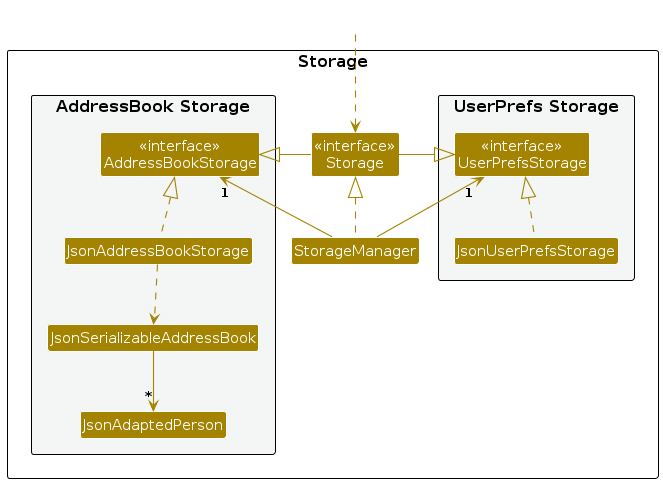
The Storage component,
- can save both HitList data and user preference data in JSON format, and read them back into corresponding objects.
- inherits from both
HitListStorageandUserPrefStorage, which means it can be treated as either one (if only the functionality of only one is needed). - depends on some classes in the
Modelcomponent (because theStoragecomponent's job is to save/retrieve objects that belong to theModel)
Common classes
Classes used by multiple components are in the hitlist.commons package.
Implementation
This section describes some noteworthy details on how certain features are implemented.
Person
A Person object represents a contact in the HitList. It has the following details:
name(required): The contact's name.phone(required): The contact's phone number.email(optional): The contact's email address.address(optional): The contact's address.
Design considerations for Person Parameters:
Aspect: Person Field Requirements:
- Alternative 1 (current choice): Require both name and phone, while keeping email and address optional.
- Pros: Ensures every contact has enough information for the headhunter to identify and reach out to the person.
- Cons: Requires slightly more typing than a minimal single-field command.
- Alternative 2: Make only the phone number required and treat the name as optional.
- Pros: Speeds up quick data entry when the user only wants to capture a lead.
- Cons: Makes the contact list harder to read and distinguish during later follow-up.
Aspect: Validation of Name
- Alternative 1: Use strict alphanumeric regex
^[\p{Alnum}][\p{Alnum} ]*$to only allow letters, numbers, and spaces.- Pros: Highly secure and prevents users from entering symbols, scripts, or malformed data that could break CLI formatting.
- Cons: Culturally exclusive and restrictive. It blocks completely valid names that contain punctuation (e.g., O'Connor, Mary-Jane).
- Alternative 2 (current choice): Use a custom regex
^[A-Za-z’-][A-Za-z\s'-]*$to enforce starting with a letter, allowing only spaces, apostrophes, and hyphens thereafter.- Pros: Accommodates common Western naming conventions and punctuation while still blocking nonsensical symbols like
???or!!!. - Cons: Excludes non-English characters (e.g., accents like
éor Asian characters) and fails on valid names with periods (e.g.,St. John).
- Pros: Accommodates common Western naming conventions and punctuation while still blocking nonsensical symbols like
Aspect: Validation of Phone
- Alternative 1: Use strict regex
^[0-9]{8}$to explicitly require exactly 8 digits.- Pros: Enforces strict data consistency, ensuring all numbers match local (Singaporean) phone number formats perfectly.
- Cons: Completely breaks down if a user needs to input international numbers, country codes (e.g.,
+65), or extensions.
- Alternative 2 (current choice): Use a custom regex
^\d{3,}$to allow any string of digits with a minimum length of 3.- Pros: Highly flexible, easily accommodating international numbers of varying lengths.
- Cons: Too permissive; it allows users to enter obviously fake numbers (like
123) and doesn't enforce standard spacing or formatting.
Aspect: Validation of Email
- Alternative 1: Use a standard, widely accepted email regex like
^[a-zA-Z0-9_+&*-]+(?:\.[a-zA-Z0-9_+&*-]+)*@(?:[a-zA-Z0-9-]+\.)+[a-zA-Z]{2,7}$.- Pros: Easier to read, maintain, and debug. It catches 99% of standard email formats without overcomplicating the codebase.
- Cons: May reject highly obscure but technically valid emails defined by edge cases in the RFC 5322 specification.
- Alternative 2 (current choice): Use the strict, custom regex
^[^\W_]+([+_.-][^\W_]+)*@([^\W_]+(-[^\W_]+)*\.)*([^\W_]+(-[^\W_]+)*){2,}$to tightly control character placement.- Pros: Extremely precise validation that enforces strict alphanumeric boundaries for local and domain parts, ensuring very clean data.
- Cons: The regex is highly complex, difficult to read, and hard to update if email validation rules need to be adjusted in the future.
Aspect: Validation of Address
- Alternative 1 (current choice): Use a controlled regex
^[\p{Alnum}][\p{Alnum}\s,.-/#]*$that allows alphanumeric characters and standard address punctuation (spaces, commas, periods, hyphens, slashes, and hashes).- Pros: Prevents garbled input while comfortably allowing standard address formatting, including unit numbers (e.g., #12-34) and block/street divisions.
- Cons: Requires maintaining a list of allowed symbols. If an unexpected but valid symbol is used internationally, the address will be rejected.
- Alternative 2: Use a custom regex
^[^\s].*to simply enforce that the string cannot start with a whitespace character.- Pros: Maximum flexibility; guarantees the user can enter any valid global address format without artificial restrictions.
- Cons: Extremely permissive; allows users to enter a single punctuation mark or complete gibberish as long as it doesn't start with a space.
Design considerations for Person Commands:
Aspect: Command Format for Parameters:
- Alternative 1 (current choice): Use prefixes to indicate parameters (e.g.
/nfor name,/pfor phone,/efor email and/afor address).- Pros: Clear and unambiguous parsing of parameters, especially when values contain spaces.
- Cons: Requires the user to remember the prefixes.
- Alternative 2: Use a fixed parameter order without prefixes.
- Pros: Slightly shorter command format.
- Cons: Parsing becomes more brittle when optional fields are involved.
Aspect: Handling Duplicate Persons:
- Alternative 1: Reject duplicates based on the contact's name.
- Pros: Using the name as the primary identifier makes commands highly readable
- Cons: Duplicate names have to be disambiguated via the name field itself, leading to ad hoc naming conventions.
- Alternative 2 (current choice): Reject duplicates based on the contact's name and phone number.
- Pros: A phone number is a strong practical identifier for recruiter workflows and prevents obvious duplicates.
- Cons: It does not account for when two persons newly change their phone number and one now holds the other person's old number, forcing a strict order of operations to avoid false duplicate errors.
- Alternative 3: Reject duplicates based on phone number and email.
- Pros: Disallows multiple entries that share the same phone number and email.
- Cons: Complicates CLI logic for edit and delete commands. If two distinct contacts share the same name, targeting them by the name field becomes ambiguous for the user and the parser.
Adding a person
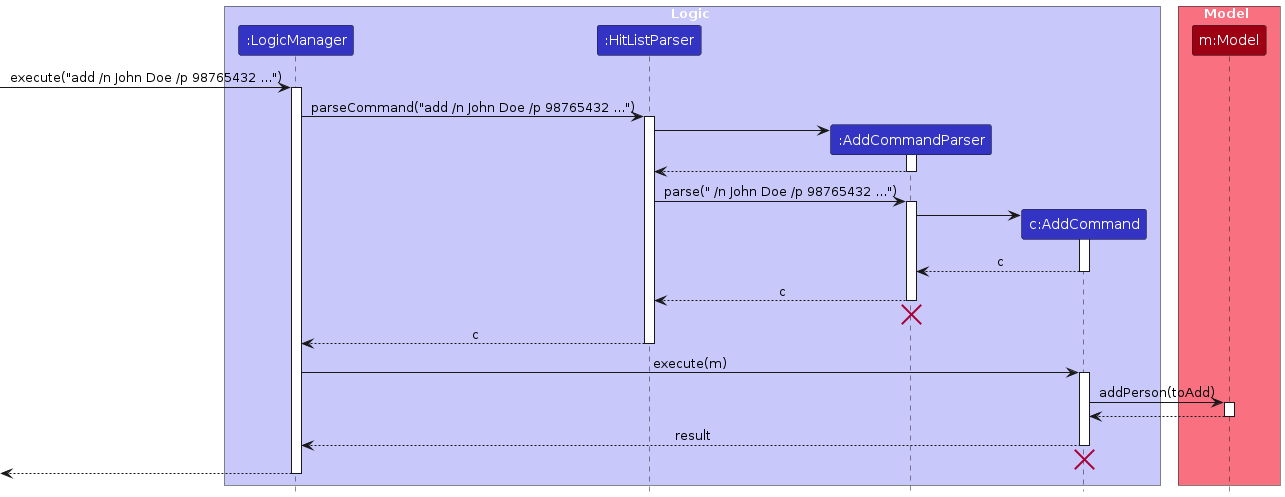
The AddPerson mechanism is facilitated by AddCommand and its associated parser AddCommandParser. It allows users to add a new contact to HitList. The feature implements the following key operations:
AddCommandParser#parse()— Parses the user input to extract the contact name, phone number, and any optional email or address.AddCommand#execute()— Executes the logic to add the parsed person to the model.Model#addPerson()— Updates the HitList within the Model state with the newly created person.
Given below is an example usage scenario and how the AddPerson mechanism behaves at each step.
Step 1. The user launches the application and types add /n John Doe /p 98765432 /e johnd@example.com /a 311, Clementi Ave 2, #02-25 into the command box.
Step 2. The LogicManager intercepts the user input and calls HitListParser#parseCommand("add /n John Doe /p 98765432 /e johnd@example.com /a 311, Clementi Ave 2, #02-25").
Step 3. Recognizing the add command word, the HitListParser instantiates an AddCommandParser.
Step 4. The HitListParser calls the parse(" /n John Doe /p 98765432 /e johnd@example.com /a 311, Clementi Ave 2, #02-25") method of the newly created AddCommandParser. The parser extracts the person details, creates a new Person object (representing John Doe), and passes it into the constructor of a new AddCommand.
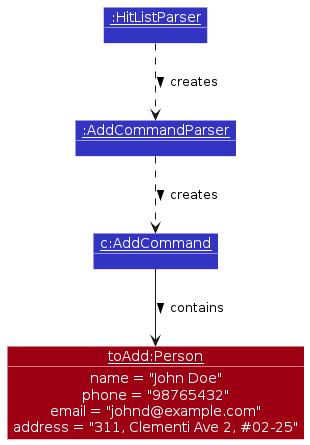
Step 5. The AddCommand is returned to the LogicManager, and the AddCommandParser is subsequently destroyed.
Step 6. LogicManager calls AddCommand#execute(). This command calls Model#addPerson(toAdd), passing the parsed person object to update the internal HitList state.
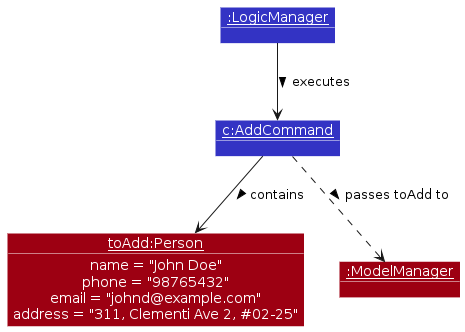
Step 7. Finally, Storage saves the updated HitList to the hard disk, and the LogicManager returns the CommandResult to the UI to display a success message to the user.
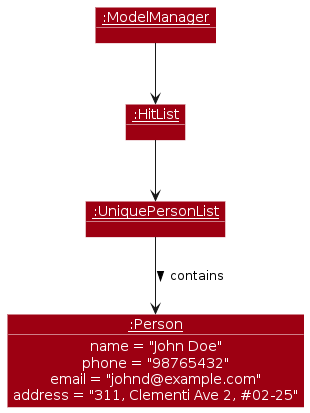
The following sequence diagram shows how an AddPerson operation goes through the Logic component:
Note
AddCommand and AddCommandParser should end at the destroy marker (X) but due to a limitation of PlantUML, the lifeline reaches the end of diagram.
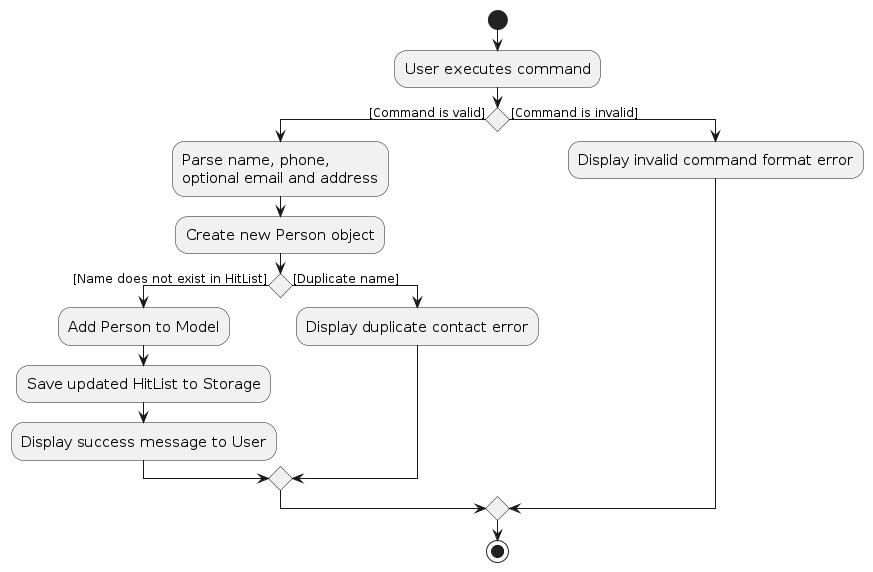
The following activity diagram summarizes what happens when a user executes the add command:
Deleting a person
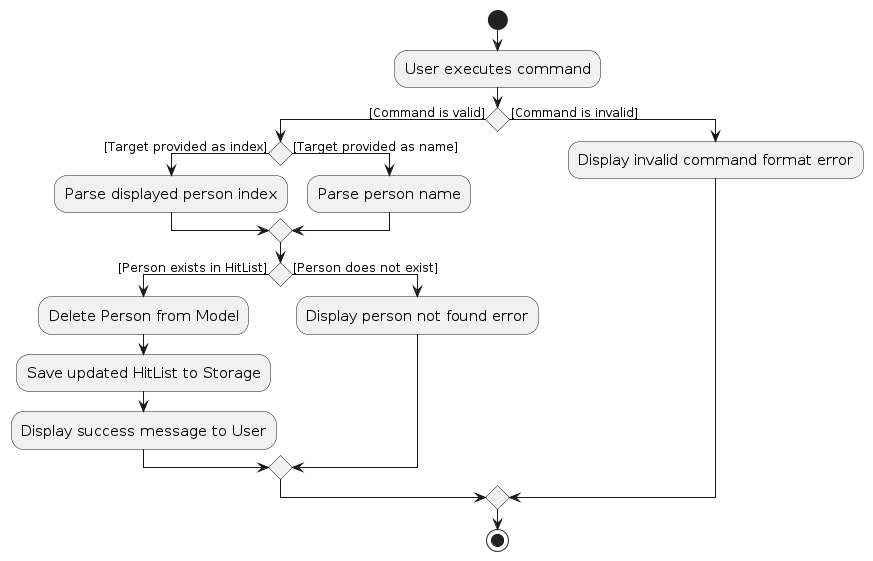
The DeletePerson mechanism is facilitated by DeleteCommand and its associated parser DeleteCommandParser. It allows users to remove an existing person from HitList, either by specifying the displayed index in the UI or the person's exact name.
The feature implements the following key operations:
DeleteCommandParser#parse()— Parses the user input to determine if the deletion target is an index or a name (indicated by the/nprefix).DeleteCommand#execute()— Executes the logic to verify the target's existence and remove it from the model.Model#deletePerson()— Updates the HitList within the Model state by removing the specified person.
Given below is an example usage scenario and how the DeletePerson mechanism behaves at each step.
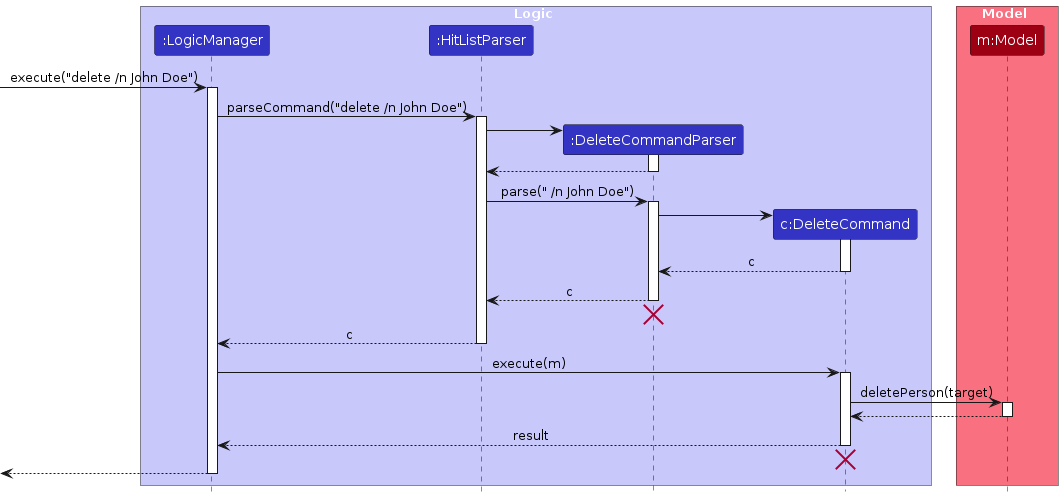
Step 1. The user launches the application and types delete /n John Doe into the command box.
Step 2. The LogicManager intercepts the user input and calls HitListParser#parseCommand("delete /n John Doe").
Step 3. Recognizing the delete command word, the HitListParser instantiates a DeleteCommandParser.
Step 4. The HitListParser calls the parse(" /n John Doe") method of the newly created DeleteCommandParser. The parser extracts the target name, creates a new DeleteCommand targeting John Doe, and returns it. (Note: If the user had typed delete 1, the parser would extract the index instead.)
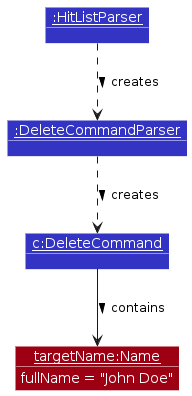
Step 5. The DeleteCommand is returned to the LogicManager, and the DeleteCommandParser is subsequently destroyed.
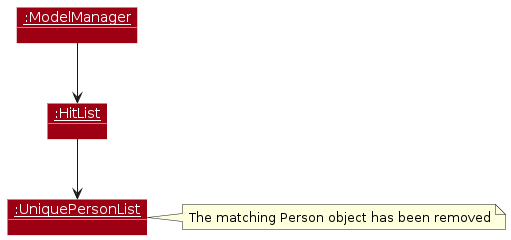
Step 6. LogicManager calls DeleteCommand#execute(). The command retrieves the target person and calls Model#deletePerson(target) to remove it from the internal HitList state.
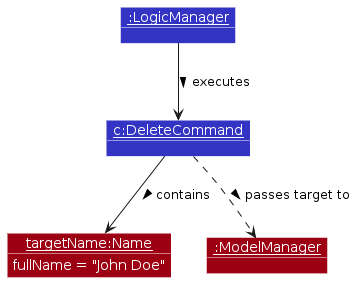
Step 7. Finally, Storage saves the updated HitList to the hard disk, and the LogicManager returns the CommandResult to the UI to display a success message to the user.
The following sequence diagram shows how a DeletePerson operation goes through the Logic component:
Note
DeleteCommand and DeleteCommandParser should end at the destroy marker (X) but due to a limitation of PlantUML, the lifeline reaches the end of diagram.
The following activity diagram summarizes what happens when a user executes the delete command:
Editing a person
The EditPerson mechanism is facilitated by EditCommand and its associated parser EditCommandParser. It allows users to modify the details of an existing person in HitList by specifying the displayed index in the UI and providing new field values.
The feature implements the following key operations:
EditCommandParser#parse()— Parses the user input to extract the target index and the fields to edit. It constructs anEditPersonDescriptorthat encapsulates the new values.EditCommand#execute()— Executes the logic to verify the target’s existence, apply the edits, and update the model.Model#setPerson()— Updates the HitList within the Model state by replacing the specified person with the edited version.
Given below is an example usage scenario and how the EditPerson mechanism behaves at each step.
edit 1 /n John Doe /p 98765432 /e johnd@example.com /a 311, Clementi Ave 2, #02-25Step 1. The user launches the application and types edit 1 /n John Doe /p 98765432 ... into the command box.
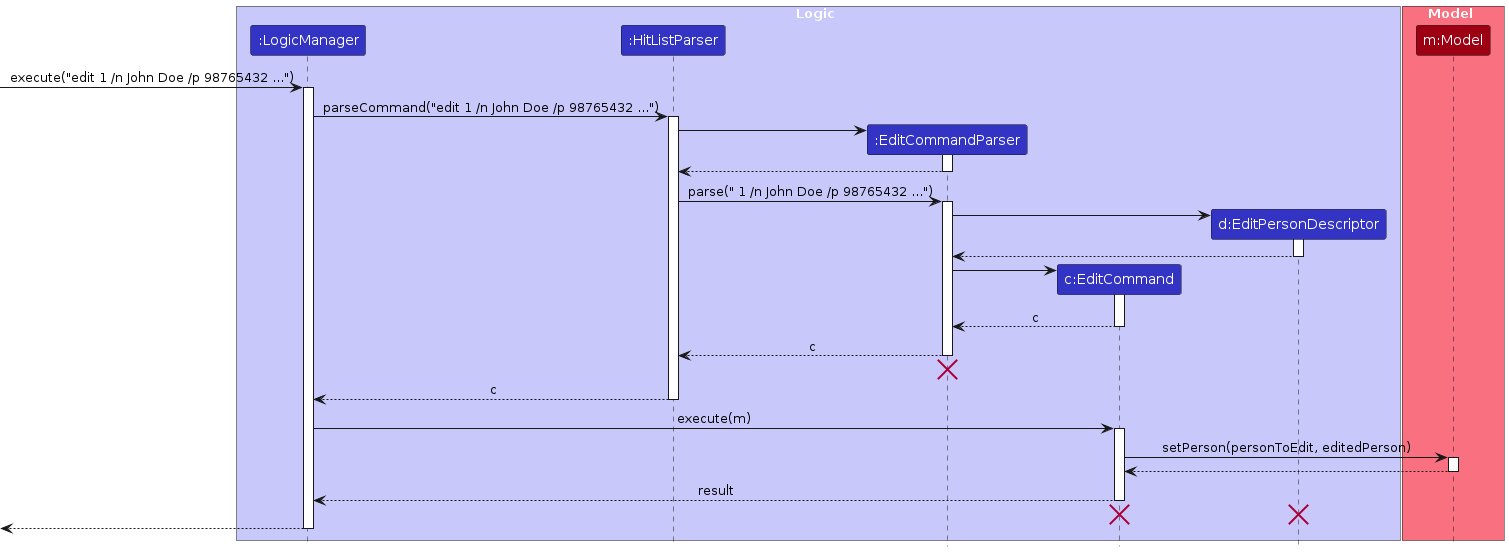
Step 2. The LogicManager intercepts the user input and calls HitListParser#parseCommand("edit 1 /n John Doe /p 98765432 ...").
Step 3. Recognizing the edit command word, the HitListParser instantiates an EditCommandParser.
Step 4. The HitListParser calls the parse(" 1 /n John Doe /p 98765432 ...") method of the newly created EditCommandParser.
The parser extracts the target index and new field values, creates an EditPersonDescriptor, then constructs a new EditCommand targeting the person at index 1.
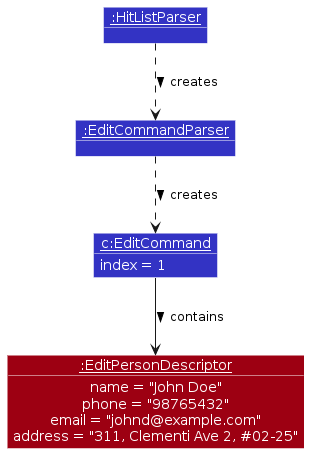
Step 5. The EditCommand is returned to the LogicManager, and the EditCommandParser is subsequently destroyed.
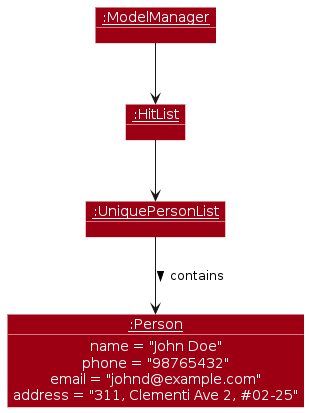
Step 6. LogicManager calls EditCommand#execute(). The command retrieves the target person, applies the edits using the EditPersonDescriptor, and calls Model#setPerson(personToEdit, editedPerson) to update the internal HitList state.
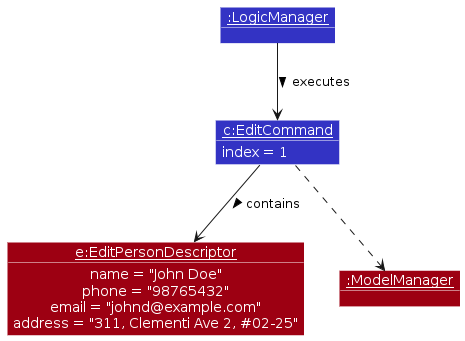
Step 7. Finally, Storage saves the updated HitList to the hard disk, and the LogicManager returns the CommandResult to the UI to display a success message to the user.
The following sequence diagram shows how an EditPerson operation goes through the Logic component:
Note
The lifeline for EditCommand and EditCommandParser should end at the destroy marker (X) but due to a limitation of PlantUML, the lifeline reaches the end of diagram.
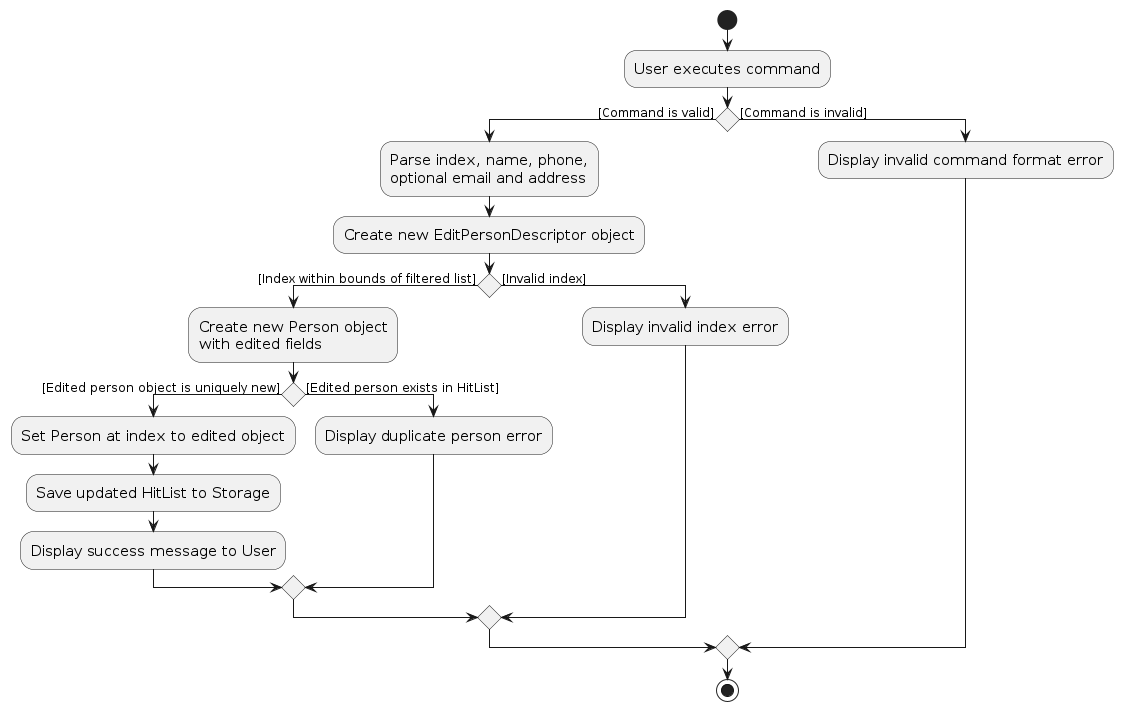
The following activity diagram summarizes what happens when a user executes the edit command:
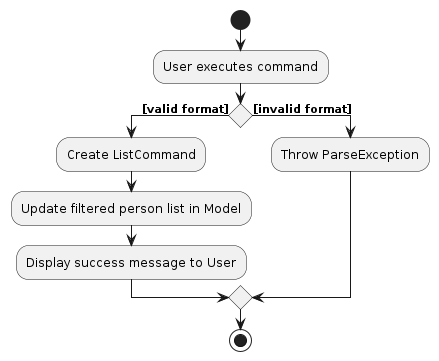
Listing a person
The List mechanism is facilitated by ListCommand. It allows users to list all person contacts in the HitList. The feature implements the following key operations:
ListCommand#execute()- Executes the logic to apply thePREDICATE_SHOW_ALL_PERSONSfilter to the list of persons in the model.Model#updateFilteredPersonList()- Updates the HitList's filtered list within the Model state to display all persons.
Given below is an example usage scenario and how the List mechanism behaves at each step.
Step 1. The user launches the application and types list into the command box.
Step 2. The LogicManager intercepts the user input and calls HitListParser#parseCommand("list").
Step 3. Recognizing the list command word, the HitListParser directly creates a ListCommand (since there are no arguments to parse).
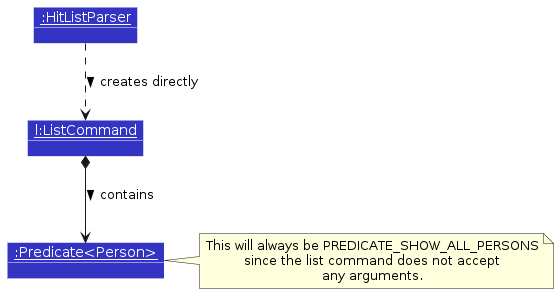
Step 4. The ListCommand is returned to the LogicManager.
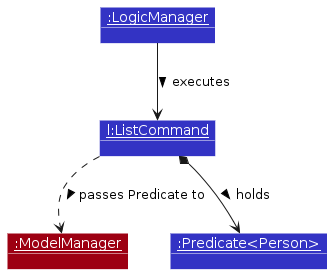
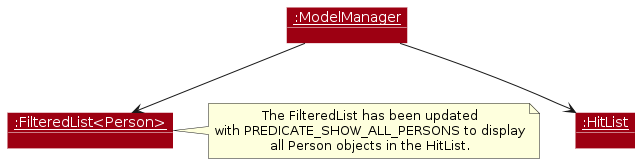
Step 5. LogicManager calls ListCommand#execute(). This command calls Model#updateFilteredPersonList(PREDICATE_SHOW_ALL_PERSONS) to reset the filtered list in the internal HitList state to show all persons.
Step 6. Since the underlying data was not modified, Storage does not need to save anything to the hard disk. The LogicManager simply returns the CommandResult to the UI to display the updated list and a success message to the user.
The following sequence diagram shows how a List operation goes through the Logic component:
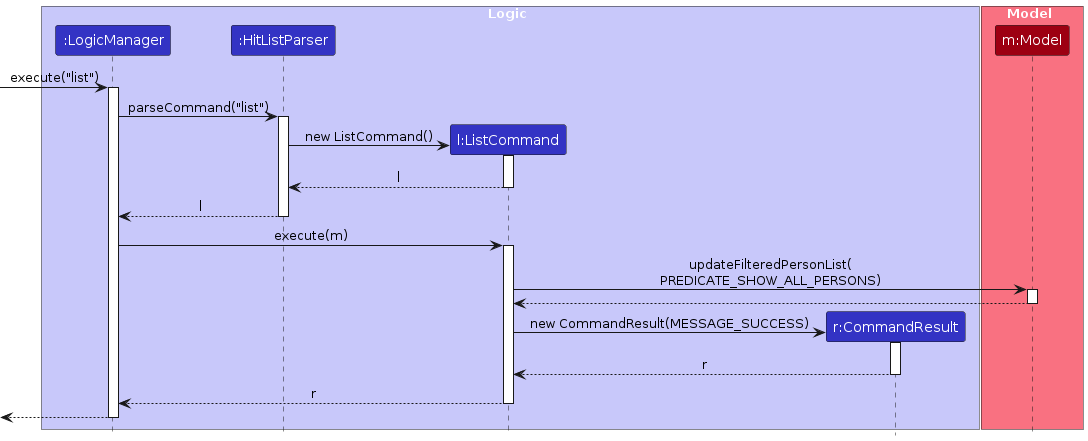
Note
The lifeline for ListCommand should end at the destroy marker (X) but due to a limitation of PlantUML, the lifeline reaches the end of diagram.
The following activity diagram summarizes what happens when a user executes the list command:
Finding a person
The FindPerson mechanism is facilitated by FindCommand and its associated parser FindCommandParser. It allows users to search for people in HitList by specifying keywords that match the person's name.
The feature implements the following key operations:
HitListParser#parseCommand()— Intercepts the user input and determines that the command word isfind.FindCommandParser#parse()— Parses the remaining input string (e.g.,"Alex Lee") and constructs aPersonMatchesFindPredicateobject that encapsulates the search condition.FindCommand#execute()— Executes the logic by applying the predicate to the model’s person list and updating the filtered list.Model#updateFilteredPersonList()— Updates the internal state of the HitList to only show persons that match the predicate.
Given below is an example usage scenario and how the FindPerson mechanism behaves at each step.
find Alex LeeStep 1. The user launches the application and types find Alex Lee into the command box.
Step 2. The LogicManager intercepts the user input and calls HitListParser#parseCommand("find Alex Lee").
Step 3. Recognizing the find command word, the HitListParser instantiates a FindCommandParser.
Step 4. The HitListParser calls the parse(" Alex Lee") method of the newly created FindCommandParser.
The parser constructs a PersonMatchesFindPredicate object based on the keywords "Alex" and "Lee", then creates a new FindCommand with this predicate.
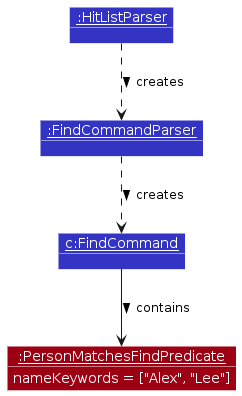
Step 5. The FindCommand is returned to the LogicManager, and the FindCommandParser is subsequently destroyed.
Step 6. LogicManager calls FindCommand#execute(). The command applies the predicate to the model’s person list, filtering out only those that match "Alex" or "Lee".
The Model#updateFilteredPersonList(predicate) method updates the internal HitList state accordingly.
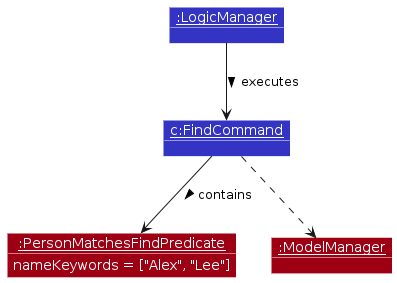
Step 7. Finally, the LogicManager returns the CommandResult to the UI to display the filtered list of persons to the user.
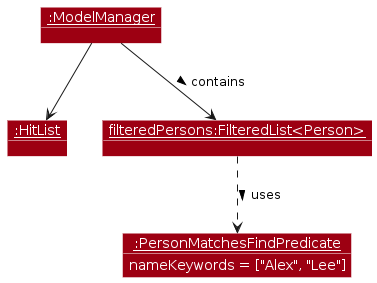
The following sequence diagram shows how a FindPerson operation goes through the Logic component:
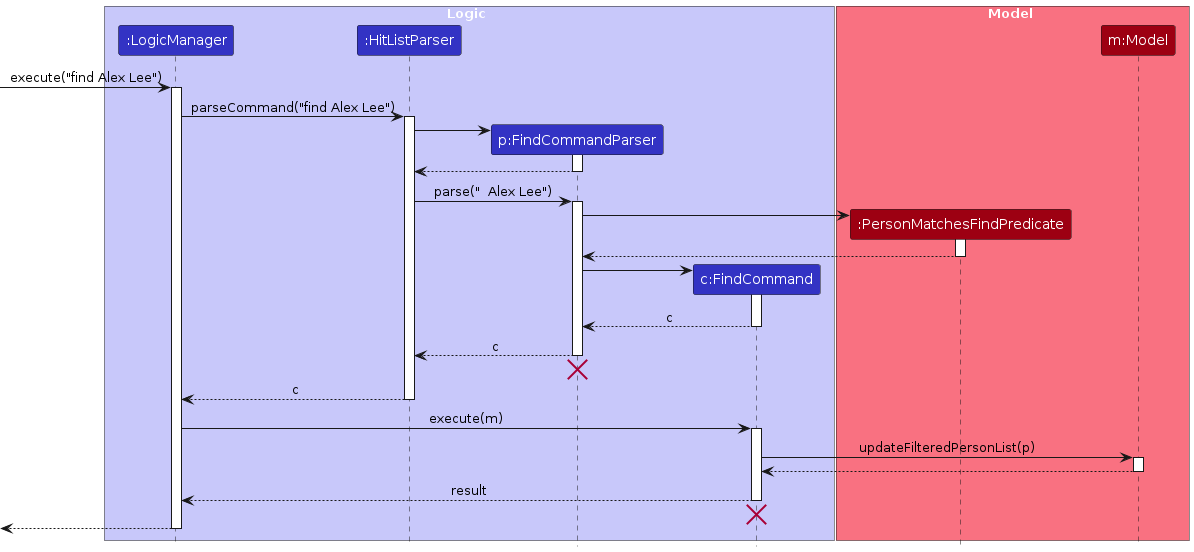
Note
FindCommand and FindCommandParser should end at the destroy marker (X) but due to a limitation of PlantUML, the lifeline reaches the end of diagram.
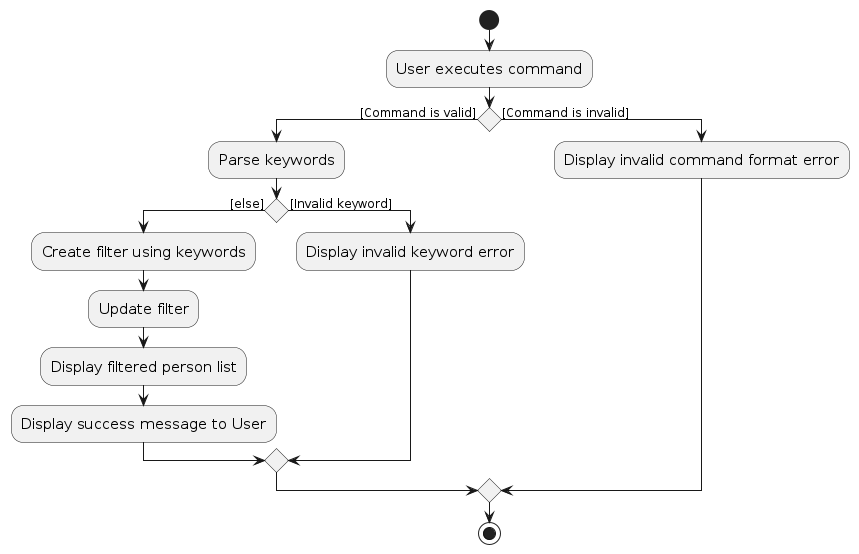
The following activity diagram summarizes what happens when a user executes the find command:
Group
A Group object represents a contact group in HitList. It has the following details:
groupName(required): The name of the group.members(optional): A set of contacts that belong to the group.
Design considerations for Group Parameters:
Aspect: Group Field Requirements:
- Alternative 1 (current choice): Require only a group name and allow groups to be created without members.
- Pros: Allows users to create an empty group first and populate it later.
- Cons: Groups without members may be less meaningful and could clutter the HitList if users create many placeholder groups.
- Alternative 2: Require at least one member when creating a group.
- Pros: Ensures every group is meaningful immediately after creation.
- Cons: Prevents users from creating placeholder groups for future shortlisting work.
Aspect: Validation of Group Names
- Alternative 1 (current choice): Use strict regex
^[\p{Alnum}][\p{Alnum} ]*$to only allow alphanumeric characters and spaces.- Pros: Enforces clean, predictable group names, preventing users from accidentally entering malformed data or using symbols that might break the CLI formatting.
- Cons: Overly restrictive. It prevents users from creating perfectly valid group names that rely on standard punctuation (e.g.,
C++ Developers,Front-end Techs, orR&D Team).
- Alternative 2: Use a custom regex
^[^\s/][^/\v]{1,49}$(Must not start with a space, cannot contain '/' or newlines, and must be between 2 and 50 characters in length).- Pros: Highly flexible, allowing users to naturally categorize contacts using helpful symbols like hyphens, ampersands, or brackets (e.g., "Interns (2025)").
- Cons: Too permissive; it could allow users to create completely nonsensical group names consisting entirely of random punctuation, like
!!!or???.
Design considerations for Group Commands:
Aspect: Command Format for Parameters:
- Alternative 1 (current choice): Use prefixes to indicate parameters (e.g.
/gfor group name and repeated/nprefixes for member names).- Pros: Clear and unambiguous parsing of parameters, especially when there are multiple parameters.
- Cons: Requires users to remember and use specific prefixes.
- Alternative 2: Use a fixed order of parameters without prefixes (e.g.,
grpadd Students Alex).- Pros: Simpler command format, less typing for users.
- Cons: Parsing can be more error-prone, especially if parameters can contain spaces or if there are optional parameters.
Aspect: Handling Duplicate Groups:
- Alternative 1 (current choice): Reject duplicates based on group name.
- Pros: Prevents users from creating multiple groups with the same purpose and display name.
- Cons: Different groups that intentionally share a name cannot coexist.
- Alternative 2: Allow duplicate group names and rely on the user to manage them manually.
- Pros: More flexible.
- Cons: Makes group operations such as deletion and listing more error-prone.
Adding a group
The AddGroup mechanism is facilitated by AddGroupCommand and its associated parser AddGroupCommandParser. It allows users to add a new contact group to HitList, optionally with members that already exist in the contact list.
The feature implements the following key operations:
AddGroupCommandParser#parse()— Parses the user input to extract the group name (indicated by the/gprefix) and zero or more member names (indicated by the/nprefix).AddGroupCommand#execute()— Executes the logic to add the parsed group to the model and resolve any provided member names against existing contacts.Model#addGroup()— Updates the HitList within the Model state with the newly created group.
Given below is an example usage scenario and how the AddGroup mechanism behaves at each step.
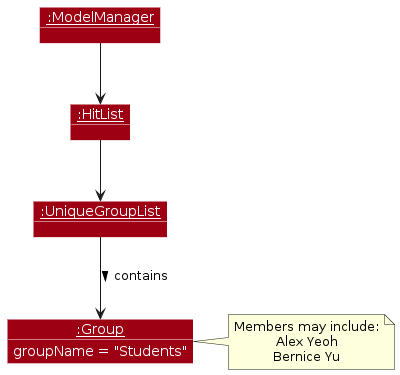
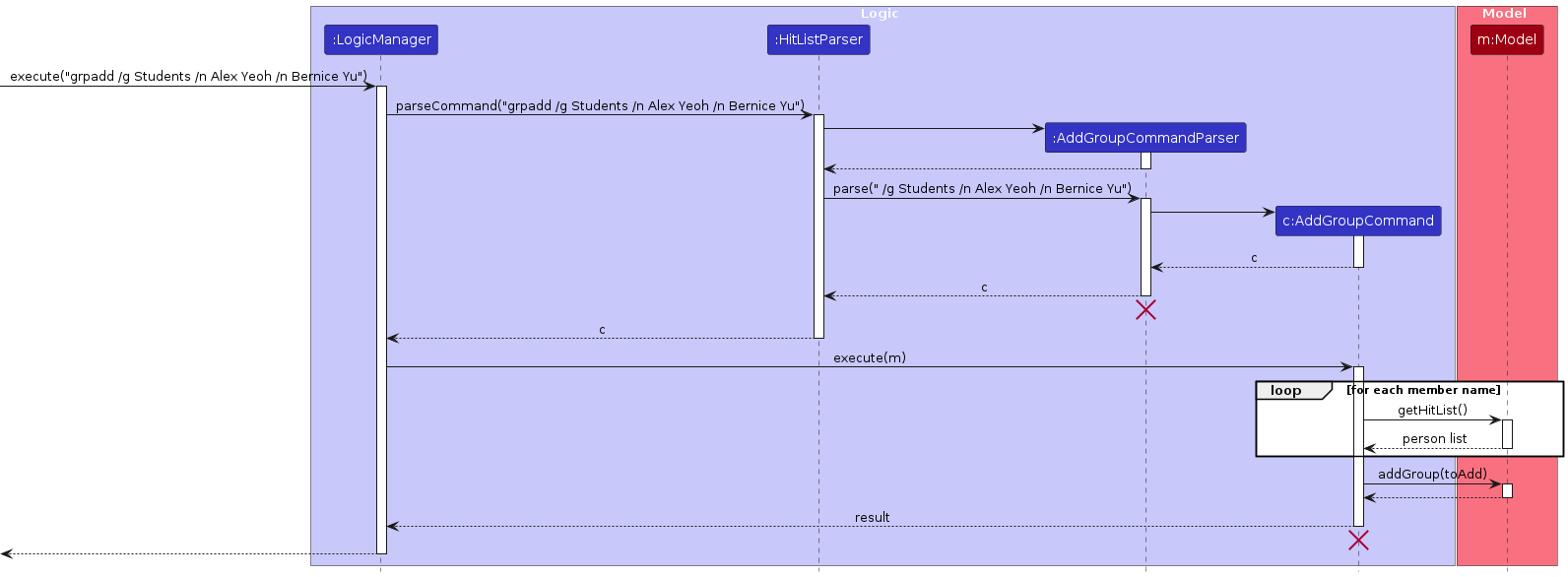
Step 1. The user launches the application and types grpadd /g Students /n Alex Yeoh /n Bernice Yu into the command box.
Step 2. The LogicManager intercepts the user input and calls HitListParser#parseCommand("grpadd /g Students /n Alex Yeoh /n Bernice Yu").
Step 3. Recognizing the grpadd command word, the HitListParser instantiates an AddGroupCommandParser.
Step 4. The HitListParser calls the parse(" /g Students /n Alex Yeoh /n Bernice Yu") method of the newly created AddGroupCommandParser. The parser extracts the group details, creates a new Group object (representing Students) together with the set of member names, and passes them into the constructor of a new AddGroupCommand.
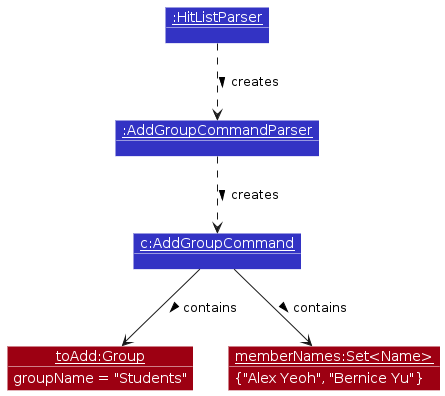
Step 5. The AddGroupCommand is returned to the LogicManager, and the AddGroupCommandParser is subsequently destroyed.
Step 6. LogicManager calls AddGroupCommand#execute(). The command first resolves each provided member name against existing contacts and adds the matched Person objects to the group. After all members are successfully resolved, it calls Model#addGroup(toAdd) to add the fully populated group to the internal HitList state.
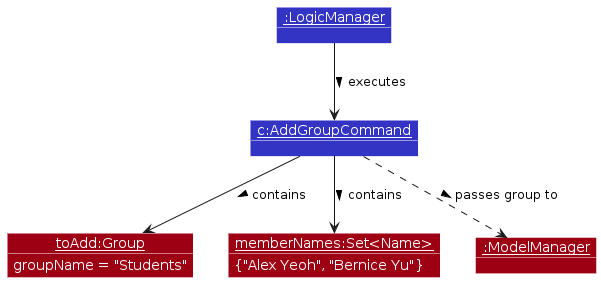
Step 7. Finally, Storage saves the updated HitList to the hard disk, and the LogicManager returns the CommandResult to the UI to display a success message to the user.
The following sequence diagram shows how an AddGroup operation goes through the Logic component:
Note
AddGroupCommand and AddGroupCommandParser should end at the destroy marker (X) but due to a limitation of PlantUML, the lifeline reaches the end of diagram.
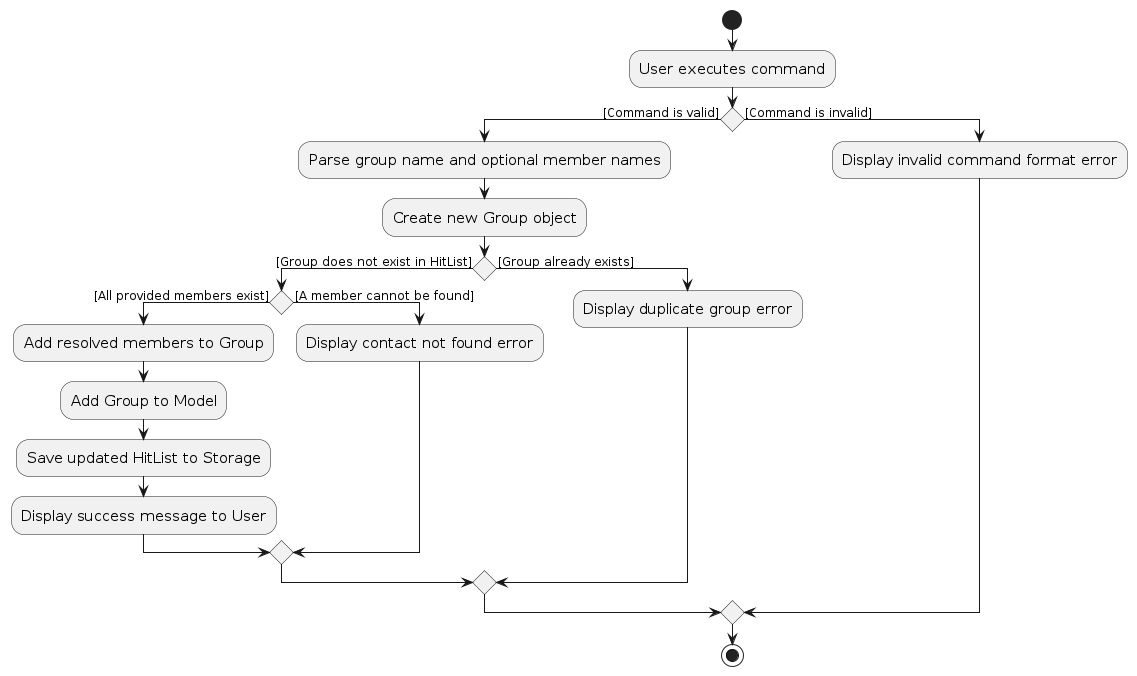
The following activity diagram summarizes what happens when a user executes the grpadd command:
Deleting a group
The DeleteGroup mechanism is facilitated by DeleteGroupCommand and its associated parser DeleteGroupCommandParser. It allows users to remove an existing contact group from HitList by specifying its exact name.
The feature implements the following key operations:
DeleteGroupCommandParser#parse()— Parses the user input to extract the target group name (indicated by the/gprefix).DeleteGroupCommand#execute()— Executes the logic to verify the target group's existence and remove it from the model.Model#deleteGroup()— Updates the HitList within the Model state by removing the specified group.
Given below is an example usage scenario and how the DeleteGroup mechanism behaves at each step.
Step 1. The user launches the application and types grpdel /g Students into the command box.
Step 2. The LogicManager intercepts the user input and calls HitListParser#parseCommand("grpdel /g Students").
Step 3. Recognizing the grpdel command word, the HitListParser instantiates a DeleteGroupCommandParser.
Step 4. The HitListParser calls the parse(" /g Students") method of the newly created DeleteGroupCommandParser. The parser extracts the target group name, creates a new DeleteGroupCommand targeting Students, and returns it.
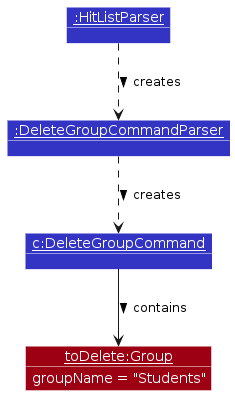
Step 5. The DeleteGroupCommand is returned to the LogicManager, and the DeleteGroupCommandParser is subsequently destroyed.
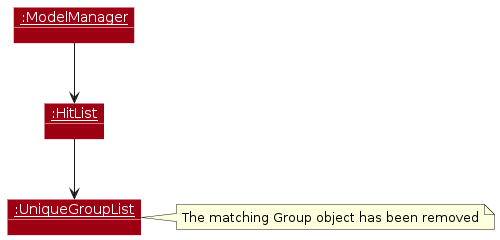
Step 6. LogicManager calls DeleteGroupCommand#execute(). The command retrieves the target group and calls Model#deleteGroup(toDelete) to remove it from the internal HitList state.
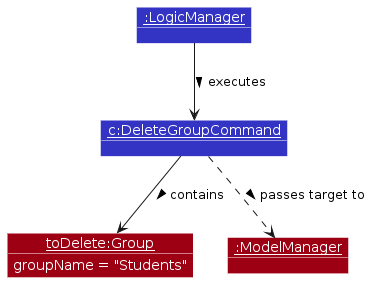
Step 7. Finally, Storage saves the updated HitList to the hard disk, and the LogicManager returns the CommandResult to the UI to display a success message to the user.
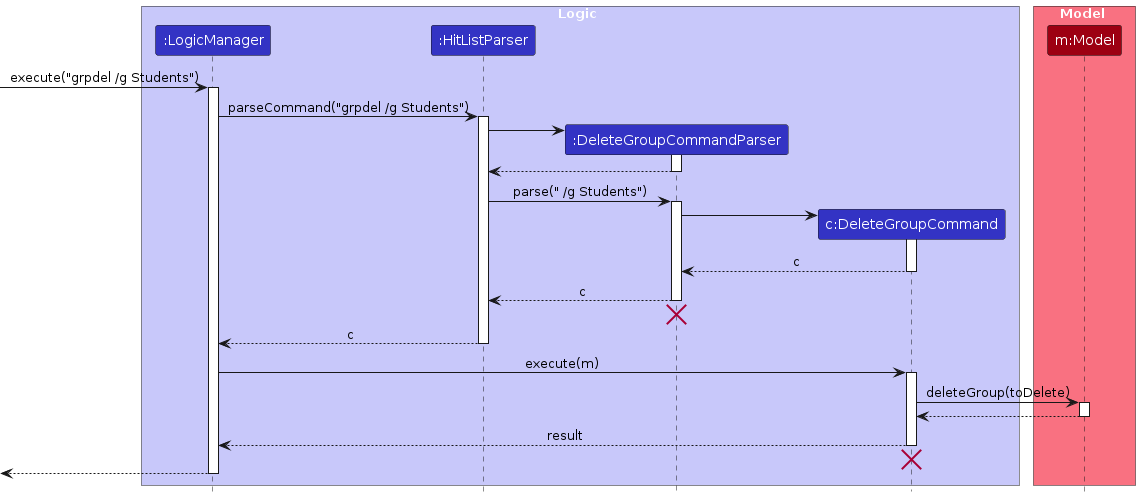
The following sequence diagram shows how a DeleteGroup operation goes through the Logic component:
Note
DeleteGroupCommand and DeleteGroupCommandParser should end at the destroy marker (X) but due to a limitation of PlantUML, the lifeline reaches the end of diagram.
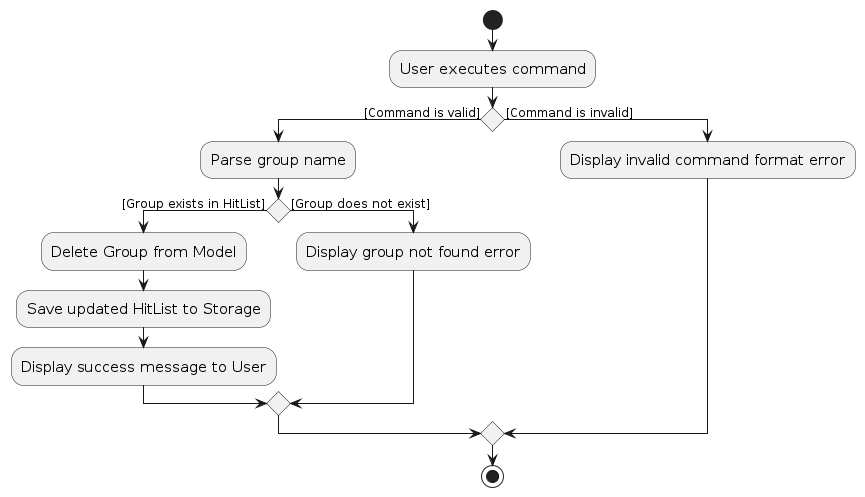
The following activity diagram summarizes what happens when a user executes the grpdel command:
Listing groups
The ListGroups mechanism is facilitated by ListGroupCommand and its associated parser ListGroupCommandParser. It allows users to list all existing contact groups in HitList. The feature implements the following key operations:
ListGroupCommandParser#parse()— Parses the user input to ensure it matches the expected format for listing groups.ListGroupCommand#execute()— Executes the logic to retrieve all groups from the model and prepare them for display.Model#getGroupList()— Provides access to the complete list of groups stored in the Model.
Given below is an example usage scenario and how the ListGroup mechanism behaves at each step.
Step 1. The user launches the application and types grplist into the command box.
Step 2. The LogicManager intercepts the user input and calls HitListParser#parseCommand("grplist").
Step 3. Recognizing the grplist command word, the HitListParser instantiates a ListGroupCommandParser.
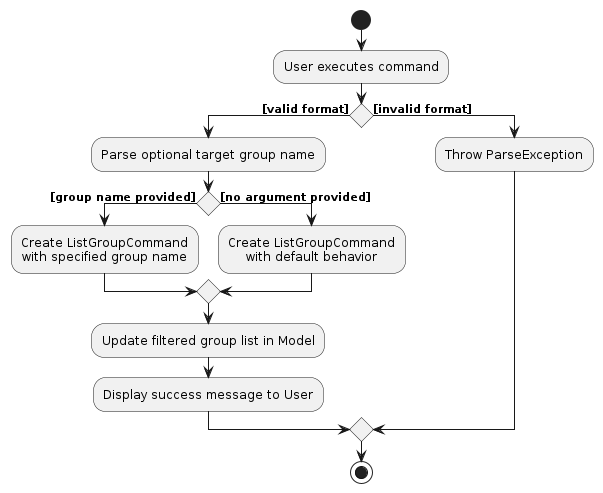
Step 4. The HitListParser calls the parse() method of the newly created ListGroupCommandParser. The parser checks the arguments:
If no argument is provided: It creates a ListGroupCommand with the default behaviour.
If an argument is provided: It extracts the group name and creates a ListGroupCommand containing the group name of target group.
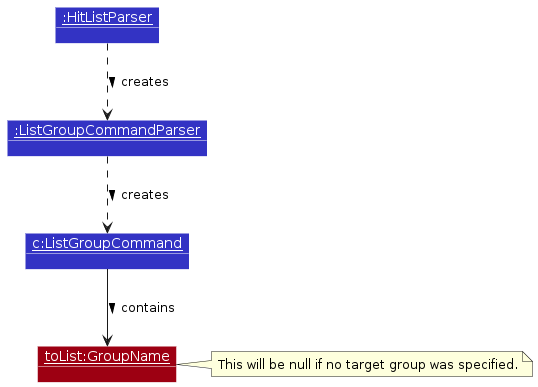
Step 5. The ListGroupCommand is returned to the LogicManager, and the ListGroupCommandParser is subsequently destroyed.
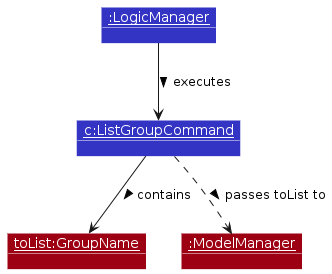
Step 6. LogicManager calls ListGroupCommand#execute(). The command calls Model#getGroupList() to retrieve the list of groups from the internal HitList state, or sends toList to the model.
Step 7. Since the underlying data was not modified, Storage does not need to save anything to the hard disk. The LogicManager returns the CommandResult containing the list of groups to the UI to display to the user.
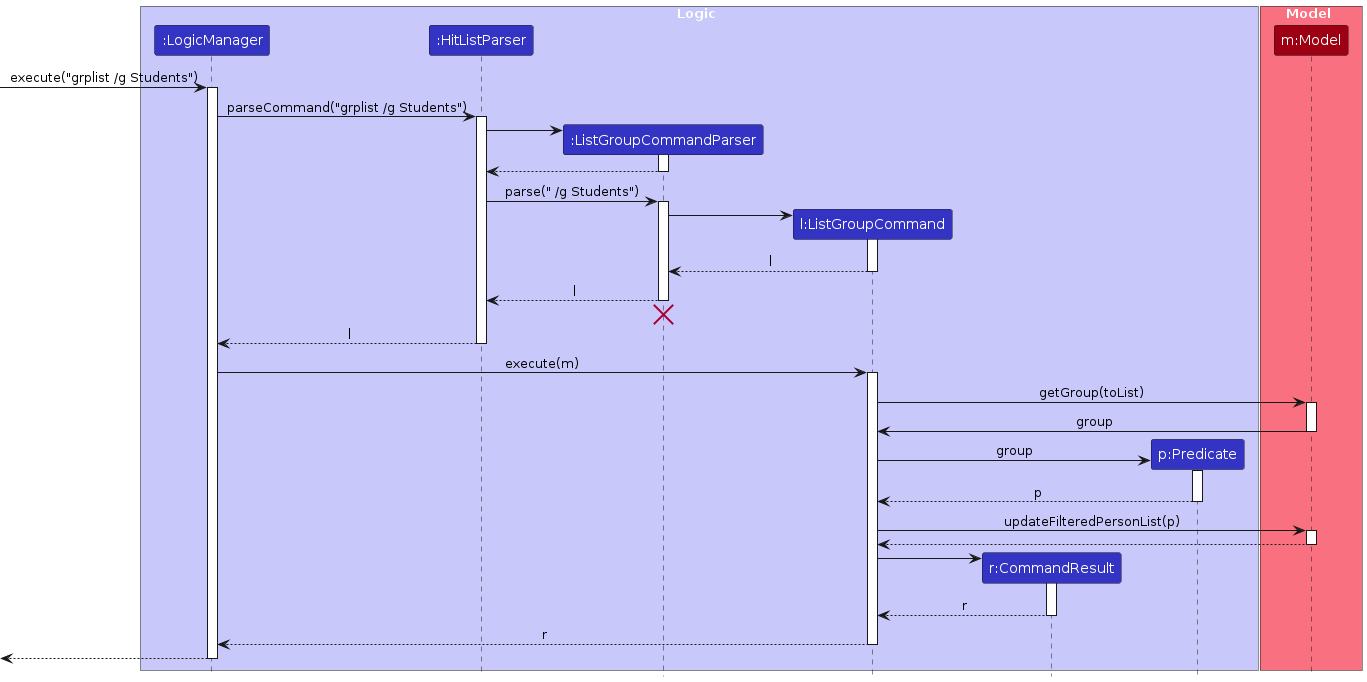
Note
ListGroupCommand and ListGroupCommandParser should end at the destroy marker (X) but due to a limitation of PlantUML, the lifeline reaches the end of diagram.
The following activity diagram summarizes what happens when a user executes the grplist command:
Assigning a contact to a group
The AssignGroup mechanism is facilitated by AssignGroupCommand and its associated parser AssignGroupCommandParser. It allows users to add an existing contact to an existing group in HitList. The feature implements the following key operations:
AssignGroupCommandParser#parse()— Parses the user input to extract the contact name (indicated by the/nprefix) and the group name (indicated by the/gprefix).AssignGroupCommand#execute()— Executes the logic to verify both the contact and group exist, checks that the contact is not already a member, and adds the contact to the group.Group#addMember()— Updates the group within the HitList state by adding the specified contact to the group's member list.Model#updateFilteredPersonList()— Updates the filtered person list to show only members of the target group after the operation.
Given below is an example usage scenario and how the AssignGroup mechanism behaves at each step.
Step 1. The user launches the application and types grpassign /n Alex Yeoh /g Students into the command box.
Step 2. The LogicManager intercepts the user input and calls HitListParser#parseCommand("grpassign /n Alex Yeoh /g Students").
Step 3. Recognizing the grpassign command word, the HitListParser instantiates an AssignGroupCommandParser.
Step 4. The HitListParser calls the parse(" /n Alex Yeoh /g Students") method of the newly created AssignGroupCommandParser. The parser extracts the contact name and group name, creates a new AssignGroupCommand targeting the specified contact and group, and returns it.
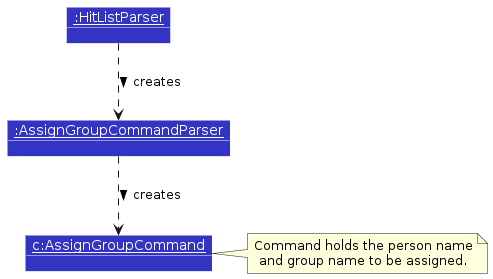
Step 5. The AssignGroupCommand is returned to the LogicManager, and the AssignGroupCommandParser is subsequently destroyed.
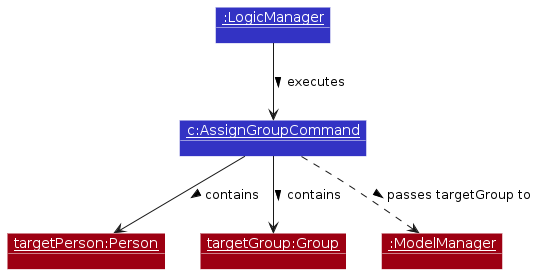
Step 6. LogicManager calls AssignGroupCommand#execute(). The command retrieves the target contact and group, verifies they exist and that the contact is not already a member, then calls Group#addMember(contact) to add the contact to the group.
Step 7. Finally, Storage saves the updated HitList to the hard disk, and the LogicManager returns the CommandResult to the UI to display a success message to the user.
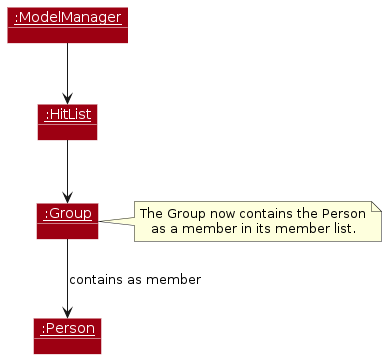
The following sequence diagram shows how an AssignGroup operation goes through the Logic component:
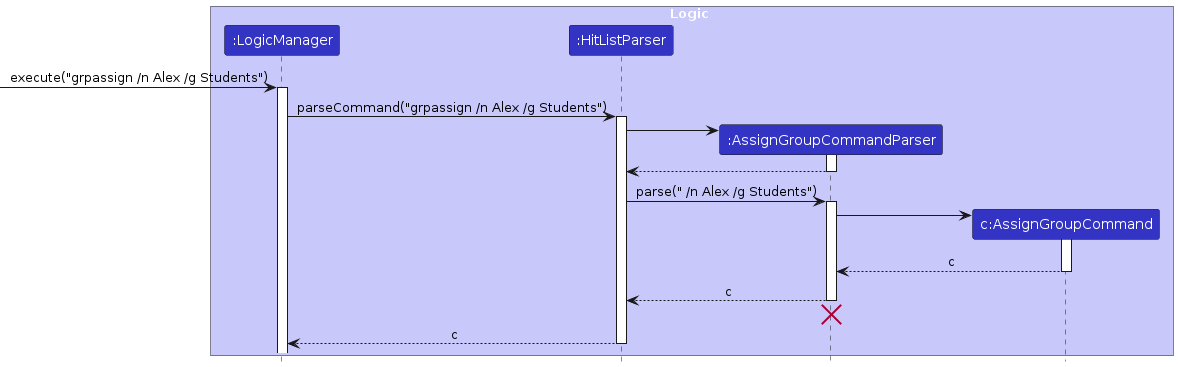
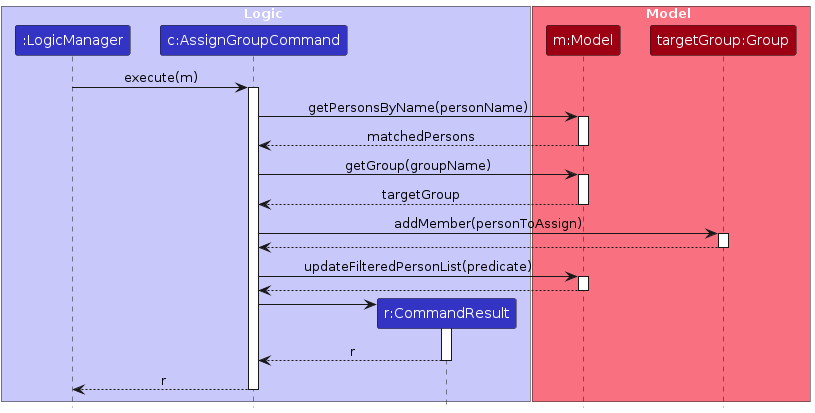
Note
AssignGroupCommand and AssignGroupCommandParser should end at the destroy marker (X) but due to a limitation of PlantUML, the lifeline reaches the end of diagram.
Due to the complexity of the AssignGroup feature, the sequence diagram is split into two parts: the first diagram focuses on the parsing phase, while the second diagram focuses on the execution phase. Both diagrams together provide a complete overview of how an AssignGroup operation flows through the Logic component.
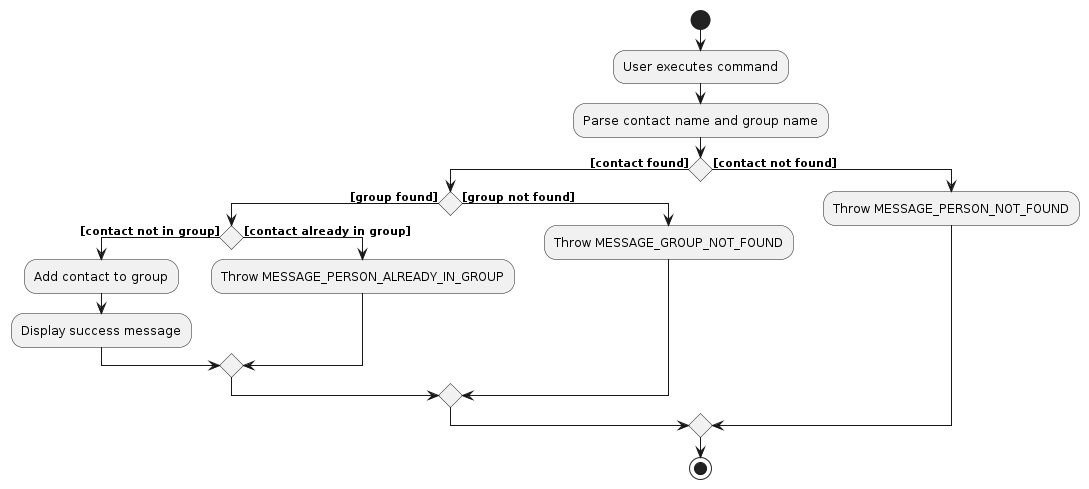
The following activity diagram summarizes what happens when a user executes the grpassign command:
Unassigning a contact from a group
The UnassignGroup mechanism is facilitated by UnassignGroupCommand and its associated parser UnassignGroupCommandParser. It allows users to remove an existing contact from an existing group in HitList. The feature implements the following key operations:
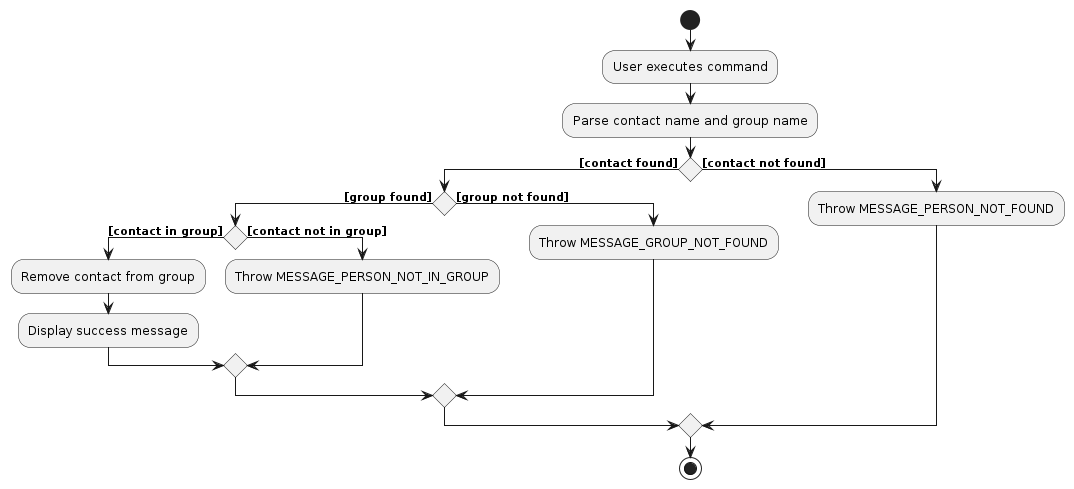
UnassignGroupCommandParser#parse()— Parses the user input to extract the contact name (indicated by the/nprefix) and the group name (indicated by the/gprefix).UnassignGroupCommand#execute()— Executes the logic to verify both the contact and group exist, checks that the contact is currently a member of the group, and removes the contact from the group.Group#removeMember()— Updates the group within the HitList state by removing the specified contact from the group's member list.Model#updateFilteredPersonList()— Updates the filtered person list to show only members of the target group after the operation.
Given below is an example usage scenario and how the UnassignGroup mechanism behaves at each step.
Step 1. The user launches the application and types grpunassign /n Alex Yeoh /g Students into the command box.
Step 2. The LogicManager intercepts the user input and calls HitListParser#parseCommand("grpunassign /n Alex Yeoh /g Students").
Step 3. Recognizing the grpunassign command word, the HitListParser instantiates an UnassignGroupCommandParser.
Step 4. The HitListParser calls the parse(" /n Alex Yeoh /g Students") method of the newly created UnassignGroupCommandParser. The parser extracts the contact name and group name, creates a new UnassignGroupCommand targeting the specified contact and group, and returns it.
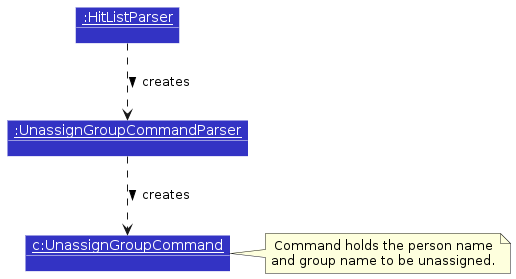
Step 5. The UnassignGroupCommand is returned to the LogicManager, and the UnassignGroupCommandParser is subsequently destroyed.
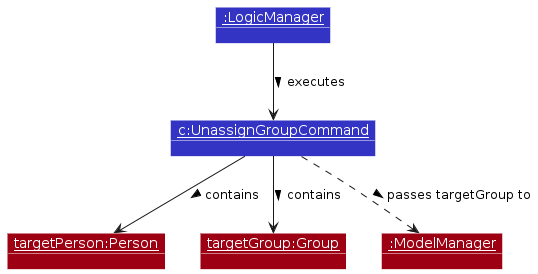
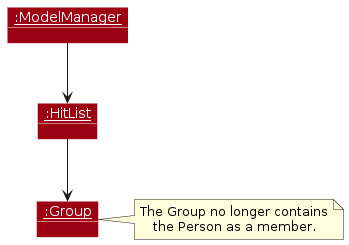
Step 6. LogicManager calls UnassignGroupCommand#execute(). The command retrieves the target contact and group, verifies they exist and that the contact is currently a member, then calls Group#removeMember(contact) to remove the contact from the group.
Step 7. Finally, Storage saves the updated HitList to the hard disk, and the LogicManager returns the CommandResult to the UI to display a success message to the user.
The following sequence diagram shows how an UnassignGroup operation goes through the Logic component:
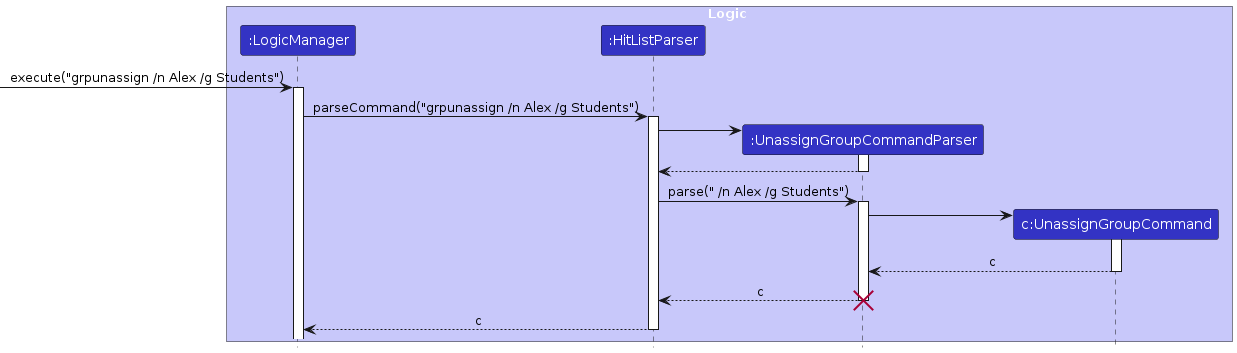
Note
UnassignGroupCommand and UnassignGroupCommandParser should end at the destroy marker (X) but due to a limitation of PlantUML, the lifeline reaches the end of diagram.
The following activity diagram summarizes what happens when a user executes the grpunassign command:
Company Profile
A Company object represents a company profile. It has the following details:
companyName(required): The name of the company.companyDescription(required): A description of the company.companyRoles(optional): A list of roles that the headhunter is recruiting for within the company.
A Role object represents a role that the headhunter is recruiting for within a company. It has the following details:
companyRole(required): The name of the role.companyRoleDescription(required): A description of the role.
Design considerations for Company Parameters:
Aspect: Company Field Requirements:
- Alternative 1 (current choice): Both company name and description are required fields.
- Pros: Ensures that all company profiles have a minimum level of information, which can be useful for the headhunter to quickly identify and differentiate between companies.
- Cons: May be too restrictive for users who want to quickly add a company profile with minimal information and fill in the details later.
- Alternative 2: Only the company name is required, while the description is optional.
- Pros: Provides more flexibility for users to add company profiles with minimal information and update them later as needed.
- Cons: May lead to incomplete company profiles that lack important information, making it harder for the headhunter to manage their client base effectively.
Aspect: Validation of Company Names
- Alternative 1: Use strict regex
^[\p{Alnum}][\p{Alnum} ]*$to only allow alphanumeric characters and spaces.- Pros: Enforces clean data entry and prevents users from accidentally entering malformed data or symbols that might break CLI formatting.
- Cons: Overly restrictive. It prevents users from adding companies with perfectly valid punctuation in their registered names (e.g.,
Macy's,AT&T, orLEAK X'PRESS PLUMBING & CONSTRUCTION).
- Alternative 2 (current choice): Use a custom regex
^[^/\s\p{C}][^/\v\p{C}]{1,49}$(Must not contain/or newlines, and must be between 2 and 50 characters).- Pros: Highly flexible, allowing users to accurately input diverse company names exactly as they are legally registered, including standard punctuation.
- Cons: Too permissive; it could allow users to create completely nonsensical company names consisting entirely of random punctuation marks like
!!!or???.
Aspect: Validation of Company Description
- Alternative 1: Use strict regex
^[\p{Alnum}][\p{Alnum} ]*$to only allow alphanumeric characters and spaces.- Pros: Prevents users from accidentally entering malformed data or using symbols that might break the CLI or JSON storage formatting.
- Cons: Extremely restrictive for a text-heavy field. It prevents users from using basic, necessary punctuation to write readable sentences (e.g., blocking commas, periods, and hyphens in a description like "A fast-growing B2B startup, founded in 2023.").
- Alternative 2 (current choice): Use a custom regex
^[^/\s\p{C}][^/\v\p{C}]{1,999}$(Must not contain/or newlines, and must be between 2 and 1000 characters).- Pros: Highly flexible, allowing users to write detailed, naturally formatted descriptions using full sentences and helpful punctuation.
- Cons: Extremely permissive; it could allow users to enter unhelpful or completely nonsensical descriptions (like
!!!or a string of random symbols) as long as it doesn't violate the basic exclusion rules.
Design considerations for Company Commands:
Aspect: Command Format for Parameters:
- Alternative 1 (current choice): Use prefixes to indicate parameters (e.g.,
/cfor company name,/dfor description).- Pros: Clear and unambiguous parsing of parameters, especially when there are multiple parameters.
- Cons: Requires users to remember and use specific prefixes.
- Alternative 2: Use a fixed order of parameters without prefixes (e.g.,
cmpadd Google Tech Company).- Pros: Simpler command format, less typing for users.
- Cons: Parsing can be more error-prone, especially if parameters can contain spaces or if there are optional parameters.
Aspect: Handling Duplicate Companies:
- Alternative 1 (current choice): Check for duplicates based on company name and reject the addition if a duplicate is found.
- Pros: Prevents cluttering the HitList with duplicate entries, maintains data integrity.
- Cons: Does not account for edge cases where two distinct companies might share the same names.
- Alternative 2: Allow duplicates but provide a warning to the user.
- Pros: Provides flexibility for users who may want to add similar companies, avoids false positives in duplicate detection.
- Cons: Can lead to a cluttered HitList and make it harder for users to manage their contacts effectively.
Adding a company
The AddCompany mechanism is facilitated by AddCompanyCommand and its associated parser AddCompanyCommandParser. It allows users to add a new company to the HitList. The feature implements the following key operations:
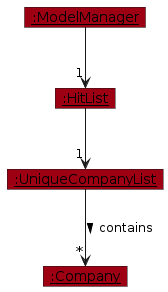
AddCompanyCommandParser#parse()— Parses the user input to extract the company name (indicated by the/cprefix) and the description (indicated by the/dprefix).AddCompanyCommand#execute()— Executes the logic to add the parsed company to the model.Model#addCompany()— Updates the HitList within the Model state with the newly created company.
Given below is an example usage scenario and how the AddCompany mechanism behaves at each step.
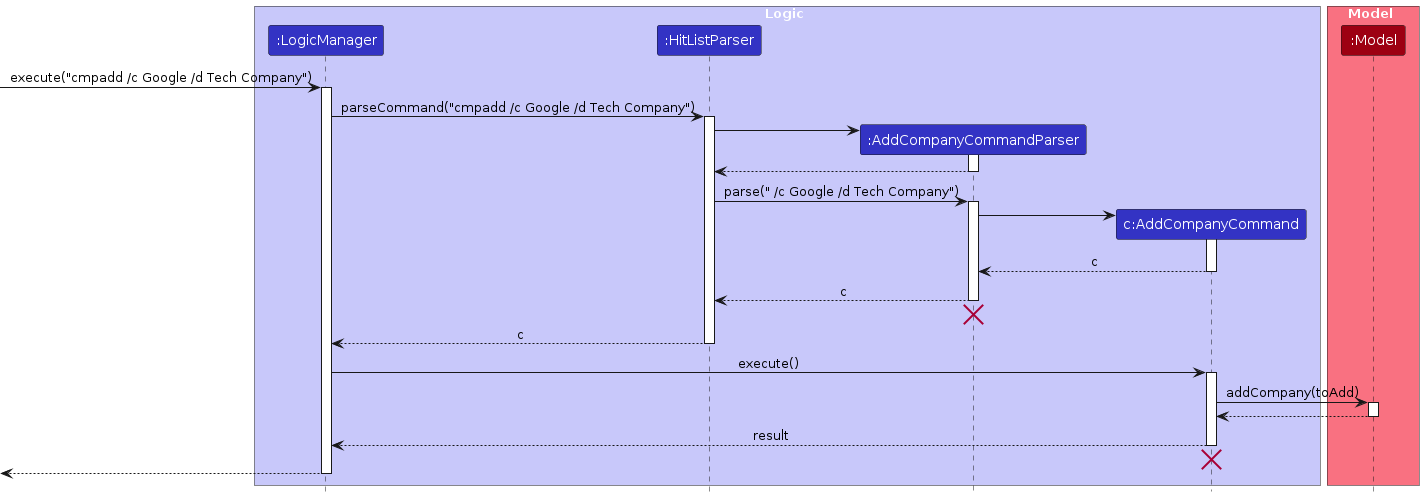
Step 1. The user launches the application and types cmpadd /c Google /d Tech Company into the command box.
Step 2. The LogicManager intercepts the user input and calls HitListParser#parseCommand("cmpadd /c Google /d Tech Company").
Step 3. Recognizing the cmpadd command word, the HitListParser instantiates an AddCompanyCommandParser.
Step 4. The HitListParser calls the parse(" /c Google /d Tech Company") method of the newly created AddCompanyCommandParser. The parser extracts the company details, creates a new Company object (representing Google), and passes it into the constructor of a new AddCompanyCommand.
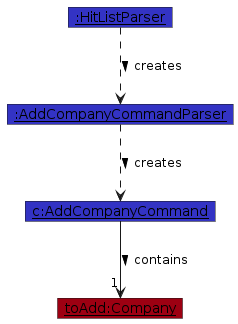
Step 5. The AddCompanyCommand is returned to the LogicManager, and the AddCompanyCommandParser is subsequently destroyed.
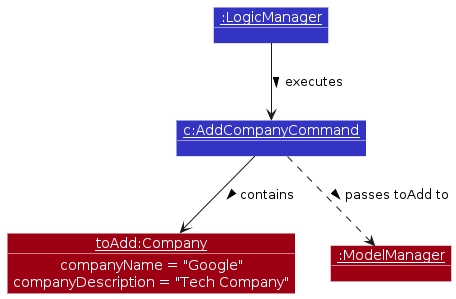
Step 6. LogicManager calls AddCompanyCommand#execute(). This command calls Model#addCompany(companyToAdd), passing the parsed company object to update the internal HitList state.
Step 7. Finally, Storage saves the updated HitList to the hard disk, and the LogicManager returns the CommandResult to the UI to display a success message to the user.
The following sequence diagram shows how an AddCompany operation goes through the Logic component:
Note
AddCompanyCommand and AddCompanyCommandParser should end at the destroy marker (X) but due to a limitation of PlantUML, the lifeline reaches the end of diagram.
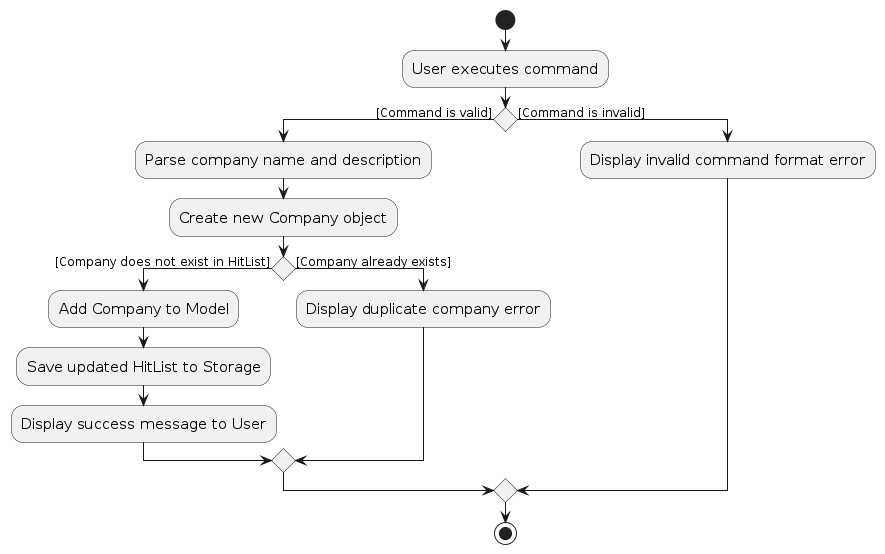
The following activity diagram summarizes what happens when a user executes the cmpadd command:
Deleting a company
The DeleteCompany mechanism is facilitated by DeleteCompanyCommand and its associated parser DeleteCompanyCommandParser. It allows users to remove an existing company from HitList, either by specifying its exact name or its displayed index in the UI.
The feature implements the following key operations:
DeleteCompanyCommandParser#parse()— Parses the user input to determine if the deletion target is an index or a company name (indicated by the/cprefix).DeleteCompanyCommand#execute()— Executes the logic to verify the target's existence and remove it from the model.Model#deleteCompany()— Updates the HitList within the Model state by removing the specified company.
Given below is an example usage scenario and how the DeleteCompany mechanism behaves at each step.
Step 1. The user launches the application and types cmpdel /c Google into the command box.
Step 2. The LogicManager intercepts the user input and calls HitListParser#parseCommand("cmpdel /c Google").
Step 3. Recognizing the cmpdel command word, the HitListParser instantiates a DeleteCompanyCommandParser.
Step 4. The HitListParser calls the parse(" /c Google") method of the newly created DeleteCompanyCommandParser. The parser extracts the target company name, creates a new DeleteCompanyCommand targeting "Google", and returns it.
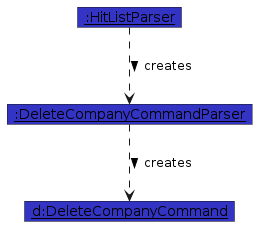
Step 5. The DeleteCompanyCommand is returned to the LogicManager, and the DeleteCompanyCommandParser is subsequently destroyed.
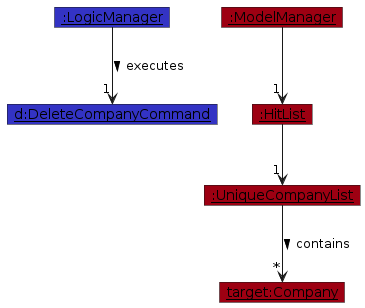
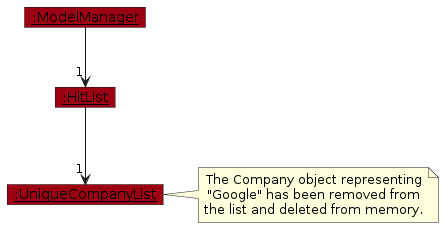
Step 6. LogicManager calls DeleteCompanyCommand#execute(). The command retrieves the target company and calls Model#deleteCompany(target) to remove it from the internal HitList state.
Step 7. Finally, Storage saves the updated HitList to the hard disk, and the LogicManager returns the CommandResult to the UI to display a success message to the user.
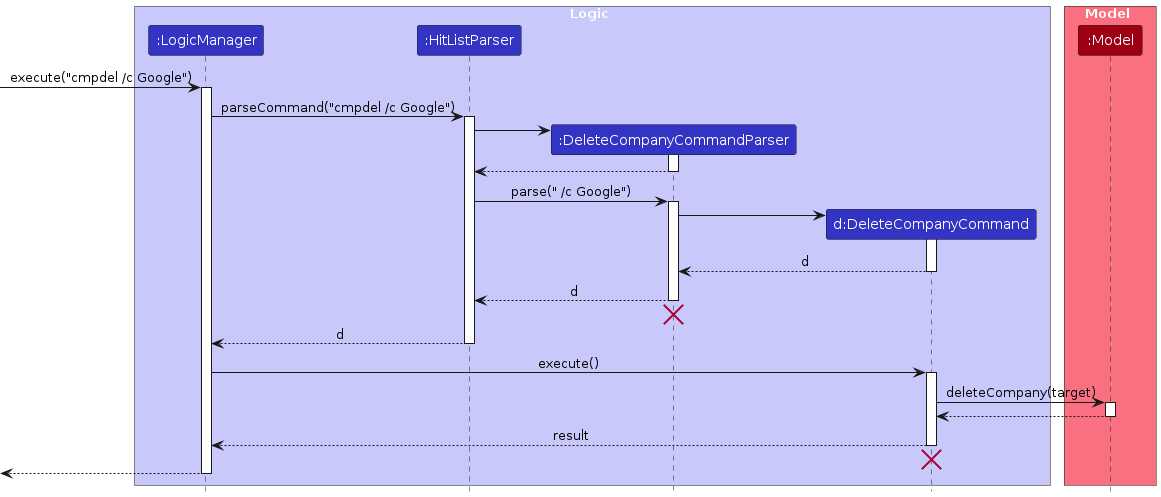
The following sequence diagram shows how a DeleteCompany operation goes through the Logic component:
Note
DeleteCompanyCommand and DeleteCompanyCommandParser should end at the destroy marker (X) but due to a limitation of PlantUML, the lifeline reaches the end of diagram.
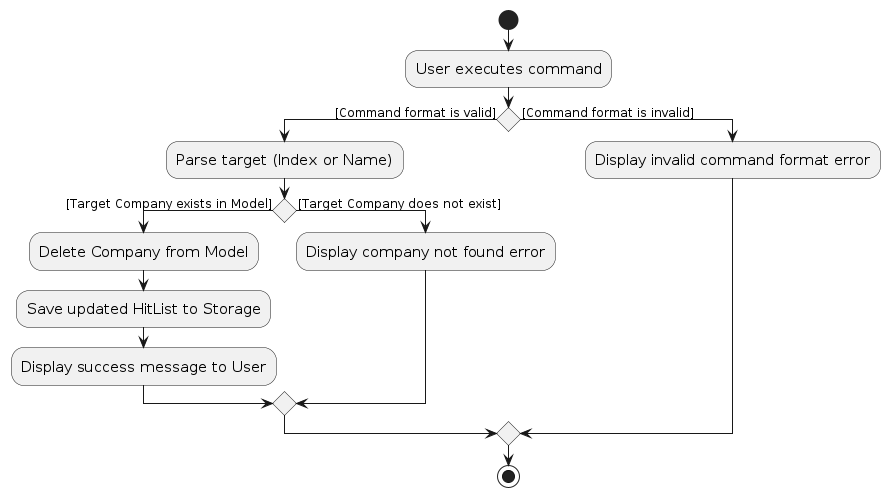
The following activity diagram summarizes what happens when a user executes the cmpdel command:
Listing company profiles
The ListCompany mechanism is facilitated by ListCompanyCommand and its associated parser ListCompanyCommandParser. It allows users to list all company profiles or a specified company profile in the HitList. The feature implements the following key operations:
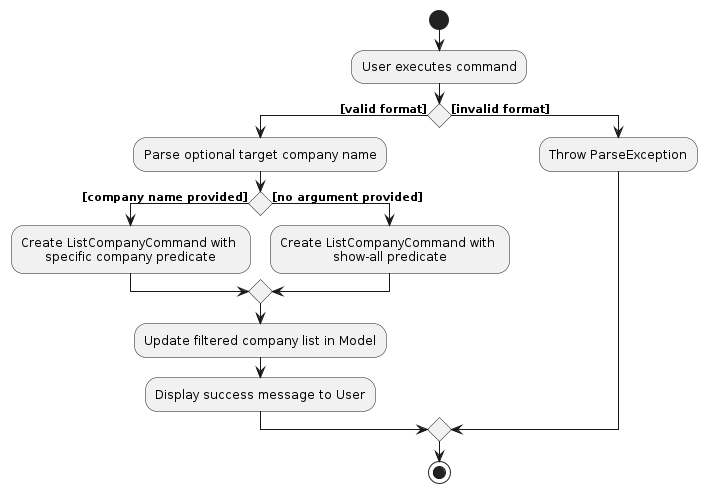
ListCompanyCommandParser#parse()— Parses the user input to check for an optional target company name (indicated by the/cprefix). If a name is provided, it creates a command to filter for that company; otherwise, it creates a command to show all companies.ListCompanyCommand#execute()— Executes the logic to apply the parsed filtering condition to the list of companies in the model.Model#updateFilteredCompanyList()— Updates the HitList's filtered list within the Model state to display only the companies that match the applied condition.
Given below is an example usage scenario and how the ListCompany mechanism behaves at each step.
Step 1. The user launches the application and types cmplist (to see all) or cmplist /c Google (to find a specific company) into the command box.
Step 2. The LogicManager intercepts the user input and calls HitListParser#parseCommand().
Step 3. Recognizing the cmplist command word, the HitListParser instantiates a ListCompanyCommandParser.
Step 4. The HitListParser calls the parse() method of the newly created ListCompanyCommandParser. The parser checks the arguments:
If no argument is provided: It creates a ListCompanyCommand containing the PREDICATE_SHOW_ALL_COMPANIES.
If an argument is provided: It extracts the company name and creates a ListCompanyCommand containing a predicate specific to that target company.
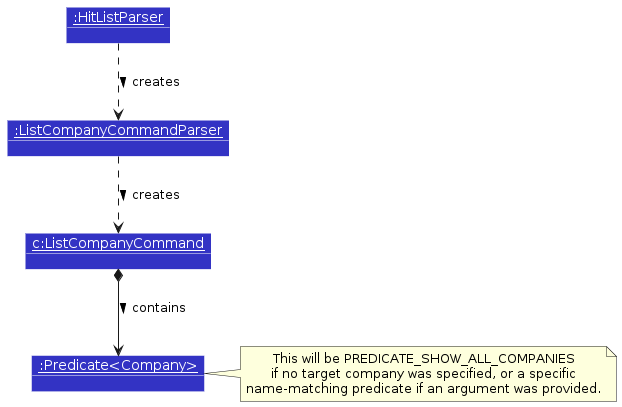
Step 5. The ListCompanyCommand is returned to the LogicManager, and the ListCompanyCommandParser is subsequently destroyed.
Step 6. LogicManager calls ListCompanyCommand#execute(). This command calls Model#updateFilteredCompanyList(predicate), passing the specific predicate determined in Step 4 to filter the internal HitList state.
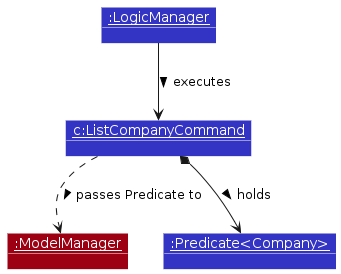
Step 7. Since the underlying data was not modified, Storage does not need to save anything to the hard disk. The LogicManager simply returns the CommandResult to the UI to display the updated list and a success message to the user.
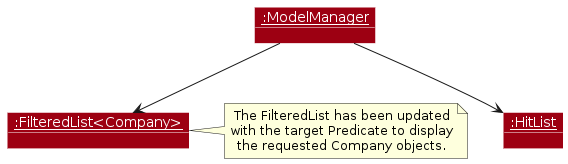
The following sequence diagram shows how a ListCompany operation goes through the Logic component:
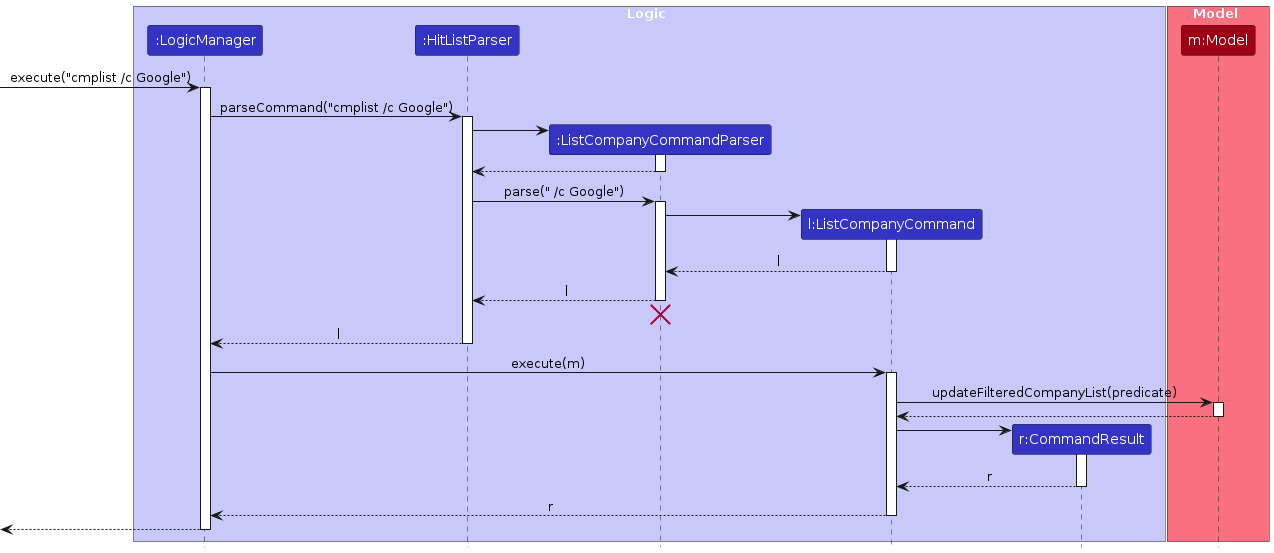
Note
ListCompanyCommand and ListCompanyCommandParser should end at the destroy marker (X) but due to a limitation of PlantUML, the lifeline reaches the end of diagram.
The following activity diagram summarizes what happens when a user executes the cmplist command, highlighting the branching logic based on user input:
Finding company profiles
The FindCompany mechanism is facilitated by FindCompanyCommand and its associated parser FindCompanyCommandParser. It allows users to find company profiles in the HitList based on a search keyword. The feature implements the following key operations:
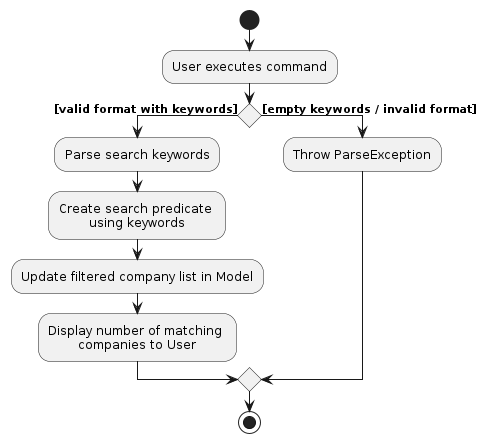
FindCompanyCommandParser#parse()— Parses the user input to extract the search keywords.FindCompanyCommand#execute()— Executes the logic to apply the parsed search condition to the list of companies in the model.Model#updateFilteredCompanyList()— Updates the HitList's filtered list within the Model state to display only the companies that match the applied search condition.
Given below is an example usage scenario and how the FindCompany mechanism behaves at each step.
Step 1. The user launches the application and types cmpfind Google into the command box.
Step 2. The LogicManager intercepts the user input and calls HitListParser#parseCommand("cmpfind Google").
Step 3. Recognizing the cmpfind command word, the HitListParser instantiates a FindCompanyCommandParser.
Step 4. The HitListParser calls the parse("Google") method of the newly created FindCompanyCommandParser. The parser extracts the search keyword, creates a new FindCompanyCommand containing a predicate specific to that keyword, and returns it.
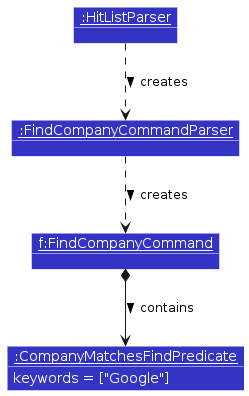
Step 5. The FindCompanyCommand is returned to the LogicManager, and the FindCompanyCommandParser is subsequently destroyed.
Step 6. LogicManager calls FindCompanyCommand#execute(). This command calls Model#updateFilteredCompanyList(predicate), passing the specific predicate determined in Step 4 to filter the internal HitList state.
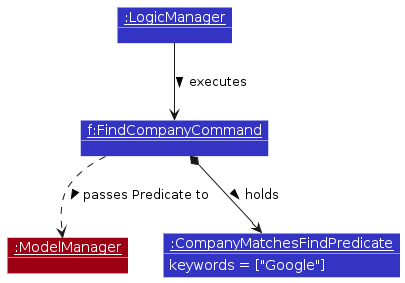
Step 7. Since the underlying data was not modified, Storage does not need to save anything to the hard disk. The LogicManager simply returns the CommandResult to the UI to display the updated list and a success message to the user.
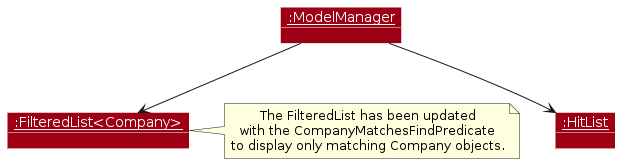
The following sequence diagram shows how a FindCompany operation goes through the Logic component:
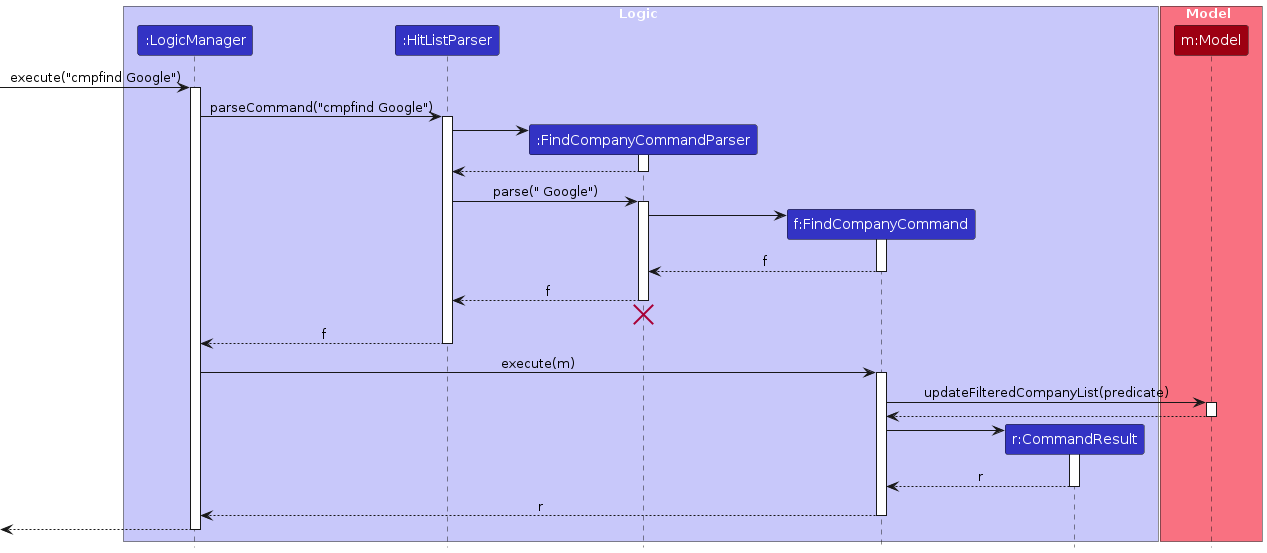
Note
FindCompanyCommand and FindCompanyCommandParser should end at the destroy marker (X) but due to a limitation of PlantUML, the lifeline reaches the end of diagram.
The following activity diagram summarizes what happens when a user executes the cmpfind command:
Design considerations for Roles Parameters:
Aspect: Role Field Requirements:
- Alternative 1 (current choice): Both role name and role description are required fields.
- Pros: Ensures that all roles have a minimum level of information, which can be useful for the headhunter to quickly identify the requirements of clients request.
- Cons: May be too restrictive for users who want to quickly add a role without the description first and fill in the details later.
- Alternative 2: Only the role name is required, while the description is optional.
- Pros: Provides more flexibility for users to add roles without description and update them later as needed.
- Cons: May lead to incomplete roles that lack important descriptions, making it harder for the headhunter to manage their client base effectively.
Aspect: Validation of Role Names
- Alternative 1: Use strict regex
^[\p{Alnum}][\p{Alnum} ]*$to only allow alphanumeric characters and spaces.- Pros: Enforces clean data entry, preventing users from accidentally entering malformed data or symbols that might disrupt CLI parsing.
- Cons: Too restrictive. It prevents users from adding perfectly valid roles that rely on standard industry punctuation (e.g., "Front-end Developer", "C++ Engineer", or "UI/UX Designer").
- Alternative 2 (current choice): Use a custom regex
^[^/\s\p{C}][^/\v\p{C}]{1,49}$(Must not contain/or newlines, and must be between 2 and 50 characters).- Pros: Highly flexible, allowing users to accurately input diverse job titles exactly as they appear in the market, including standard punctuation.
- Cons: Extremely permissive; it could allow users to create completely nonsensical role titles consisting entirely of random punctuation marks like
!!!or???.
Aspect: Validation of Role Description
- Alternative 1: Use strict regex
^[\p{Alnum}][\p{Alnum} ]*$to only allow alphanumeric characters and spaces.- Pros: Prevents users from accidentally entering malformed data or using symbols that might break the CLI or JSON storage formatting.
- Cons: Highly impractical for a descriptive field. It prevents users from writing natural sentences and using basic punctuation (e.g., blocking commas, periods, and symbols like
+or&in a description such asRequires 5+ years of experience in C++ & Python.).
- Cons: Highly impractical for a descriptive field. It prevents users from writing natural sentences and using basic punctuation (e.g., blocking commas, periods, and symbols like
- Pros: Prevents users from accidentally entering malformed data or using symbols that might break the CLI or JSON storage formatting.
- Alternative 2 (current choice): Use a custom regex
^[^/\s\p{C}][^/\v\p{C}]{1,999}$(Must not contain/or newlines, and must be between 2 and 1000 characters).- Pros: Maximum flexibility, allowing users to write detailed, naturally formatted role requirements and descriptions.
- Cons: Too permissive; it could allow users to enter unhelpful or completely nonsensical descriptions (like
!!!or a string of random symbols) as long as it doesn't violate the basic exclusion rules.
Design considerations for Roles Commands:
Aspect: Command Format for Parameters:
- Alternative 1 (current choice): Use prefixes to indicate parameters (e.g.,
/rfor role name,/dfor role description).- Pros: Clear and unambiguous parsing of parameters, especially when there are multiple parameters.
- Cons: Requires users to remember and use specific prefixes.
- Alternative 2: Use a fixed order of parameters without prefixes (e.g.,
roleadd Software Engineer Develops Software).- Pros: Simpler command format, less typing for users.
- Cons: Parsing can be more error-prone, especially if parameters can contain spaces or if there are optional parameters.
Aspect: Handling Duplicate Roles:
- Alternative 1 (current choice): Check for duplicates based on role name and reject the addition if a duplicate is found.
- Pros: Prevents cluttering the HitList with duplicate entries, maintains data integrity.
- Cons: Does not account for edge cases where two distinct roles might share the same names.
- Alternative 2: Allow duplicates but provide a warning to the user.
- Pros: Provides flexibility for users who may want to add similar roles, avoids false positives in duplicate detection.
- Cons: Can lead to a cluttered HitList and make it harder for users to manage the company roles effectively.
Adding a role to a specified company
The AddRole mechanism is facilitated by AddCompanyRoleCommand and its associated parser AddCompanyRoleCommandParser. It allows users to add a new role to an existing company in the HitList. The feature implements the following key operations:
AddCompanyRoleCommandParser#parse()— Parses the user input to extract the target company (indicated by the/cprefix), role name (indicated by the/rprefix) and role description (indicated by the/dprefix).AddCompanyRoleCommand#execute()— Executes the logic to add the parsed role to the target company in the model.Model#addCompanyRole()— Updates the HitList within the Model state by adding the new role to the target company.
Given below is an example usage scenario and how the AddRole mechanism behaves at each step.
Step 1. The user launches the application and types roleadd /c Google /r Software Engineer /d Develops Software into the command box.
Step 2. The LogicManager intercepts the user input and calls HitListParser#parseCommand("roleadd /c Google /r Software Engineer /d Develops Software").
Step 3. Recognizing the roleadd command word, the HitListParser instantiates an AddCompanyRoleCommandParser.
Step 4. The HitListParser calls the parse(" /c Google /r Software Engineer /d Develops Software") method of the newly created AddCompanyRoleCommandParser. The parser extracts the target company name, role details, creates a new Role object (representing Software Engineer), and passes it into the constructor of a new AddCompanyRoleCommand.
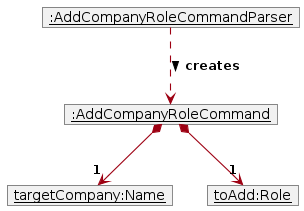
Step 5. The AddCompanyRoleCommand is returned to the LogicManager, and the AddCompanyRoleCommandParser is subsequently destroyed.
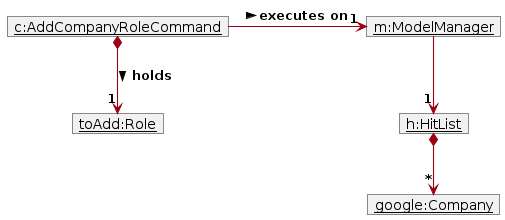
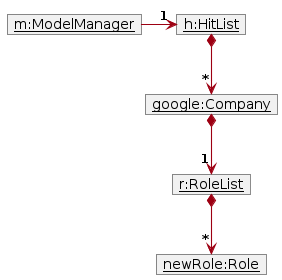
Step 6. LogicManager calls AddCompanyRoleCommand#execute(). This command calls Model#addCompanyRole(targetCompany, roleToAdd), passing the target company and the parsed role object to update the internal HitList state.
Step 7. Finally, Storage saves the updated HitList to the hard disk, and the LogicManager returns the CommandResult to the UI to display a success message to the user.
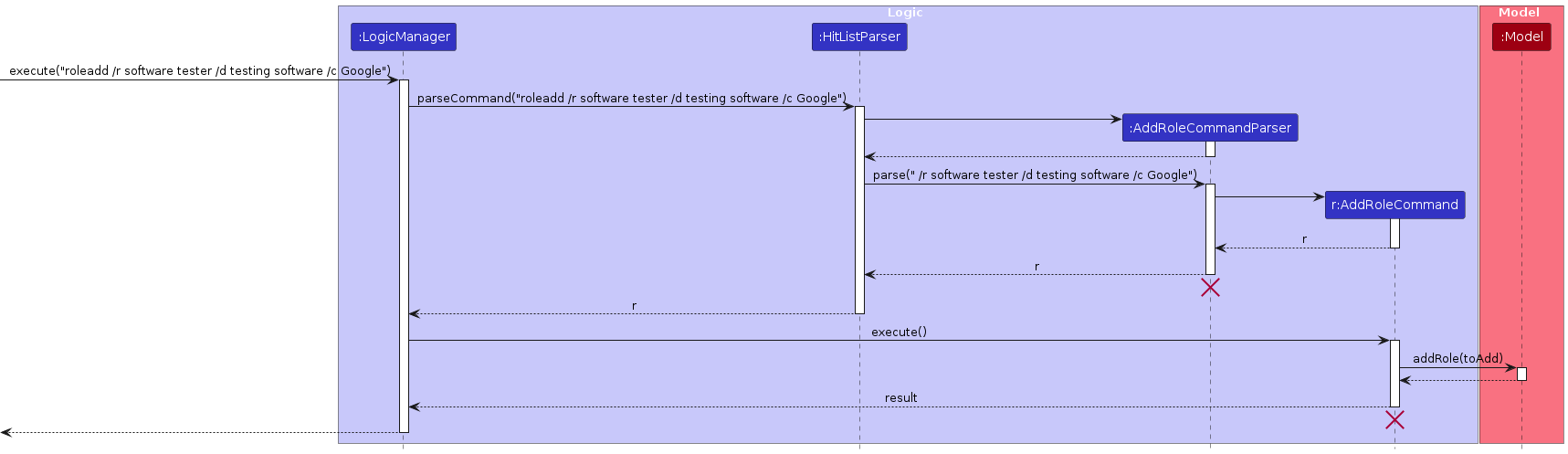
The following sequence diagram shows how an AddRole operation goes through the Logic component:
Note
AddCompanyRoleCommand and AddCompanyRoleCommandParser should end at the destroy marker (X) but due to a limitation of PlantUML, the lifeline reaches the end of diagram.
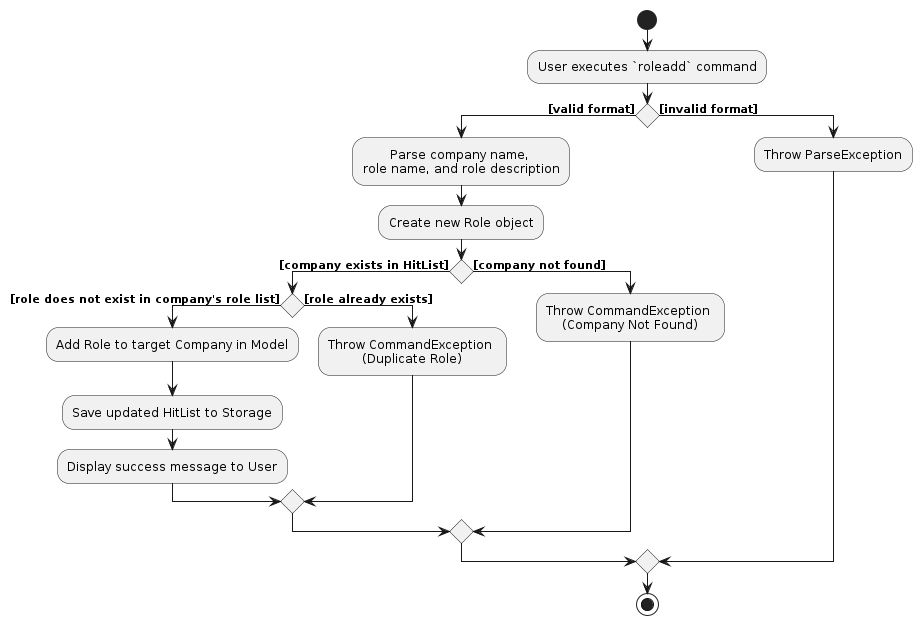
The following activity diagram summarizes what happens when a user executes the roleadd command:
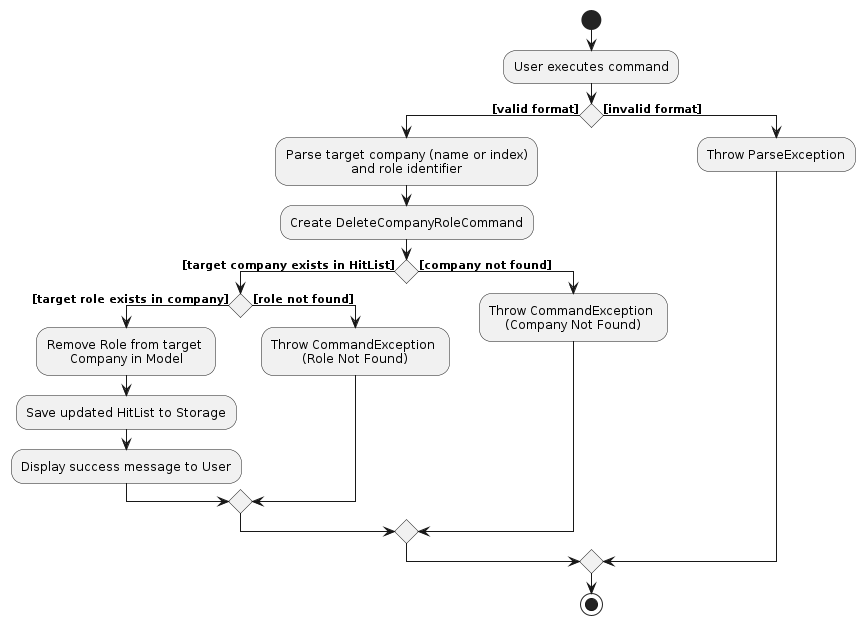
Deleting a role from a specified company
The DeleteRole mechanism is facilitated by DeleteCompanyRoleCommand and its associated parser DeleteCompanyRoleCommandParser. It allows users to remove an existing role from a company in the HitList, either by specifying the role's name or its displayed index in the UI.
The feature implements the following key operations:
DeleteCompanyRoleCommandParser#parse()— Parses the user input to determine if the deletion target is an index or a role name (indicated by the/rprefix), as well as the target company (indicated by the/cprefix).DeleteCompanyRoleCommand#execute()— Executes the logic to verify the target's existence and remove it from the target company in the model.Model#deleteCompanyRole()— Updates the HitList within the Model state by removing the specified role from the target company.
Given below is an example usage scenario and how the DeleteRole mechanism behaves at each step.
Step 1. The user launches the application and types roledel /c Google /r SE into the command box.
Step 2. The LogicManager intercepts the user input and calls HitListParser#parseCommand("roledel /c Google /r SE").
Step 3. Recognizing the roledel command word, the HitListParser instantiates a DeleteCompanyRoleCommandParser.
Step 4. The HitListParser calls the parse(" /c Google /r SE") method of the newly created DeleteCompanyRoleCommandParser. The parser extracts the target company name, role name, creates a new DeleteCompanyRoleCommand targeting the "Software Engineer" role in "Google", and returns it.
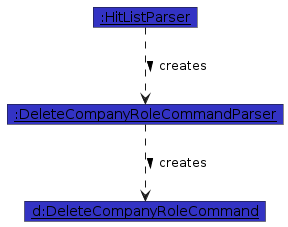
Step 5. The DeleteCompanyRoleCommand is returned to the LogicManager, and the DeleteCompanyRoleCommandParser is subsequently destroyed.
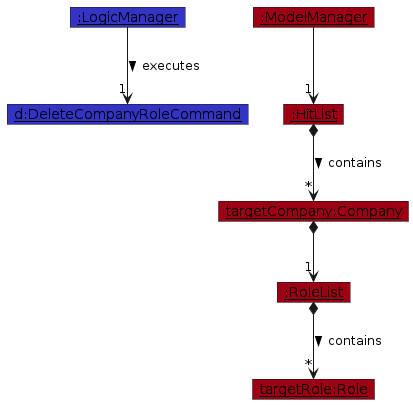
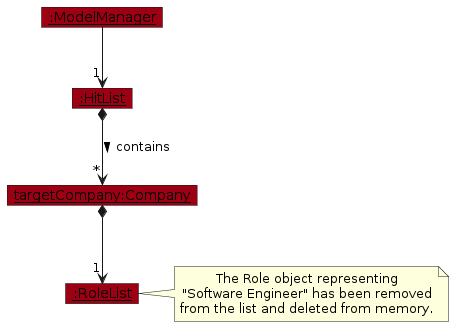
Step 6. LogicManager calls DeleteCompanyRoleCommand#execute(). The command retrieves the target company and role, and calls Model#deleteCompanyRole(targetCompany, targetRole) to remove the role from the target company in the internal HitList state.
Step 7. Finally, Storage saves the updated HitList to the hard disk, and the LogicManager returns the CommandResult to the UI to display a success message to the user.
The following sequence diagram shows how a DeleteRole operation goes through the Logic component:
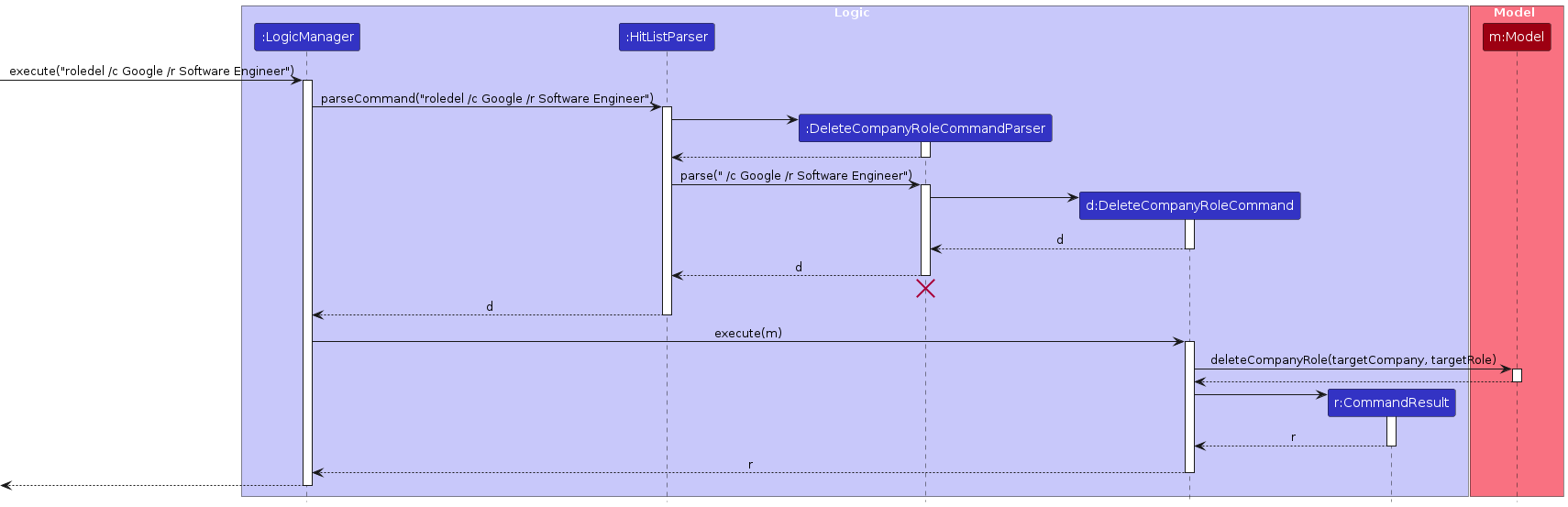
Note
DeleteCompanyRoleCommand and DeleteCompanyRoleCommandParser should end at the destroy marker (X) but due to a limitation of PlantUML, the lifeline reaches the end of diagram.
The following activity diagram summarizes what happens when a user executes the roledel command:
[Proposed] Undo/redo feature
Design considerations:
Aspect: How undo & redo executes:
Alternative 1 (current choice): Saves the entire HitList.
- Pros: Easy to implement.
- Cons: May have performance issues in terms of memory usage.
Alternative 2: Individual command knows how to undo/redo by itself.
- Pros: Will use less memory (e.g. for
delete, just save the person being deleted). - Cons: We must ensure that the implementation of each individual command are correct.
- Pros: Will use less memory (e.g. for
Proposed Implementation
The proposed undo/redo mechanism is facilitated by VersionedHitList. It extends HitList with an undo/redo history, stored internally as an hitListStateList and currentStatePointer. Additionally, it implements the following operations:
VersionedHitList#commit()— Saves the current HitList state in its history.VersionedHitList#undo()— Restores the previous HitList state from its history.VersionedHitList#redo()— Restores a previously undone HitList state from its history.
These operations are exposed in the Model interface as Model#commitHitList(), Model#undoHitList() and Model#redoHitList() respectively.
Given below is an example usage scenario and how the undo/redo mechanism behaves at each step.
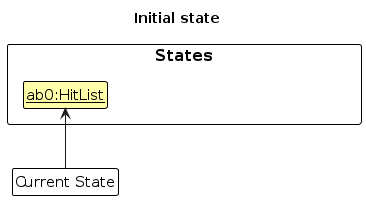
Step 1. The user launches the application for the first time. The VersionedHitList will be initialized with the initial HitList state, and the currentStatePointer pointing to that single HitList state.
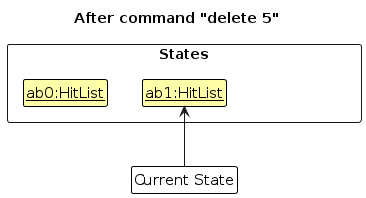
Step 2. The user executes delete 5 command to delete the 5th person in HitList. The delete command calls Model#commitHitList(), causing the modified state of HitList after the delete 5 command executes to be saved in the hitListStateList, and the currentStatePointer is shifted to the newly inserted HitList state.
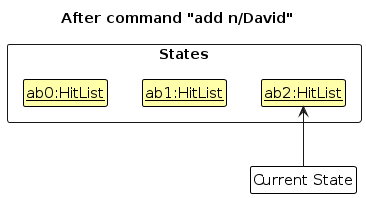
Step 3. The user executes add n/David … to add a new person. The add command also calls Model#commitHitList(), causing another modified HitList state to be saved into the hitListStateList.
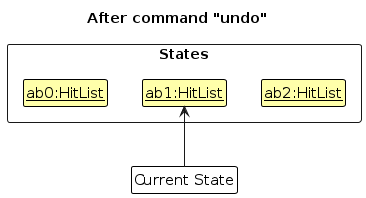
Step 4. The user now decides that adding the person was a mistake, and decides to undo that action by executing the undo command. The undo command will call Model#undoHitList(), which will shift the currentStatePointer once to the left, pointing it to the previous HitList state, and restores HitList to that state.
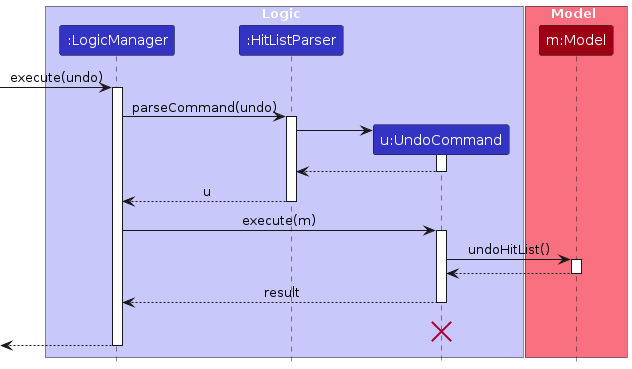
The following sequence diagram shows how an undo operation goes through the Logic component:
Note
UndoCommand should end at the destroy marker (X) but due to a limitation of PlantUML, the lifeline reaches the end of diagram.
Similarly, how an undo operation goes through the Model component is shown below:
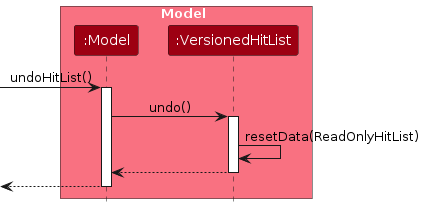
The redo command does the opposite — it calls Model#redoHitList(), which shifts the currentStatePointer once to the right, pointing to the previously undone state, and restores HitList to that state.
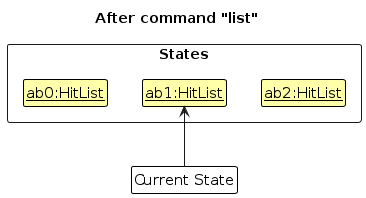
Step 5. The user then decides to execute the command list. Commands that do not modify HitList, such as list, will usually not call Model#commitHitList(), Model#undoHitList() or Model#redoHitList(). Thus, the hitListStateList remains unchanged.
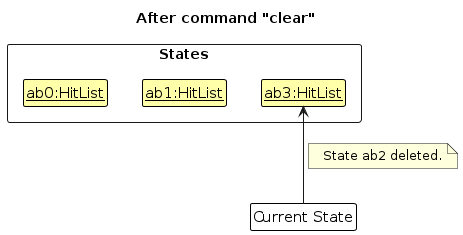
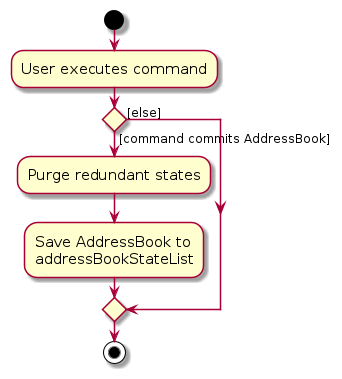
Step 6. The user executes clear, which calls Model#commitHitList(). Since the currentStatePointer is not pointing at the end of the hitListStateList, all HitList states after the currentStatePointer will be purged. Reason: It no longer makes sense to redo the add n/David … command. This is the behavior that most modern desktop applications follow.
The following activity diagram summarizes what happens when a user executes a new command:
Documentation, logging, testing, configuration, dev-ops
Appendix: Requirements
Product scope
Target user profile:
- headhunters and recruiters
- fast typist
- headhunts for multiple companies
- needs to track both candidate and company contacts
- needs to keep track of candidates' status (unemployed/graduating/etc.)
Value proposition: alleviate the logistics of matching candidates to clients
User stories
Priorities: High (must have) - * * *, Medium (nice to have) - * *, Low (unlikely to have) - *
| Priority | As a … | I want to … | So that I can… |
|---|---|---|---|
* * * | Headhunter | add new candidate contacts | build a database of potential hires for future placements |
* * * | Headhunter | delete candidate contacts | keep my database uncluttered and remove candidates who are no longer active in the job market |
* * | Headhunter | edit a candidate's basic contact details | keep my database updated with their most current phone numbers and emails |
* * * | Headhunter | list candidate contacts | browse my talent pool to locate specific individuals |
* * | Headhunter | find candidate contacts | pull up a specific individual's profile instantly during an unscheduled phone call |
* * * | Headhunter | add contact groups | keep track of which candidates are headhunted for the companies |
* * * | Headhunter | delete contact groups | remove the group for a role when it is already filled |
* * * | Headhunter | list contact groups | get a high-level overview of all the active talent niches I am currently managing. |
* * * | Headhunter | add contacts to contact groups | build a targeted shortlist of candidates for a specific job opening |
* * * | Headhunter | delete contacts from contact groups | keep my shortlist accurate by removing candidates who are no longer in the running for that role |
* * * | Headhunter | list contact group members | easily evaluate and compare all shortlisted candidates for a specific open position |
* * | Headhunter | find group members | identify a subset of candidates within a large shortlist who best match a specific company's requirements |
* * * | Headhunter | add company profile | keep track of the companies I am headhunting for |
* * * | Headhunter | delete company profile | remove the companies that have stopped using my headhunting services |
* * * | Headhunter | list all company profile | assess the diversity and volume of my current client portfolio |
* * * | Headhunter | list specific company profile | review the details of a particular client to understand their requirements and preferences |
* * | Headhunter | find specific company profile | access the history of a client while preparing a contract |
* * * | Headhunter | add company roles to company profile | maintain comprehensive records of my clients' requirements and contact information |
* * * | Headhunter | delete company roles from company profile | keep my client records accurate by removing outdated or incorrect information |
* * * | Headhunter | list roles for a specific company profile | review all the active job placements that particular client has hired me to fill |
The following user stories are not implemented in the current version of HitList, but are planned for future iterations:
| Priority | As a … | I want to … | So that I can… |
|---|---|---|---|
* * | Headhunter | edit contact group details | rename talent segments to stay aligned with evolving job market titles |
* * | Headhunter | find contact groups | jump directly to the specific talent pool needed for a new client request |
* * | Headhunter | edit company profile | ensure the database reflects accurate details if a client rebrands |
* * | Headhunter | undo an addition command | quickly remove accidentally added records without manually deleting them. |
* * | Headhunter | find roles for a specific company | match a candidate's unique skillset to a specific opening within a client's firm |
* * | Headhunter | edit company roles in company profile | update job descriptions as requirements shift |
Use cases
For all use cases below, the System is the HitList, Actor is the user and Precondition is the app actively runs and runs on Java 17, unless specified otherwise
MSS
- User requests to add a contact
- System creates the contact
- System confirms that the contact has been created
Use case ends.
Extensions
- 1a. System detects that a contact with the same name already exists.
- 1a1. System shows previously added contact with the same name message
Use case ends.
MSS
- User requests to delete a contact
- System deletes the contact
- System confirms that the contact has been deleted
Use case ends.
Extensions
- 1a. System detects that the requested contact does not exist.
- 1a1. System shows requested contact does not exist message
Use case ends.
MSS
Similar to Use case 1 (Add a contact), except the user requests to edit an existing contact rather than add a new one, and HitList updates the contact in place.
Extensions
- 1a. System detects that the requested contact does not exist.
- 1a1. System shows requested contact does not exist message.
- 1b. System detects that the new contact details conflict with an existing contact (i.e., same name).
- 1b1. System shows contact details conflict with existing contact message.
- 1c. System detects that the new contact details are the same as the existing contact details.
- 1c1. System shows contact details are the same as existing contact message.
- 1d. System detects that the new contact details are invalid (e.g. invalid phone number format).
- 1d1. System shows invalid contact details message.
Use case ends.
MSS
Similar to Use case 1 (Add a contact), except the user requests to add a contact group, and HitList creates the contact group.
Extensions
- 1a. System detects that a contact group with the same name already exists
- 1a1. System shows contact group already exists message
Use case ends.
MSS
Similar to Use case 2 (Delete a contact), except the user requests to delete a contact group, and HitList deletes the contact group.
Extensions
- 1a. System detects that the contact group does not exist.
- 1a1. System shows contact group does not exist message
Use case ends.
MSS
- User creates a contact (UC1)
- User creates a contact group (UC5)
- User requests to add the contact to the contact group
- System adds the contact to the contact group
- System informs user that the contact has been added to the contact group
Use case ends.
Extensions
- 3a. System detects that the contact is already in the contact group
- 3a1. System shows contact is already in the contact group message
- 3b. System detects that contact group does not exist
- 3b1. System shows contact group does not exist message
- 3c. System detects that contact does not exist
- 3c1. System shows contact does not exist message
Use case ends.
MSS
- User requests to remove a contact from a contact group
- System removes the contact from the contact group
- System informs user that the contact has been removed from the contact group
Use case ends.
Extensions
- 1a. System detects there is no such contact in the contact group
- 1a1. System shows contact is not in the contact group message
- 1b. System detects that contact group does not exist
- 1b1. System shows contact group does not exist message
- 1c. System detects that contact does not exist
- 1c1. System shows contact does not exist message
Use case ends.
MSS
- User requests to list contact group members of a specified contact group
- System displays all contact group members of the specified contact group
Use case ends.
Extensions
- 1a. System detects that the specified contact group does not exist
- 1a1. System shows contact group does not exist message
- 2a. System detects that the specified contact group has no members
- 2a1. System shows contact group has no members message
Use case ends.
MSS
Similar to Use case 1 (Add a contact), except the user requests to add a company profile, and HitList creates the company profile.
Extensions
- 1a. System detects that a company profile with the same name already exists
- 1a1. System shows company profile already exists message
Use case ends.
MSS
Similar to Use case 2 (Delete a contact), except the user requests to delete a company profile, and HitList removes the company profile.
Extensions
- 1a. System detects that the specified company does not exist
- 1a1. System shows company profile does not exist message
Use case ends.
MSS
Similar to Use case 4 (List contacts), except the user requests to list all company profiles, and HitList displays all company profiles.
Extensions
- 2a. System detects that there are no company profiles
- 2a1. System shows no company profiles message
Use case ends.
MSS
- User adds a company profile (UC11)
- User requests to add a company role to the company profile
- System updates the company profile with the new role
- System confirms that the company role has been added
Use case ends.
Extensions
- 2a. System detects that the specified company profile does not exist
- 2a1. System shows company profile does not exist message
- 2b. System detects that the company role already exists in the company profile
- 2b1. System shows company role already exists message
Use case ends.
MSS
- User requests to delete a company role from a company profile
- System removes the company role from the company profile
- System confirms that the company role has been deleted
Use case ends.
Extensions
- 1a. System detects that the specified company profile does not exist
- 1a1. System shows company profile does not exist message
- 1b. System detects that the company role does not exist in the company profile
- 1b1. System shows company role does not exist message
Use case ends.
MSS
- User requests to view a company profile by name
- System retrieves the company profile
- System displays the company name and all its associated company roles
Use case ends.
Extensions
- 1a. System detects that the specified company profile does not exist
- 1a1. System shows company profile does not exist message
- 3a. System detects that the company profile has no associated roles
- 3a1. System shows company has no active roles message
Use case ends.
Non-Functional Requirements
- Should work on any mainstream OS as long as it has Java
17or above installed. - Should be able to hold up to 1000 persons without a noticeable sluggishness in performance for typical usage.
- A user with above average typing speed for regular English text (i.e. not code, not system admin commands) should be able to accomplish most of the tasks faster using commands than using the mouse.
- The system should be able to run without internet access.
- The system should respond to the user within 2 seconds for all valid user commands.
- The system should remain responsive while processing invalid user commands and should return an appropriate error message.
- The system should enforce data integrity by treating all unique identifiers for contacts, contact groups, and company profiles as case-insensitive across all storage mechanisms, indexing, and validation checks.
Contact Non-Functional Requirements
- The system should be able to support up to 1000 contacts without exceeding the 2 seconds response time limit for operations such as adding, deleting, listing of contacts.
- The system should be able to support at least 10 contact groups for a contact without exceeding the 2 seconds response time limit for operations such as adding, deleting, listing of contact groups for a contact.
Contact Group Non-Functional Requirements
- The system should be able to support at least 500 contact groups without exceeding the 2 seconds response time limit for operations such as adding, deleting, listing of contact groups.
- The system should be able to support at least 100 contacts in a contact group without exceeding the 2 seconds response time limit for operations such as adding, deleting, listing of contact group members.
Company Profile Non-Functional Requirements
- The system should support at least 100 company profiles without exceeding the 2 seconds response time limit for operations such as adding, deleting, listing of company profiles.
- The system should support at least 50 roles in a company profile without exceeding the 2 seconds response time limit for operations such as adding, deleting, listing of company roles.
Glossary
- Above average typing speed: 40 words per minute (wpm) or more for regular English text (i.e. not code, not system admin commands).
- API (Application Programming Interface): A set of defined rules that allow different software components to communicate with each other.
- CLI (Command Line Interface): A text-based interface where users interact with the system by typing specific commands.
- Company Description: A detail of a company profile that describes the company. A company profile must have a company description.
- Company Profile: A stored record representing a client company that the headhunter is recruiting for.
- Company Role: A detail of a company profile that describes the role that the headhunter is recruiting for. A company profile may or may not have company roles.
- Company Role Description: A detail describing the role that the headhunter is recruiting for within the company. A company role must have a company role description.
- Contact: A stored record representing a potential candidate that the headhunter is recruiting for.
- Contact Group: A label used to identify different contacts and group similar contacts. A contact group can have none to many contacts.
- Data Integrity: The assurance of the accuracy and consistency of data over its entire life-cycle.
- FXML: An XML-based language used by JavaFX to define the user interface layout.
- Invalid user command: A user command that is incorrectly formatted or violates constraints of the system.
- JSON (JavaScript Object Notation): A lightweight data-interchange format used by the Storage component to save data to the hard disk.
- Mainstream OS: Windows, Linux, Unix, MacOS.
- ObservableList: A specialized list that allows listeners to track changes to its contents. In JavaFX, visual components attach listeners to this list so they can automatically redraw themselves whenever the underlying data is modified.
- Parser: A class responsible for breaking down raw user input into parameters that the system can execute as a Command.
- Prefix: A short identifier (e.g.,
/c,/d,/r) used in a command to indicate specific data fields. - Predicate: A condition or filtering rule that evaluates to a true or false result. It acts as a test against an item to determine if it matches specific search criteria and should be currently displayed in the user interface.
- Regex (Regular Expression): A sequence of characters forming a search pattern, used to validate user inputs against specific formatting rules.
- Sequence Diagram: A UML diagram that shows how objects interact in a specific order over time.
- Talent Pipeline: A strategic categorization of candidates organized by their specific skills or progress in the recruitment process.
- Valid user command: A user command that is correctly formatted and does not violate any constraints of the system.
Appendix: Instructions for manual testing
Given below are instructions to test the app manually.
Note
Launch and shutdown
- Initial launch
- Download the jar file and copy into an empty folder
- Double-click the jar file Expected: Shows the GUI with a set of sample contacts. The window size may not be optimum.
- Saving window preferences
- Resize the window to an optimum size. Move the window to a different location. Close the window.
- Re-launch the app by double-clicking the jar file.
Expected: The most recent window size and location is retained.
Adding a person test
Adding a person with valid details
Prerequisites: Launch the application. The contact list is visible.
Test case:
add /n Mary Doe /p 89606058
Expected: A new contact with name "Mary Doe" and phone number "89606058" is added to the HitList. Details of the added contact shown in the status message.Test case:
add /n Sin-Yee /p 89615937 /e sin-yee@gmail.com
Expected: A new contact with name "Sin-Yee", phone number "89615937" and, email "sin-yee@gmail.com" is added to the HitList. Details of the added contact shown in the status message.Test case:
add /n Thomas Brown /p 89619076 /a 13 Computing Drive, Singapore 117417
Expected: A new contact with name "Thomas Brown", phone number "89619076" and, address "13 Computing Drive, Singapore 117417" is added to the HitList. Details of the added contact shown in the status message.Test case:
add /n Betsy Crowe /p 87654321 /e betsy.crowe@gmail.com /a 321, Clementi Rd, 123465
Expected: A new contact with name "Betsy Crowe", phone number "87654321", email "betsy.crowe@gmail.com" and, address "321, Clementi Rd, 123465" is added to the HitList. Details of the added contact shown in the status message.
Adding a person with invalid details
Prerequisites: Launch the application. The contact list is visible.
Test case:
add /n ValidName
Expected: No contact is added. An error indicating invalid command format as it is missing the prefix for phone number.Test case:
add /p 89606058
Expected: No contact is added. An error indicating invalid command format as it is missing the prefix for name.Test case:
add /n Ravi s/o Subramaniam /p 89606058
Expected: No contact is added. An error indicating invalid name shown in the status message.Test case:
add /n ValidName /p InvalidPhoneNumber
Expected: No contact is added. An error indicating invalid contact number shown in the status message.Test case:
add /n ValidName /p 89606058 /e InvalidEmail
Expected: No contact is added. An error indicating invalid email shown in the status message.Test case:
add /n InvalidEmail /p 89606058 /e invalid-email
Expected: No contact is added. Error details shown in the status message.
Editing a person test
Editing a person's details with valid details
Prerequisites: List all persons using the
listcommand. Multiple persons in the list.Test case:
edit 1 /n Brian Tan /p 2345678
Expected: The first contact in the list is updated to have name "Brian Tan" and phone number "2345678". Details of the updated contact shown in the status message.Test case:
edit 1 /e brian.tan@gmail.com
Expected: The first contact in the list is updated to have email "brian.tan@gmail.com". Details of the updated contact shown in the status message.Test case:
edit 1 /a 13 Computing Drive
Expected: The first contact in the list is updated to have address "13 Computing Drive". Details of the updated contact shown in the status message.
Editing a person's details with invalid details
Prerequisites: List all persons using the
listcommand. Multiple persons in the list with at one having the number2345678.Test case:
edit 0 /p 12345678
Expected: No contact is updated. An error indicating invalid command format as the index to edit is invalid.Test case:
edit 999 /n ValidName
Expected: No contact is updated. An error indicating invalid command format as the index to edit is invalid.Test case:
edit 3 /n Ravi s/o Subramaniam
Expected: No contact is updated. An error indicating invalid name shown in the status message.Test case:
edit 1 /p InvalidPhoneNumber
Expected: No contact is updated. An error indicating invalid contact number shown in the status message.Test case:
edit 1 /p 2345678
Expected: No contact is updated. An error indicating contact number already exist shown in the status message.
Deleting a person test
Prerequisites: List all persons using the
listcommand. Multiple persons in the list.Deleting a person while a list of persons is being shown (Index Deletion)
Test case:
delete 1
Expected: First contact is deleted from the list. Details of the deleted contact shown in the status message.Test case:
delete 0
Expected: No person is deleted. Error details shown in the status message.Other incorrect delete commands to try:
delete,delete x,...(where x is larger than the filtered list size)
Expected: Invalid command format error details shown in the status message.
Deleting a person while a list of persons is being shown (Name Deletion)
Test case:
delete /n Alice
Expected: Contact with name "Alice" is deleted from the HitList. Details of the deleted contact shown in the status message.Test case:
delete /n NonExistentName
Expected: No person is deleted. Error details shown in the status message.Other incorrect delete commands to try:
delete,delete /n,...
Expected: Invalid command format error details shown in the status message.
Adding a contact group test
Adding a contact group with valid details
Prerequisites: List all contact groups using the
grplistcommand. Check the displayed list and verify that the groups "Software Engineers" and "Data Scientist" are not present.Test case:
grpadd /g Software Engineers
Expected: A new contact group with name "Software Engineers" is added to the HitList. Details of the added contact group shown in the status message.Test case:
grpadd /g Data Scientists
Expected: A new contact group with name "Data Scientists" is added to the HitList. Details of the added contact group shown in the status message.
Adding a contact group with users with valid details
Prerequisites: List all contact groups using the
grplistcommand. Check the displayed list and verify that the groups "HR Manager" and "Rocket Scientist" are not present.
List all persons using thelistcommand. Check the displayed list and verify that there are contacts with name "Thomas Brown" and "Betsy Crowe".Test case:
grpadd /g HR Manager /n Betsy Crowe
Expected: A new contact group with name "HR Manager" is added to the HitList, and the contact with name "Betsy Crowe" is added as a member of the "HR Manager" contact group. Details of the added contact group shown in the status message.Test case:
grpadd /g Rocket Scientist /n Thomas Brown /n Betsy Crowe
Expected: A new contact group with name "Rocket Scientist" is added to the HitList, and the contact with name "Thomas Brown" and, "Betsy Crowe" is added as a member of the "Rocket Scientist" contact group. Details of the added contact group shown in the status message.
Adding a contact group with invalid details
Prerequisites: List all contact groups using the
grplistcommand. Check the displayed list and verify that the group "Software Engineers" is already present.
List all persons using thelistcommand. Check the displayed list and verify that there is no contact with the name "Donald Duck".Test case:
grpadd /g
Expected: No contact group is added. An error indicating invalid command format message shown in the status message.Test case:
grpadd /g Software Engineers
Expected: No contact group is added. An error indicating contact group already exists message shown in the status message.Test case:
grpadd /g NewGroup /n Donald Duck
Expected: No contact group is added. An error indicating contact does not exist message shown in the status message.
Deleting a contact group test
Deleting a contact group with valid details
Prerequisites: List all contact groups using the
grplistcommand. Check the displayed list and verify that the group "HR Manager", "Rocket Scientist" is present.Test case:
grpdel /g HR Manager
Expected: Contact group with name "HR Manager" is deleted from the HitList. Details of the deleted contact group shown in the status message.Test case:
grpdel /g Rocket Scientist
Expected: Contact group with name "Rocket Scientist" is deleted from the HitList. Details of the deleted contact group shown in the status message.
Deleting a contact group with invalid details
Prerequisites: List all contact groups using the
grplistcommand. Check the displayed list and verify that the group "NonExistentGroup" is not present.Test case:
grpdel /g
Expected: No contact group is deleted. An error indicating invalid command format message shown in the status message.Test case:
grpdel /g NonExistentGroup
Expected: No contact group is deleted. An error indicating contact group does not exist message shown in the status message.
Assigning a contact to a contact group test
Assigning a contact to a contact group with valid details
Prerequisites: List all contact groups using the
grplistcommand. Check the displayed list and verify that the group "Software Engineers", and "QA Engineer" is present.
List all persons using thelistcommand. Check the displayed list and verify that there is a contact with name "Mary Doe" and "Thomas Brown".Test case:
grpassign /g Software Engineers /n Mary Doe
Expected: The contact with name "Mary Doe" is assigned as a member of the "Software Engineers" contact group. Details of the updated contact group shown in the status message.Test case:
grpassign /g QA Engineer /n Thomas Brown /n Mary Doe
Expected: The contact with name "Thomas Brown" and "Mary Doe" is assigned as a member of the "QA Engineer" contact group. Details of the updated contact group shown in the status message.
Assigning a contact to a contact group with invalid details
Prerequisites: List all contact groups using the
grplistcommand. Check the displayed list and verify that the group "Software Engineers" is present and "NonExistentGroup".
List all persons using thelistcommand. Check the displayed list and verify that there is no contact with name "Donald Duck".Test case:
grpassign /g
Expected: No contact is assigned to the contact group. An error indicating invalid command format message shown in the status message.Test case:
grpassign /g Software Engineers
Expected: No contact is assigned to the contact group. An error indicating invalid command format message shown in the status message.Test case:
grpassign /g NonExistentGroup /n Mary Doe
Expected: No contact is assigned to the contact group. An error indicating contact group does not exist message shown in the status message.Test case:
grpassign /g Software Engineers /n Donald Duck
Expected: No contact is assigned to the contact group. An error indicating contact does not exist message shown in the status message.
Unassigning a contact from a contact group test
Unassigning a contact to a contact group with valid details
Prerequisites: List all contact groups using the
grplistcommand. Check the displayed list and verify that the group "Software Engineers", and "QA Engineer" is present.
List all persons using thelistcommand. Check the displayed list and verify that there is a contact with name "Mary Doe" and "Thomas Brown".Test case:
grpunassign /g Software Engineers /n Mary Doe
Expected: The contact with name "Mary Doe" is unassigned as a member of the "Software Engineers" contact group. Details of the updated contact group shown in the status message.Test case:
grpunassign /g QA Engineer /n Thomas Brown /n Mary Doe
Expected: The contact with name "Thomas Brown" and "Mary Doe" is unassigned as a member of the "QA Engineer" contact group. Details of the updated contact group shown in the status message.
Unassigning a contact to a contact group with invalid details
Prerequisites: List all contact groups using the
grplistcommand. Check the displayed list and verify that the group "Software Engineers" is present and "NonExistentGroup".
List all persons using thelistcommand. Check the displayed list and verify that there is no contact with name "Donald Duck"
Run the commandgrplist /c Software Engineerand ensure that Mary Doe is not assigned to the group.Test case:
grpunassign /g
Expected: No contact is unassigned to the contact group. An error indicating invalid command format message shown in the status message.Test case:
grpunassign /g Software Engineers
Expected: No contact is unassigned to the contact group. An error indicating invalid command format message shown in the status message.Test case:
grpunassign /g NonExistentGroup /n Mary Doe
Expected: No contact is unassigned to the contact group. An error indicating contact group does not exist message shown in the status message.Test case:
grpunassign /g Software Engineers /n Donald Duck
Expected: No contact is unassigned to the contact group. An error indicating contact does not exist message shown in the status message.Test case:
grpunassign /g Software Engineers /n Mary Doe
Expected: No contact is unassigned to the contact group. An error indicating contact is not in the contact group message shown in the status message.
Adding a company test
Adding a company with valid details
Prerequisites: Launch the application.
Test case:
cmpadd /c John Street /d A quant firm
Expected: A new company with name "John Street" and description "A quant firm" is added to the HitList. Details of the added company shown in the status message.Test case:
cmpadd /c Boat Inc. /d A boating company - Based in San Francisco
Expected: A new company with name "Boat Inc." and description "A boating company - Based in San Francisco" is added to the HitList. Details of the added company shown in the status message.
Adding a company with invalid details
Prerequisites: Launch the application. The company list is visible.
Test case:
cmpadd /c Valid Company
Expected: No company is added. An error indicating invalid command format as it is missing the prefix for description.Test case:
cmpadd /d A company
Expected: No company is added. An error indicating invalid command format as it is missing the prefix for name.
Adding a company role test
Adding a company role with valid details
Prerequisites: Launch the application. Execute
cmpadd /c John Street /d A quant firm.Test case:
roleadd /c John Street /r Quant Developer /d A developer
Expected: A new company role with name "Quant Developer" and role description "A developer" is added to the company "John Street". Details of the added company role shown in the status message.Test case:
roleadd /c John Street /r Software Engineer - Summer '24 /d Internship
Expected: A new company role with name "Software Engineer - Summer '24" and role description "Internship" is added to the company "John Street". Details of the added company role shown in the status message.
Adding a company role with invalid details
Prerequisites: Launch the application. Execute
clear.Test case:
roleadd /c John Street /r Quant Developer /d A developer
Expected: No company role is added. An error indicating company does not exist as the company does not exist.Test case:
roleadd /c John Street /d A developer
Expected: No company role is added. An error indicating invalid command format as it is missing the prefix for role name.Test case:
roleadd /c John Street /r Quant Developer
Expected: No company role is added. An error indicating invalid command format as it is missing the prefix for role description.
Adding a contact group
Adding a contact group with valid details
Prerequisites: List all contact groups using the
grplistcommand. Check the displayed list and verify that the groups "Software Engineers" and "Data Scientist" are not present.Test case:
grpadd /g Software Engineers
Expected: A new contact group with name "Software Engineers" is added to the HitList. Details of the added contact group shown in the status message.Test case:
grpadd /g Data Scientists
Expected: A new contact group with name "Data Scientists" is added to the HitList. Details of the added contact group shown in the status message.
Adding a contact group with users with valid details
Prerequisites: List all contact groups using the
grplistcommand. Check the displayed list and verify that the groups "HR Manager" and "Rocket Scientist" are not present.
List all persons using thelistcommand. Check the displayed list and verify that there are contacts with name "Thomas Brown" and "Betsy Crowe".Test case:
grpadd /g HR Manager /n Betsy Crowe
Expected: A new contact group with name "HR Manager" is added to the HitList, and the contact with name "Betsy Crowe" is added as a member of the "HR Manager" contact group. Details of the added contact group shown in the status message.Test case:
grpadd /g Rocket Scientist /n Thomas Brown /n Betsy Crowe
Expected: A new contact group with name "Rocket Scientist" is added to the HitList, and the contact with name "Thomas Brown" and, "Betsy Crowe" is added as a member of the "Rocket Scientist" contact group. Details of the added contact group shown in the status message.
Adding a contact group with invalid details
Prerequisites: List all contact groups using the
grplistcommand. Check the displayed list and verify that the group "Software Engineers" is already present.
List all persons using thelistcommand. Check the displayed list and verify that there is no contact with the name "Donald Duck".Test case:
grpadd /g
Expected: No contact group is added. An error indicating invalid command format message shown in the status message.Test case:
grpadd /g Software Engineers
Expected: No contact group is added. An error indicating contact group already exists message shown in the status message.Test case:
grpadd /g NewGroup /n Donald Duck
Expected: No contact group is added. An error indicating contact does not exist message shown in the status message.
Deleting a contact group
Deleting a contact group with valid details
Prerequisites: List all contact groups using the
grplistcommand. Check the displayed list and verify that the group "HR Manager", "Rocket Scientist" is present.Test case:
grpdel /g HR Manager
Expected: Contact group with name "HR Manager" is deleted from the HitList. Details of the deleted contact group shown in the status message.Test case:
grpdel /g Rocket Scientist
Expected: Contact group with name "Rocket Scientist" is deleted from the HitList. Details of the deleted contact group shown in the status message.
Deleting a contact group with invalid details
Prerequisites: List all contact groups using the
grplistcommand. Check the displayed list and verify that the group "NonExistentGroup" is not present.Test case:
grpdel /g
Expected: No contact group is deleted. An error indicating invalid command format message shown in the status message.Test case:
grpdel /g NonExistentGroup
Expected: No contact group is deleted. An error indicating contact group does not exist message shown in the status message.
Assigning a contact to a contact group
Assigning a contact to a contact group with valid details
Prerequisites: List all contact groups using the
grplistcommand. Check the displayed list and verify that the group "Software Engineers", and "QA Engineer" is present.
List all persons using thelistcommand. Check the displayed list and verify that there is a contact with name "Mary Doe" and "Thomas Brown".Test case:
grpassign /g Software Engineers /n Mary Doe
Expected: The contact with name "Mary Doe" is assigned as a member of the "Software Engineers" contact group. Details of the updated contact group shown in the status message.Test case:
grpassign /g QA Engineer /n Thomas Brown /n Mary Doe
Expected: The contact with name "Thomas Brown" and "Mary Doe" is assigned as a member of the "QA Engineer" contact group. Details of the updated contact group shown in the status message.
Assigning a contact to a contact group with invalid details
Prerequisites: List all contact groups using the
grplistcommand. Check the displayed list and verify that the group "Software Engineers" is present and "NonExistentGroup".
List all persons using thelistcommand. Check the displayed list and verify that there is no contact with name "Donald Duck".Test case:
grpassign /g
Expected: No contact is assigned to the contact group. An error indicating invalid command format message shown in the status message.Test case:
grpassign /g Software Engineers
Expected: No contact is assigned to the contact group. An error indicating invalid command format message shown in the status message.Test case:
grpassign /g NonExistentGroup /n Mary Doe
Expected: No contact is assigned to the contact group. An error indicating contact group does not exist message shown in the status message.Test case:
grpassign /g Software Engineers /n Donald Duck
Expected: No contact is assigned to the contact group. An error indicating contact does not exist message shown in the status message.
Unassigning a contact from a contact group
Unassigning a contact to a contact group with valid details
Prerequisites: List all contact groups using the
grplistcommand. Check the displayed list and verify that the group "Software Engineers", and "QA Engineer" is present.
List all persons using thelistcommand. Check the displayed list and verify that there is a contact with name "Mary Doe" and "Thomas Brown".Test case:
grpunassign /g Software Engineers /n Mary Doe
Expected: The contact with name "Mary Doe" is unassigned as a member of the "Software Engineers" contact group. Details of the updated contact group shown in the status message.Test case:
grpunassign /g QA Engineer /n Thomas Brown /n Mary Doe
Expected: The contact with name "Thomas Brown" and "Mary Doe" is unassigned as a member of the "QA Engineer" contact group. Details of the updated contact group shown in the status message.
Unassigning a contact to a contact group with invalid details
Prerequisites: List all contact groups using the
grplistcommand. Check the displayed list and verify that the group "Software Engineers" is present and "NonExistentGroup".
List all persons using thelistcommand. Check the displayed list and verify that there is no contact with name "Donald Duck"
Run the commandgrplist /c Software Engineerand ensure that Mary Doe is not assigned to the group.Test case:
grpunassign /g
Expected: No contact is unassigned to the contact group. An error indicating invalid command format message shown in the status message.Test case:
grpunassign /g Software Engineers
Expected: No contact is unassigned to the contact group. An error indicating invalid command format message shown in the status message.Test case:
grpunassign /g NonExistentGroup /n Mary Doe
Expected: No contact is unassigned to the contact group. An error indicating contact group does not exist message shown in the status message.Test case:
grpunassign /g Software Engineers /n Donald Duck
Expected: No contact is unassigned to the contact group. An error indicating contact does not exist message shown in the status message.Test case:
grpunassign /g Software Engineers /n Mary Doe
Expected: No contact is unassigned to the contact group. An error indicating contact is not in the contact group message shown in the status message.
Adding a company
Adding a company with valid details
Prerequisites: Launch the application.
Test case:
cmpadd /c John Street /d A quant firm
Expected: A new company with name "John Street" and description "A quant firm" is added to the HitList. Details of the added company shown in the status message.Test case:
cmpadd /c Boat Inc. /d A boating company - Based in San Francisco
Expected: A new company with name "Boat Inc." and description "A boating company - Based in San Francisco" is added to the HitList. Details of the added company shown in the status message.
Adding a company with invalid details
Prerequisites: Launch the application. The company list is visible.
Test case:
cmpadd /c Valid Company
Expected: No company is added. An error indicating invalid command format as it is missing the prefix for description.Test case:
cmpadd /d A company
Expected: No company is added. An error indicating invalid command format as it is missing the prefix for name.
Adding a company role
Adding a company role with valid details
Prerequisites: Launch the application. Execute
cmpadd /c John Street /d A quant firm.Test case:
roleadd /c John Street /r Quant Developer /d A developer
Expected: A new company role with name "Quant Developer" and role description "A developer" is added to the company "John Street". Details of the added company role shown in the status message.Test case:
roleadd /c John Street /r Software Engineer - Summer '24 /d Internship
Expected: A new company role with name "Software Engineer - Summer '24" and role description "Internship" is added to the company "John Street". Details of the added company role shown in the status message.
Adding a company role with invalid details
Prerequisites: Launch the application. Execute
clear.Test case:
roleadd /c John Street /r Quant Developer /d A developer
Expected: No company role is added. An error indicating company does not exist as the company does not exist.Test case:
roleadd /c John Street /d A developer
Expected: No company role is added. An error indicating invalid command format as it is missing the prefix for role name.Test case:
roleadd /c John Street /r Quant Developer
Expected: No company role is added. An error indicating invalid command format as it is missing the prefix for role description.
Saving data
Dealing with missing data files
Navigate to the folder where the jar file is located. Delete the
datafolder.Launch the app by double-clicking the jar file. Expected: The app should create a new
datafolder and a newhitlist.jsonfile within it, and the app should run without any errors.
Dealing with corrupted data files
Navigate to the folder where the jar file is located. Open the
datafolder and openhitlist.jsonin a text editor. Replace the contents ofhitlist.jsonwith random text that does not conform to the expected JSON format.Save the file and launch the app by double-clicking the jar file.
Expected: The app should parse the corruptedhitlist.jsonfile, fail to load the data, and start with an empty HitList. The app should run without any errors.