HitList User Guide
HitList is a desktop app for managing contacts, optimized for use via a Command Line Interface (CLI) while still having the benefits of a Graphical User Interface (GUI). If you can type fast, HitList can get your contact management tasks done faster than traditional GUI apps.
HitList is targeted towards recruiters and headhunters who are fast typist and need to manage a large number of contacts and companies.
Table of Contents
- HitList User Guide
- Quick start
- Features
- Getting help :
help - Adding a contact :
add - Editing a contact :
edit - Deleting a contact :
delete - Listing all contacts :
list - Locating contacts :
find - Adding a contact group :
grpadd - Deleting a contact group :
grpdel - Listing contacts in a contact group :
grplist - Assigning a contact to a contact group :
grpassign - Unassigning a contact from a contact group :
grpunassign - Adding a company :
cmpadd - Deleting a company :
cmpdel - Listing all Companies :
cmplist - Locating companies :
cmpfind - Adding a role to a company :
roleadd - Deleting a role from a company :
roledel - Clearing all entries :
clear - Exiting the program :
exit - Saving the data
- Editing the data file
- Archiving data files
[coming in v2.0]
- Getting help :
- Glossary
- FAQ
- Command summary
Quick start
- Ensure you have Java
17or above installed in your Computer. - Mac users: Ensure you have the precise JDK version prescribed here.
- Download the latest
.jarfile from here. - Copy the file to the folder you want to use as the home folder for your HitList.
- Open a command terminal,
cdinto the folder you put the jar file in, and use thejava -jar hitlist.jarcommand to run the application. - A GUI similar to the below should appear in a few seconds. Note how the app contains some sample data.
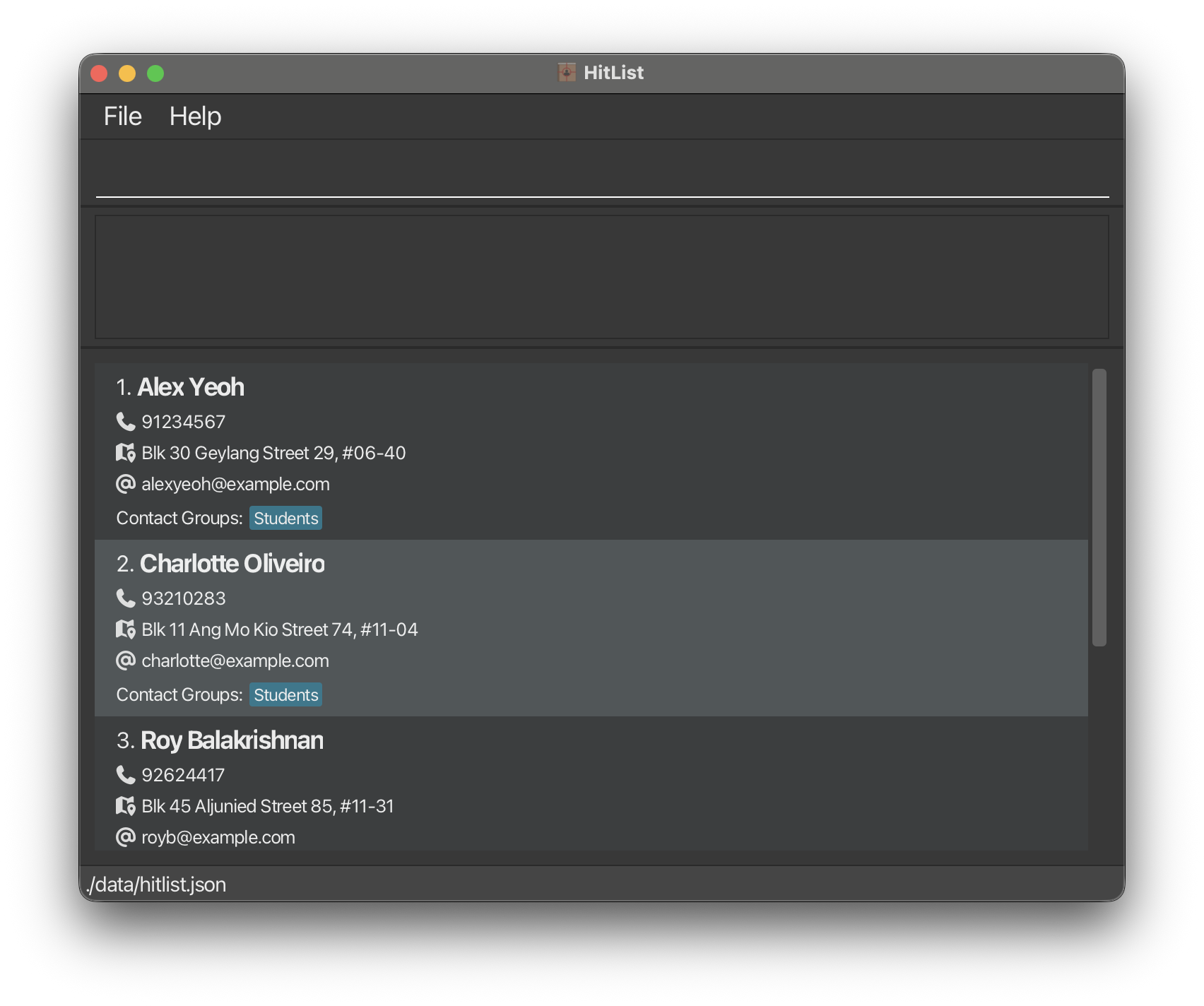
- Type the command in the command box and press Enter to execute it.
e.g. typing
helpand pressing Enter will open the help window. - Some example commands you can try:
add /n John Doe /p 98765432: Adds a contact namedJohn Doeto the HitList.list: Lists all contacts.delete 3: Deletes the 3rd contact shown in the current list.clear: Deletes all contacts.exit: Exits the app.
- Refer to the Features below for details of each command.
Features
Notes about the command format:
- Words in
UPPER_CASEare the parameters to be supplied by the user. e.g. inadd /n NAME,NAMEis a parameter which can be used asadd /n John Doe - Items in square brackets are optional.
e.g.
edit INDEX [/n NAME] [/p PHONE_NUMBER]can be used asedit 3 /n John Doeor asedit 3 /p 98765432 - Parameters can be in any order.
e.g. if the command specifies
/n NAME /p PHONE_NUMBER,/p PHONE_NUMBER /n NAMEis also acceptable - Extraneous parameters for commands that do not take in parameters, such as
help,list,exit, andclear, will be ignored. e.g. if the command specifieshelp 123, it will be interpreted ashelp - If you are using a PDF version of this document, be careful when copying and pasting commands that span multiple lines as space characters surrounding line-breaks may be omitted when copied over to the application.
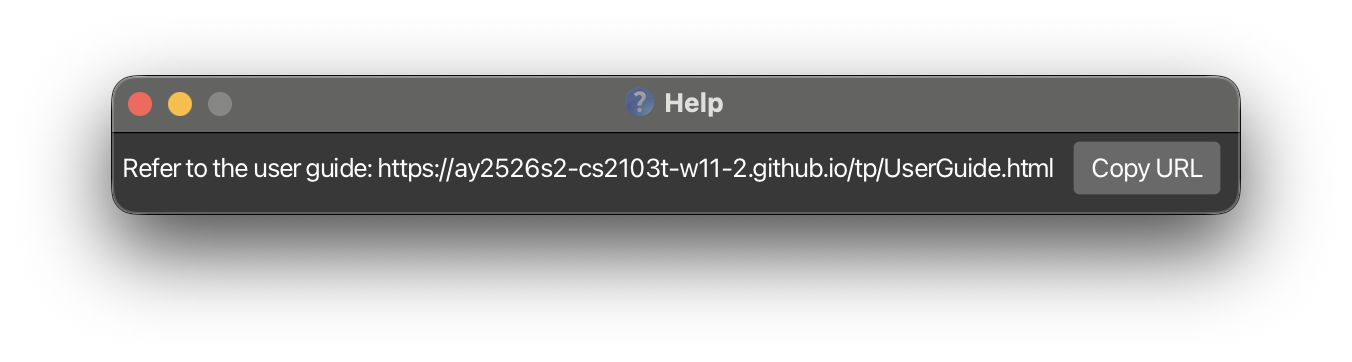
Getting help : help
Shows a message explaining how to access the help page.
Format: help
Adding a contact : add
Adds a contact to the HitList.
Format: add /n NAME /p PHONE_NUMBER [/e EMAIL] [/a ADDRESS]
- The
NAMEandPHONE_NUMBERparameters are mandatory. NAMEmust be unique and not the same as any existing contact in HitList.PHONE_NUMBERmust be unique and not the same as any existing contact in HitList.- All other parameters are optional.
Limitations:
NAMEcan only contain alphabetic characters, dashes, apostrophes, and spaces (No support for chinese characters and names with '/').PHONE_NUMBERmust only contain digits, and must not be blank.EMAILmust be in the formatlocal-part@domain, wherelocal-partanddomainare non-empty strings that do not contain spaces or/.EMAILdoes not implement uniqueness check, so multiple contacts can have the same email.ADDRESSmust not contain/and must not be blank.
Examples:
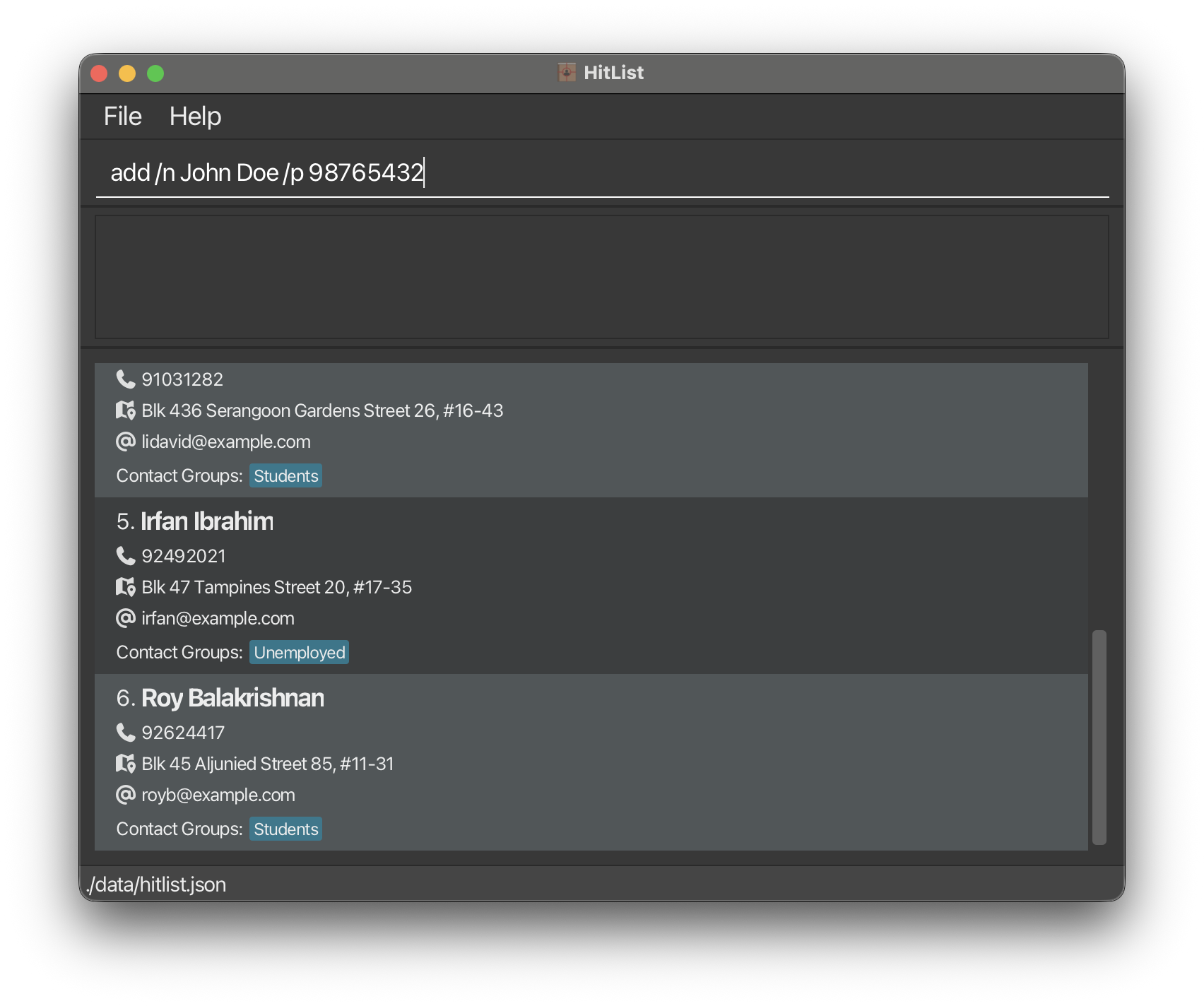
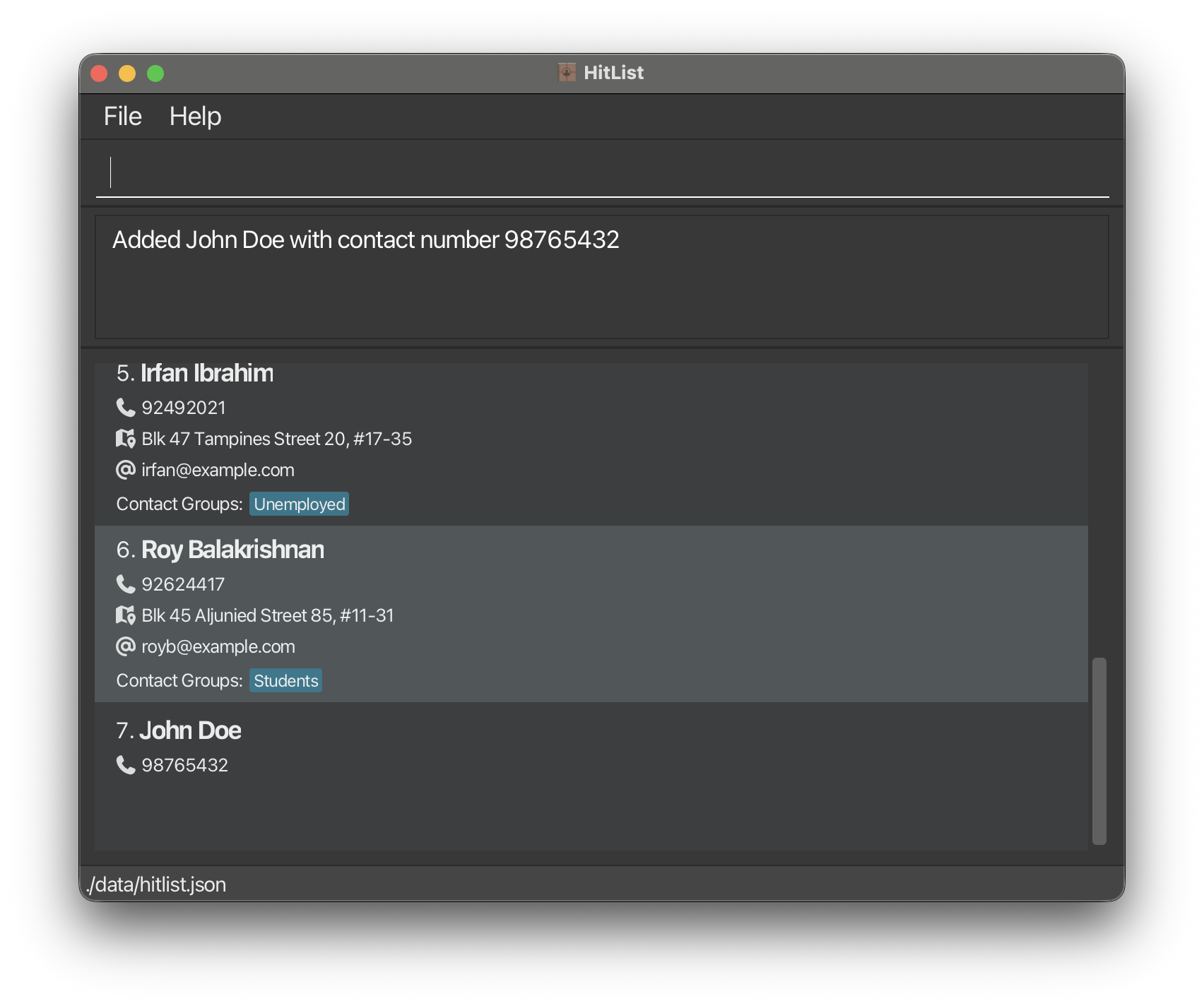
add /n John Doe /p 98765432
add /n Betsy Crowe /p 87654321 /e betsy.crowe@gmail.com /a 321, Clementi Rd, 123465
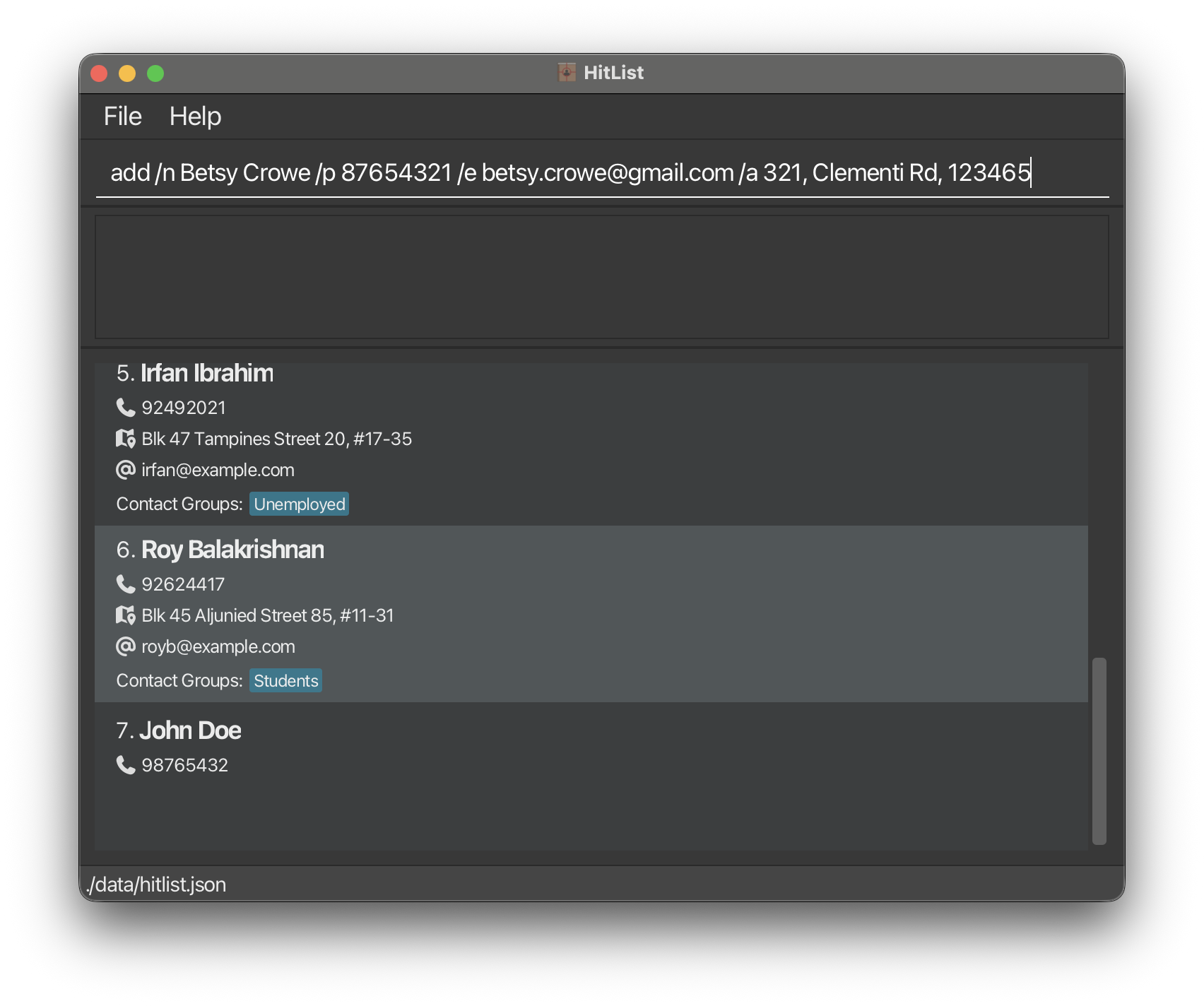
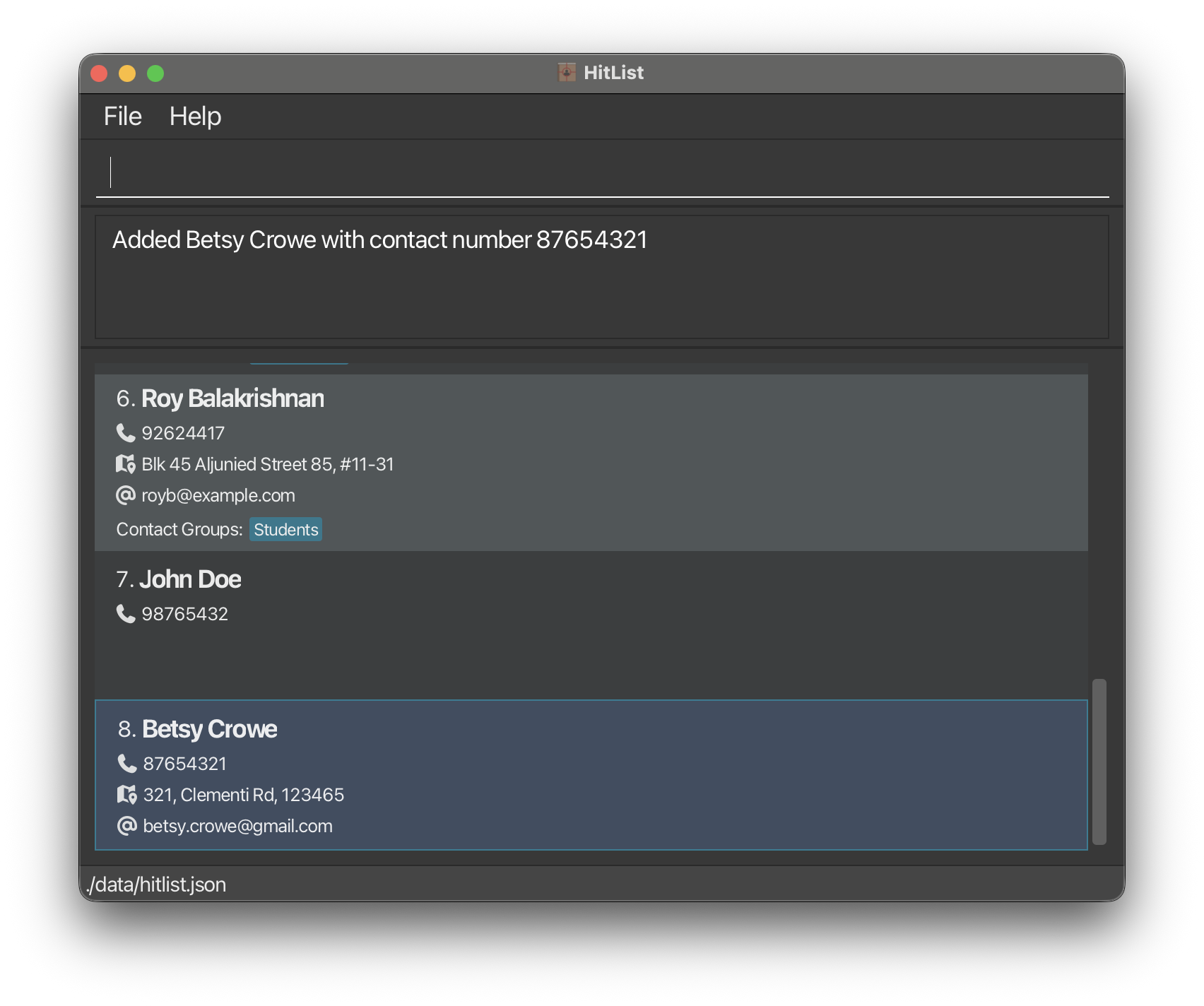
Editing a contact : edit
Edits an existing contact in the HitList.
Format: edit INDEX [/n NAME] [/p PHONE_NUMBER] [/e EMAIL] [/a ADDRESS]
- Edits the contact at the specified
INDEX. - The index refers to the index number shown in the displayed HitList.
- The index must be a positive integer
1, 2, 3, … - At least one of the optional fields must be provided.
- Existing values will be updated to the input values.
Examples:
edit 1 /p 91234567edits the phone number of the first contact to91234567
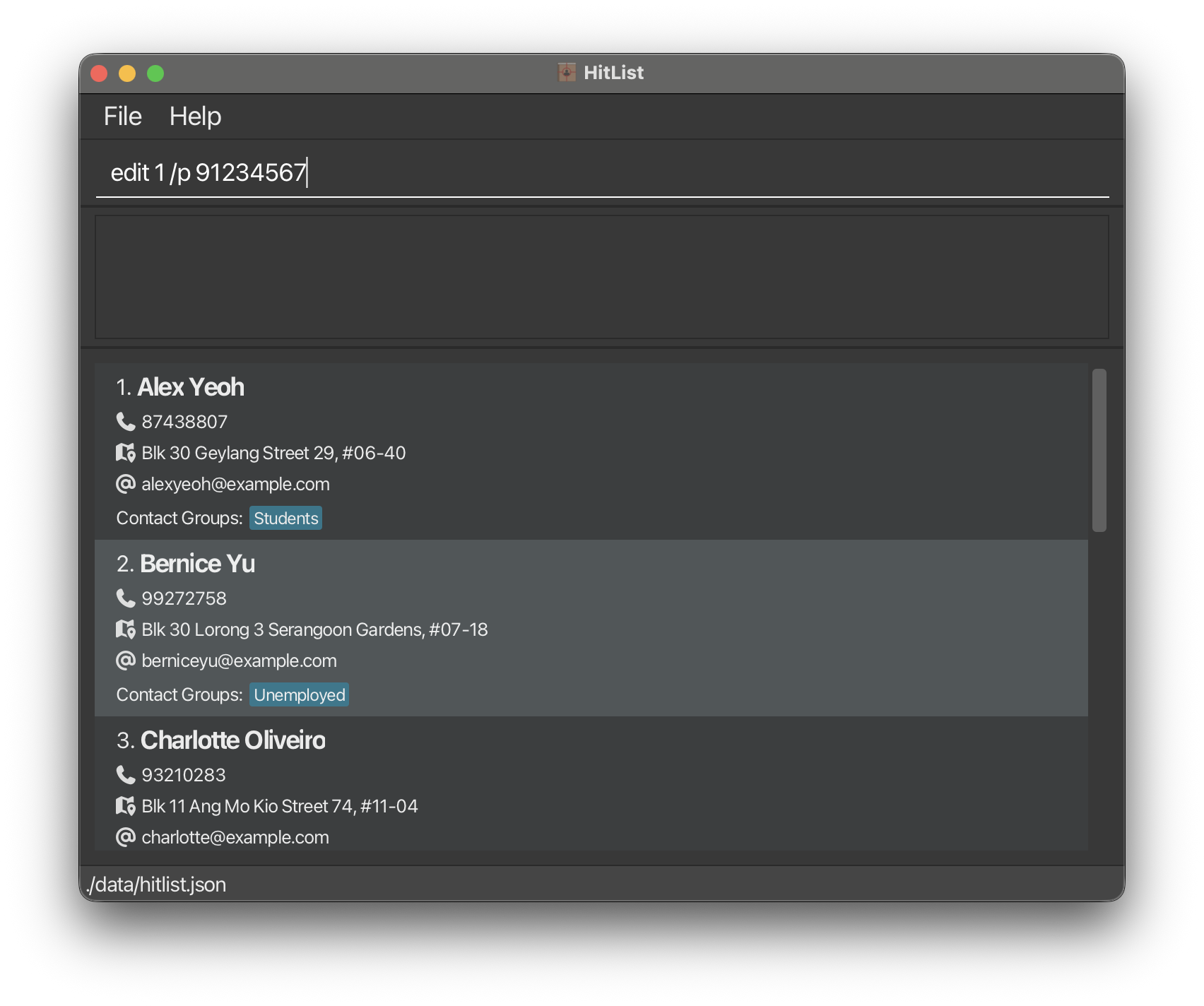
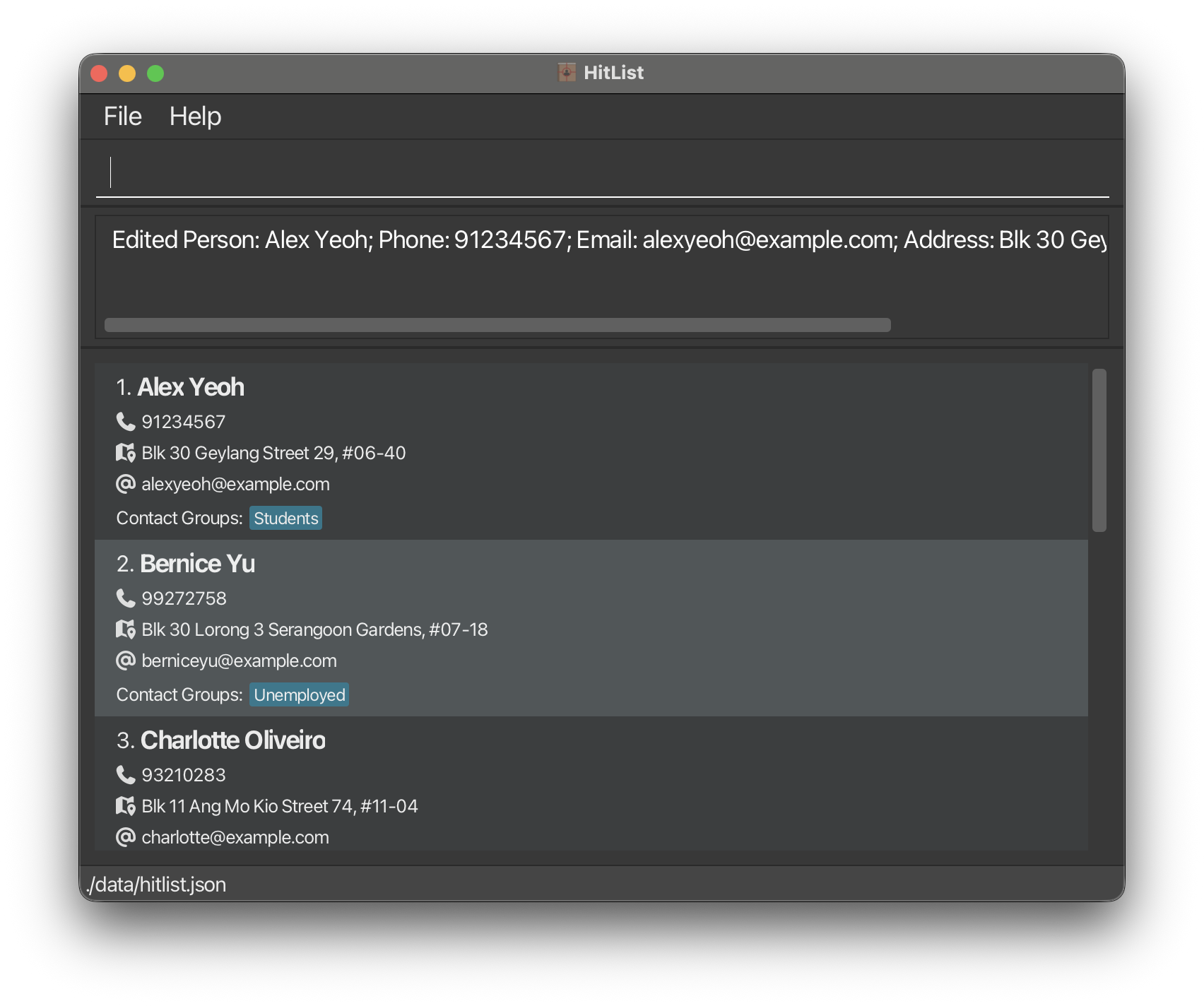
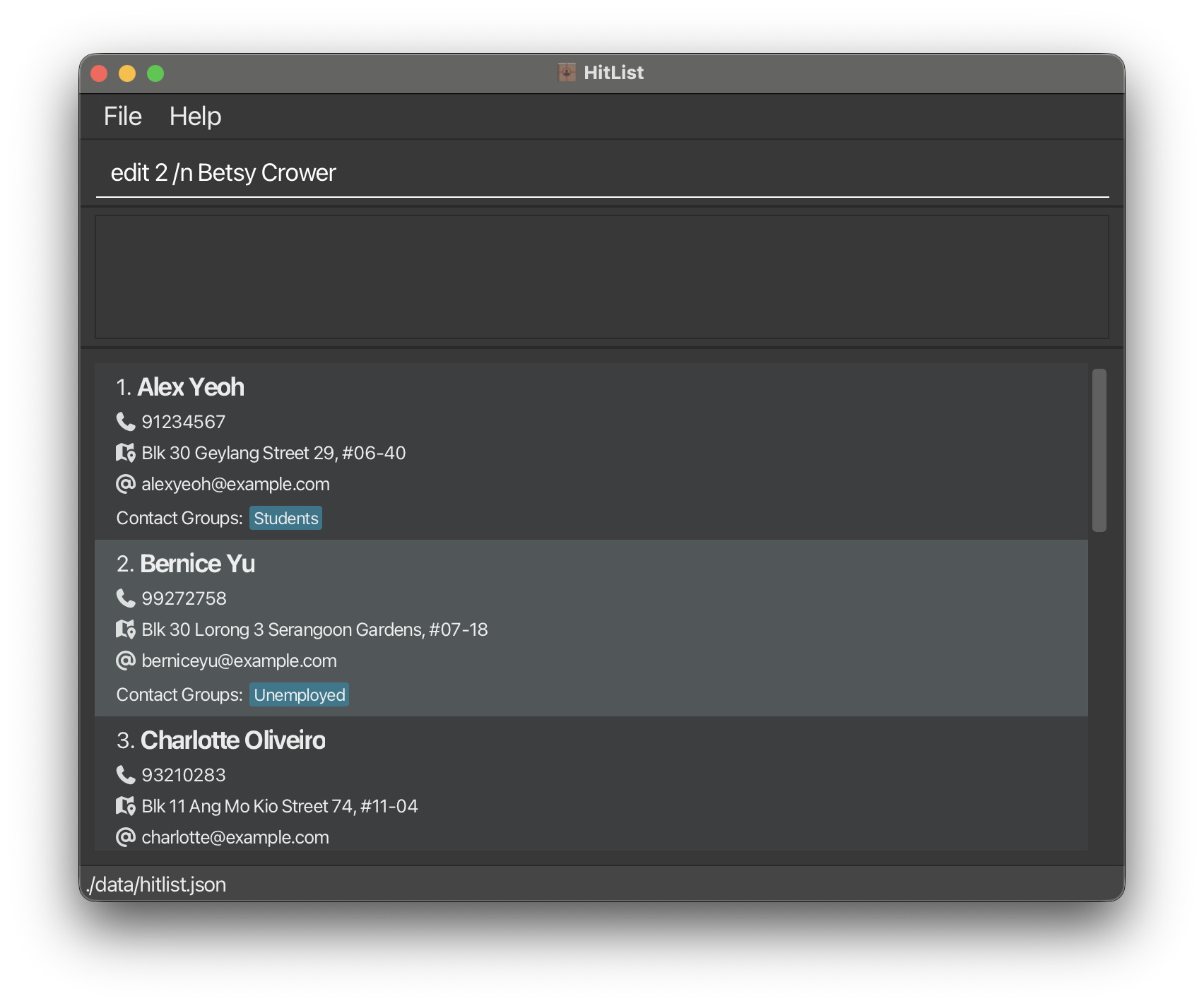
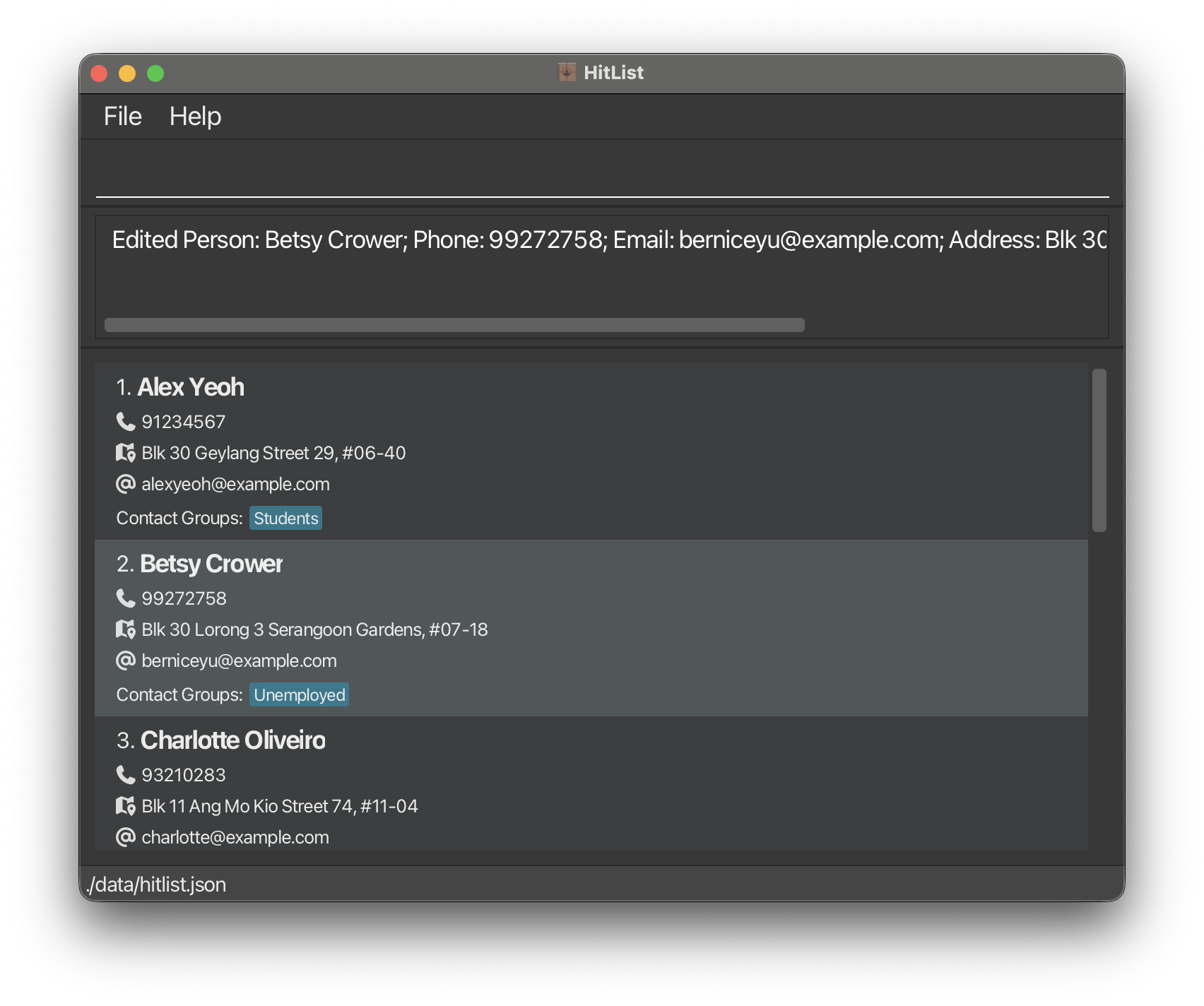
edit 2 /n Betsy Croweredits the name of the second contact toBetsy Crower
Deleting a contact : delete
Deletes the specified contact from HitList.
CAUTION: Irreversible Action
Format: delete INDEX or delete /n NAME or del INDEX or del /n NAME
- Deletes the contact at the specified
INDEXor the contact with the specifiedNAMEfrom HitList. - The index refers to the index number shown in the displayed HitList.
- The index must be a positive integer
1, 2, 3, … - The contact name you enter must exactly match an existing contact in HitList, but it is case-insensitive. For example, if the contact is saved as 'Alfred Lim', entering 'alfred lim', 'ALFRED LIM', or 'Alfred Lim' will all successfully match.
- Either the index or the name can be used to delete a contact, but not both at the same time.
Examples:
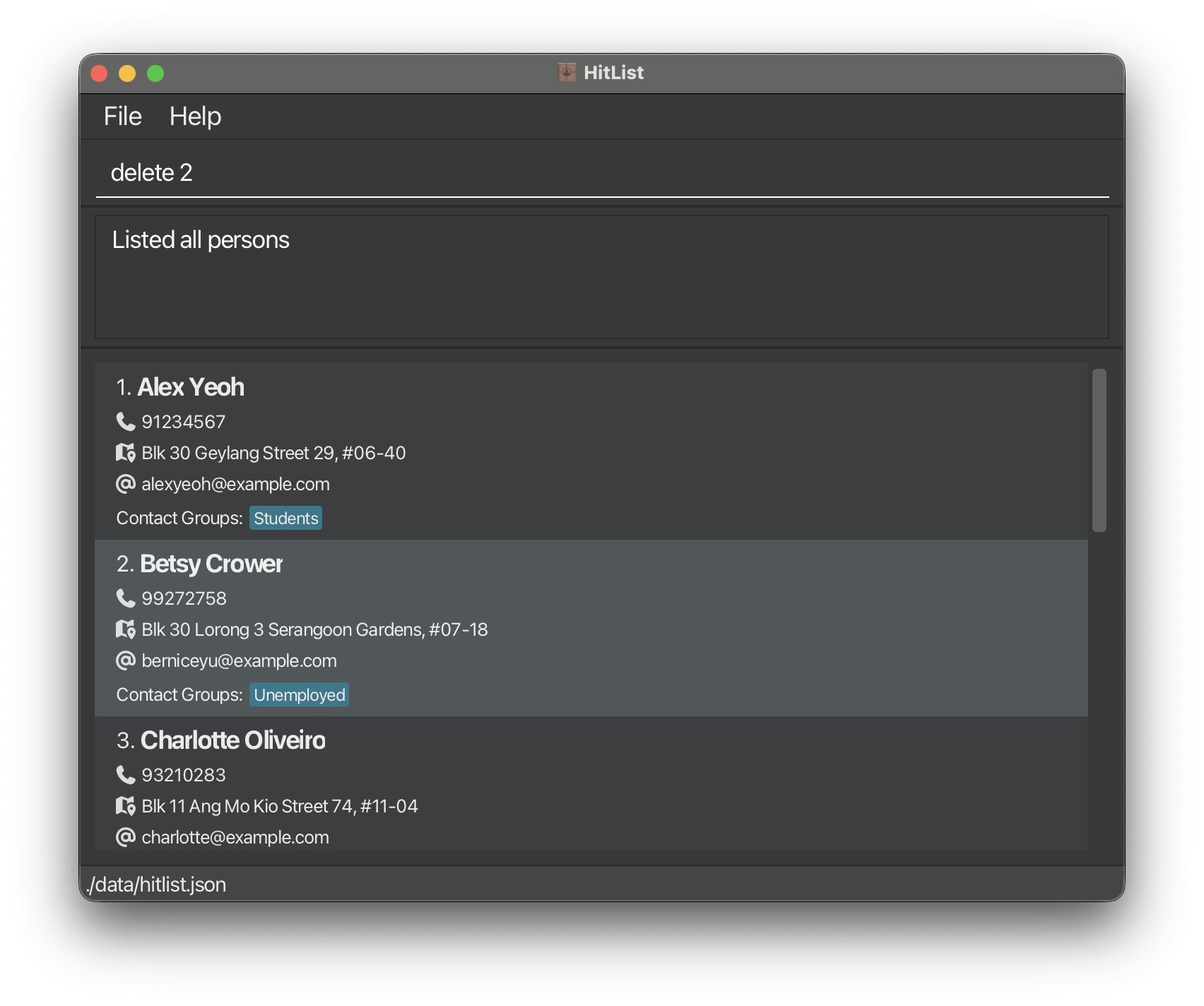
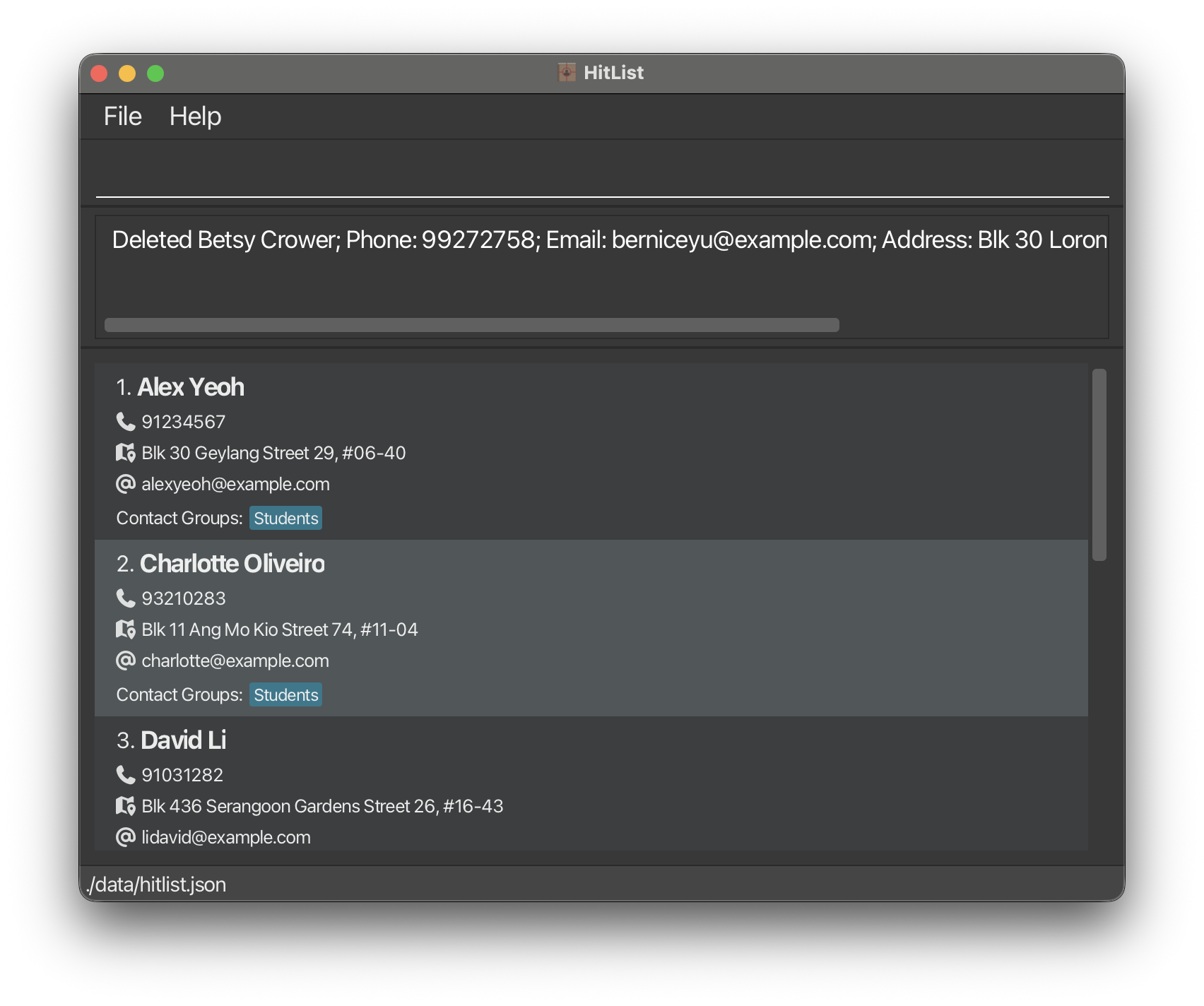
listfollowed bydelete 2deletes the second contact in HitList
find irfanfollowed bydelete 1deletes the first contact in the results of thefindcommand
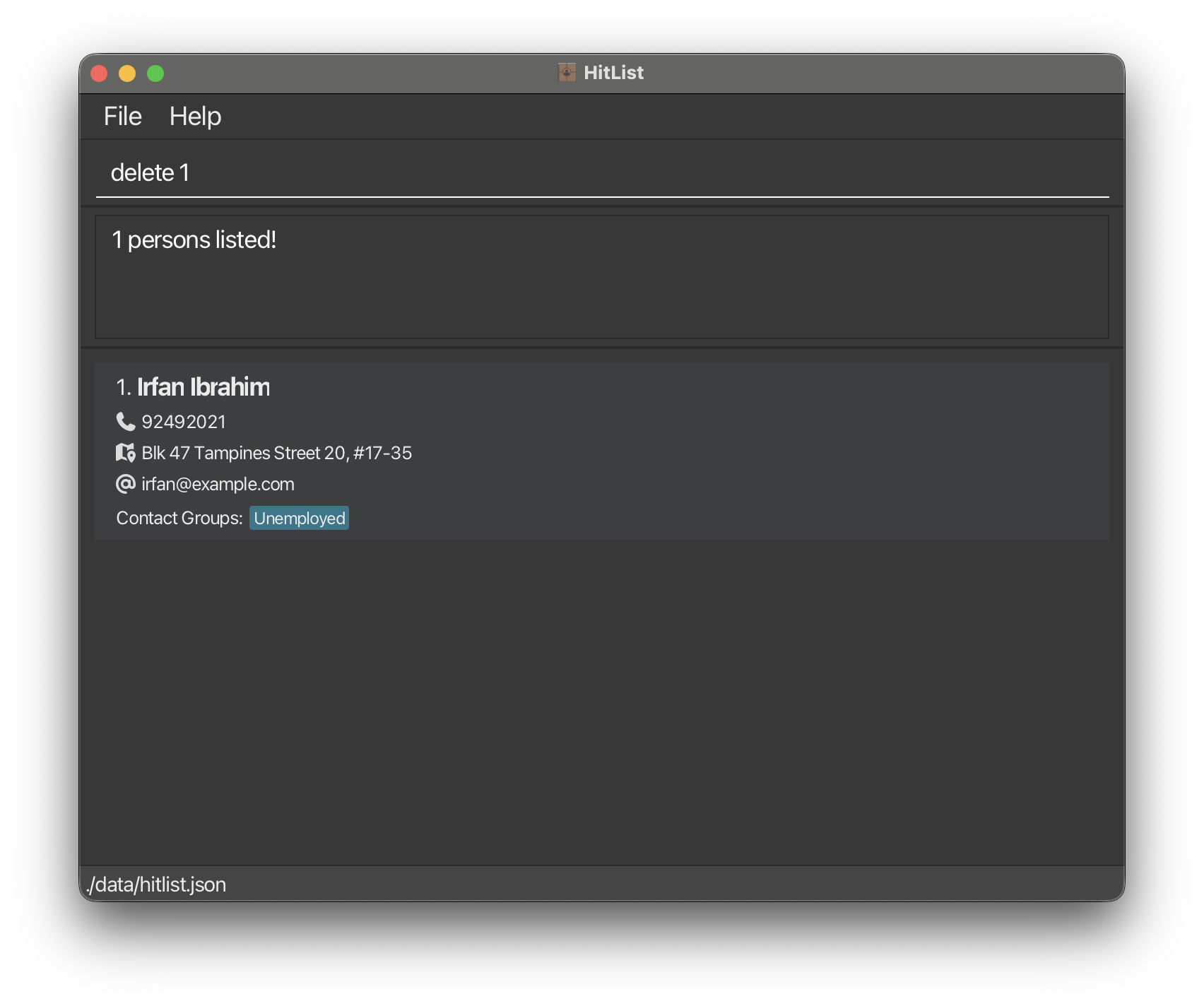
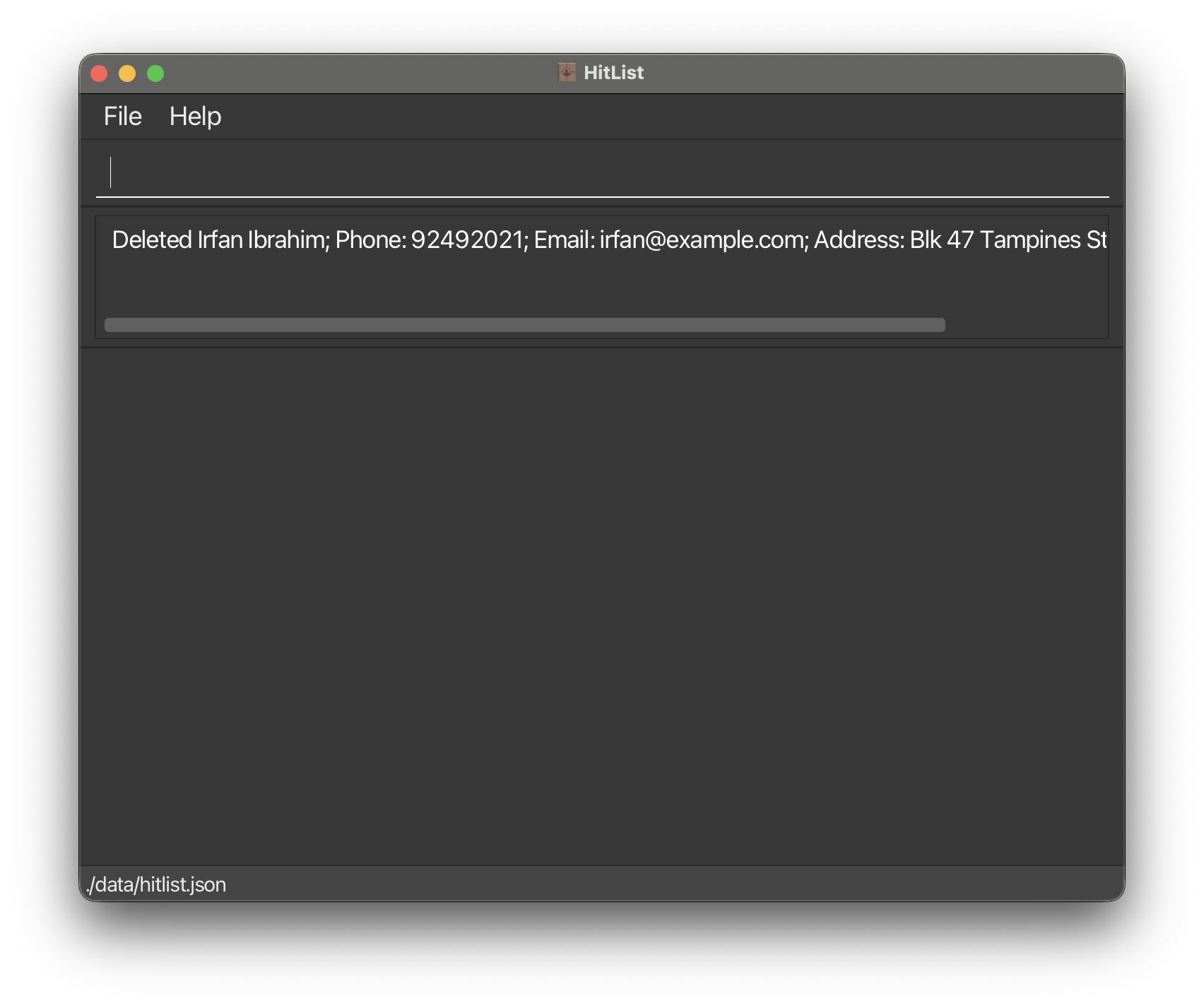
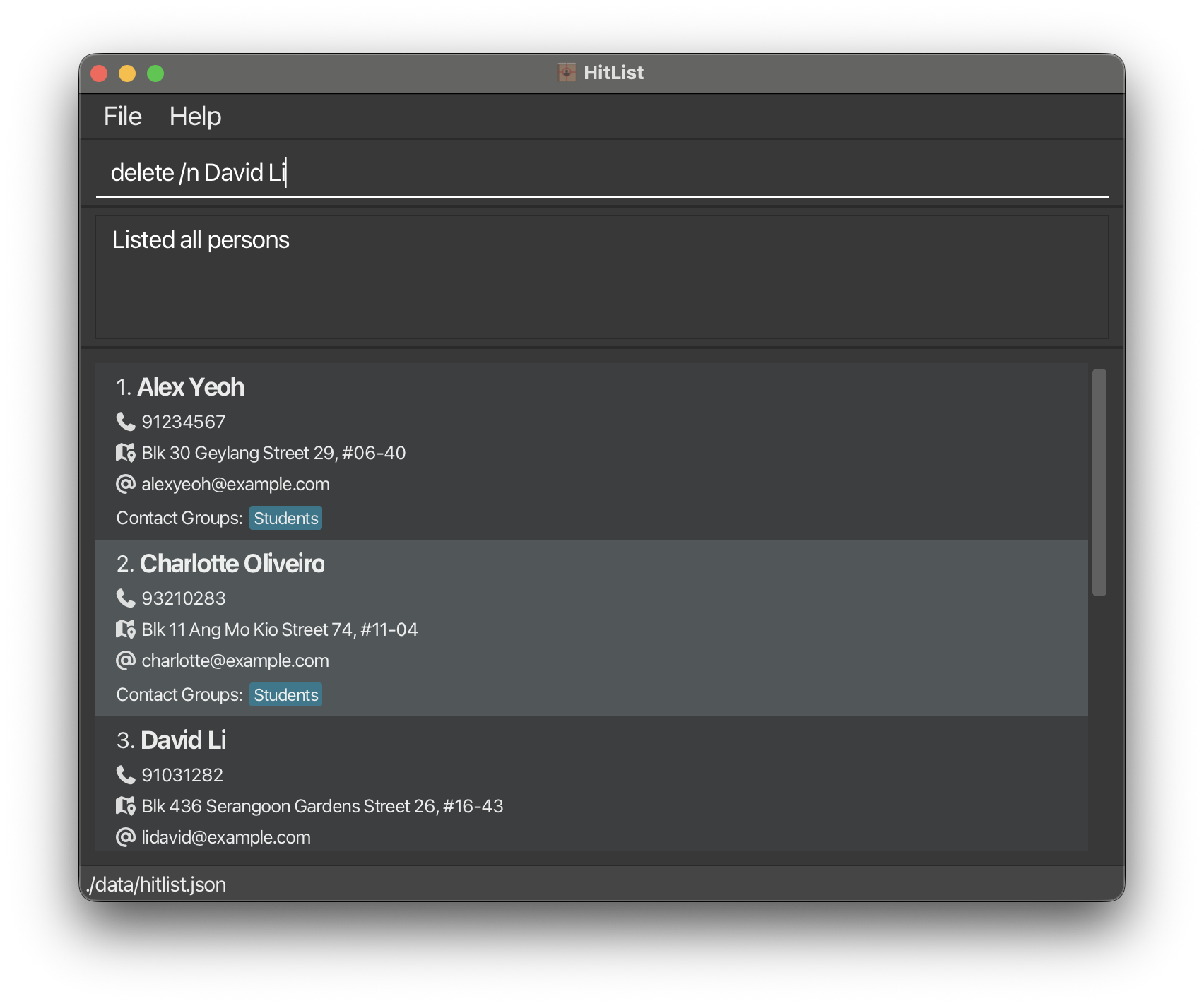
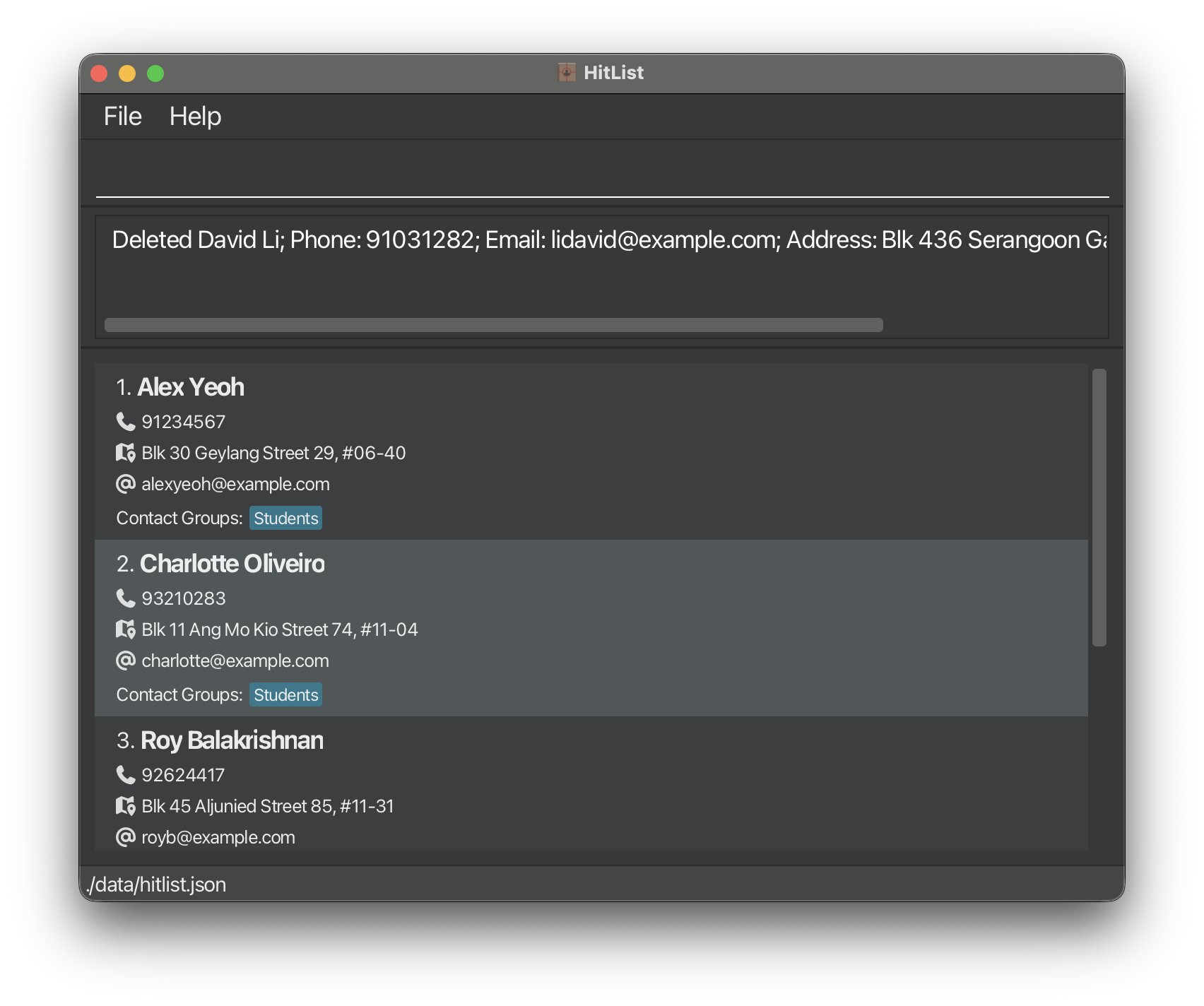
listfollowed bydelete /n David Lideletes the contact namedDavid Lifrom HitList
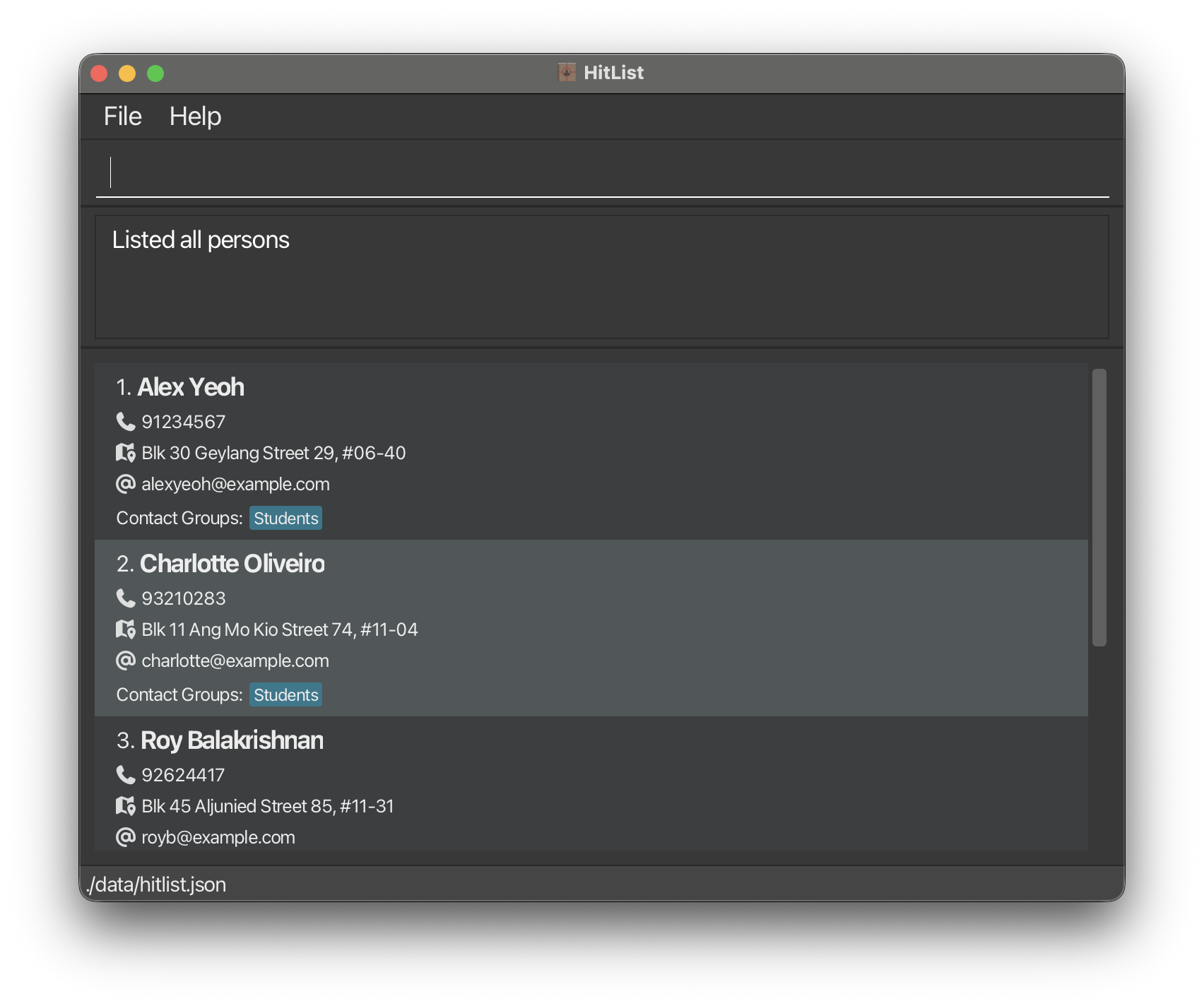
Listing all contacts : list
Shows a list of all contacts in the HitList.
Format: list
Locating contacts : find
Finds contacts whose names match the given substring.
Format: find KEYWORD...
- Name search is case-insensitive.
e.g.
HANSmatchesHans - Name search uses substring matching.
e.g.
HamatchesHanse.g.anmatchesHans - If multiple name keywords are given, a contact matching any one of them is returned.
Examples:
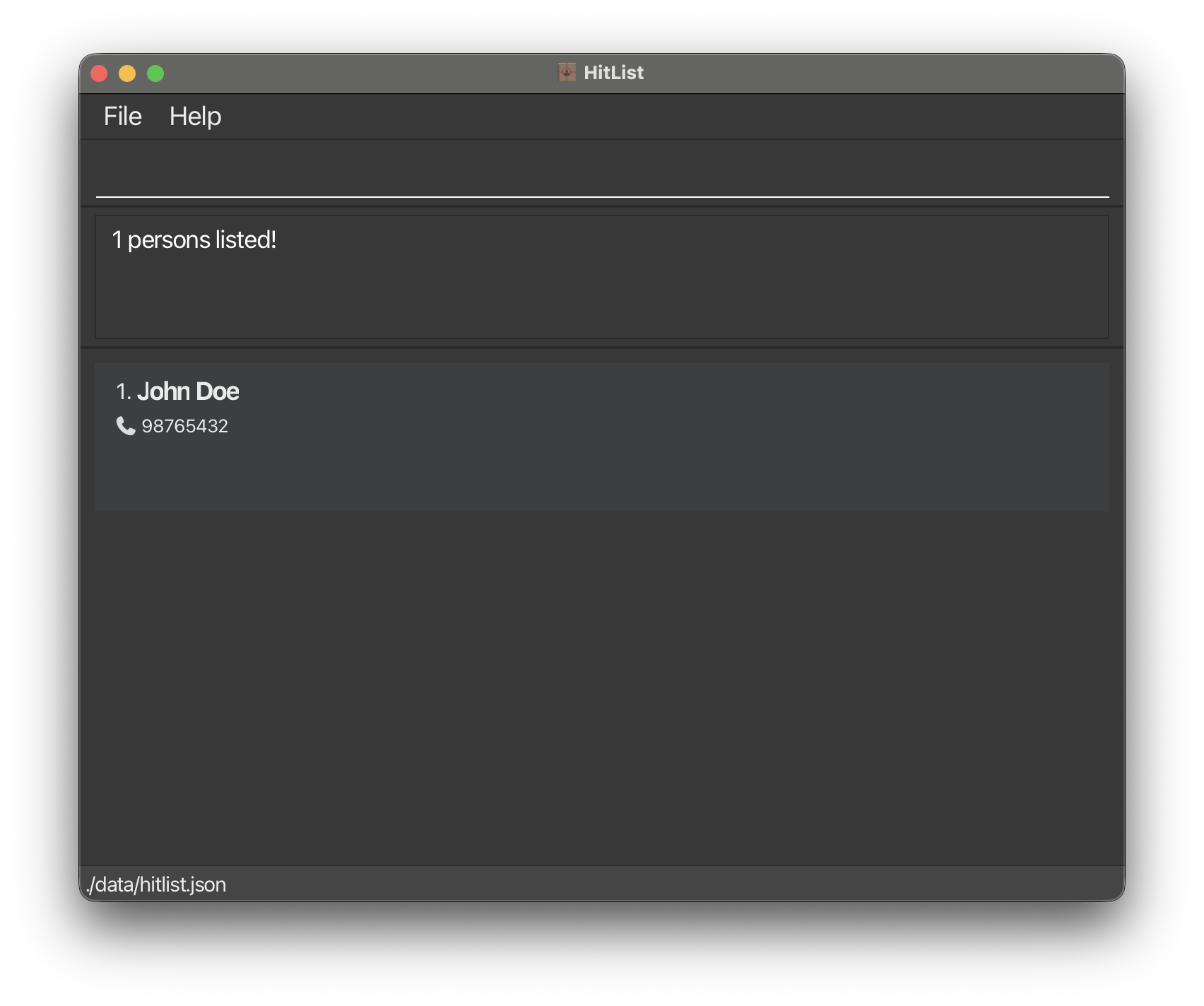
find JohnreturnsjohnandJohn Doe
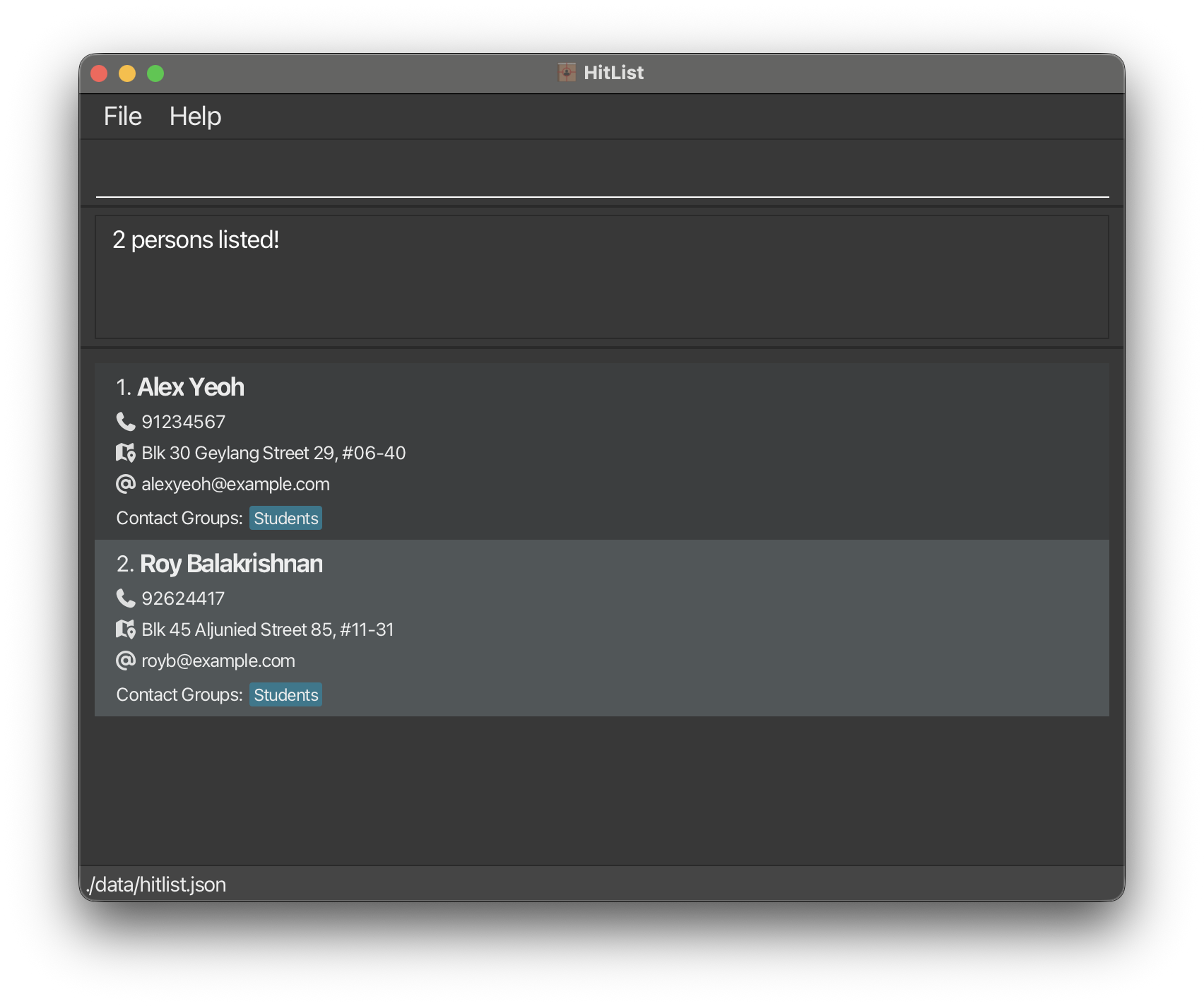
find alex krishnanreturnsAlex Yeoh,Roy Balakrishnan
Adding a contact group : grpadd
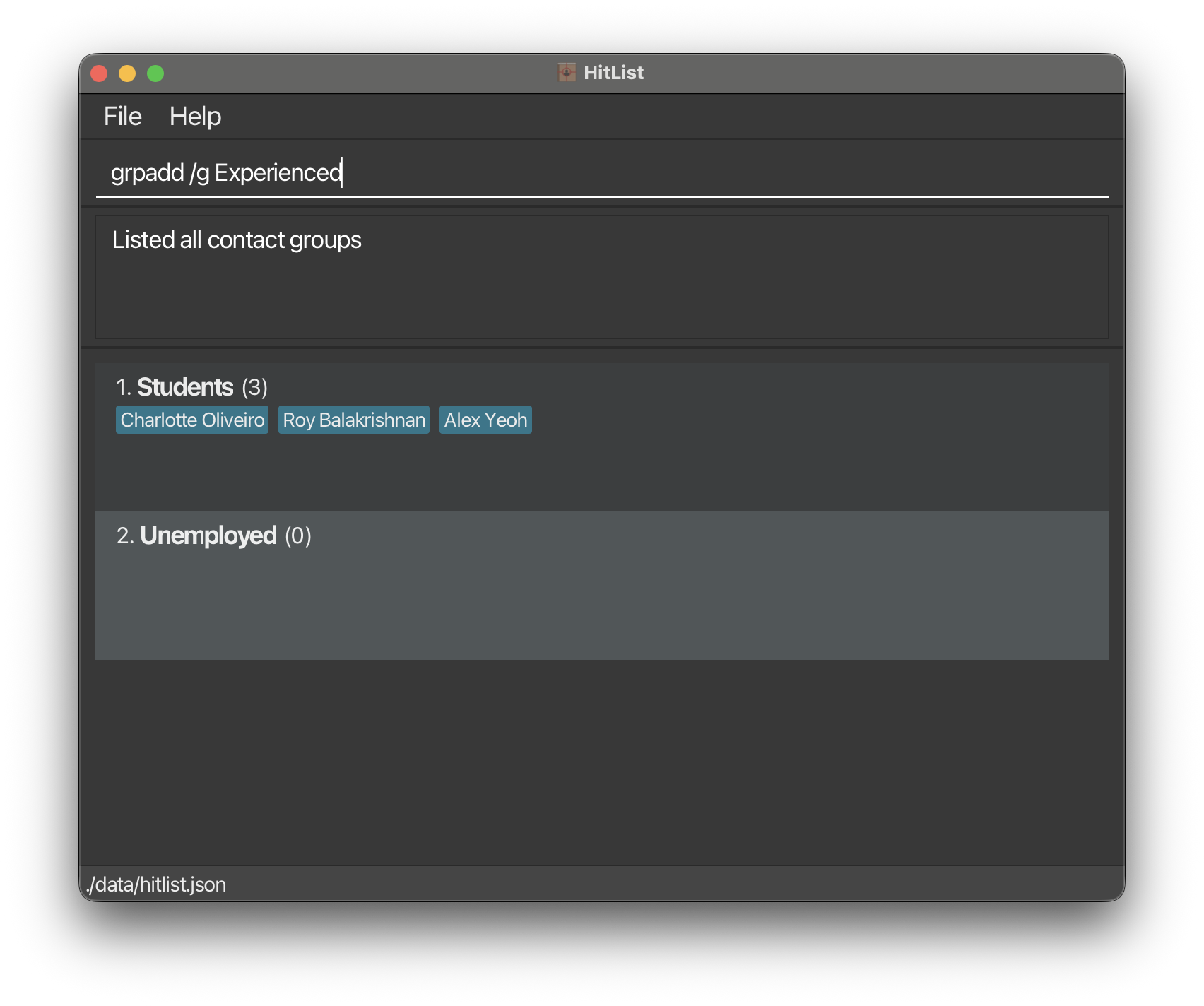
Adds a contact group to the HitList. Optionally, existing contacts can be added to the group at the time of group creation.
Format: grpadd /g GROUP_NAME [/n NAME]...
Examples:
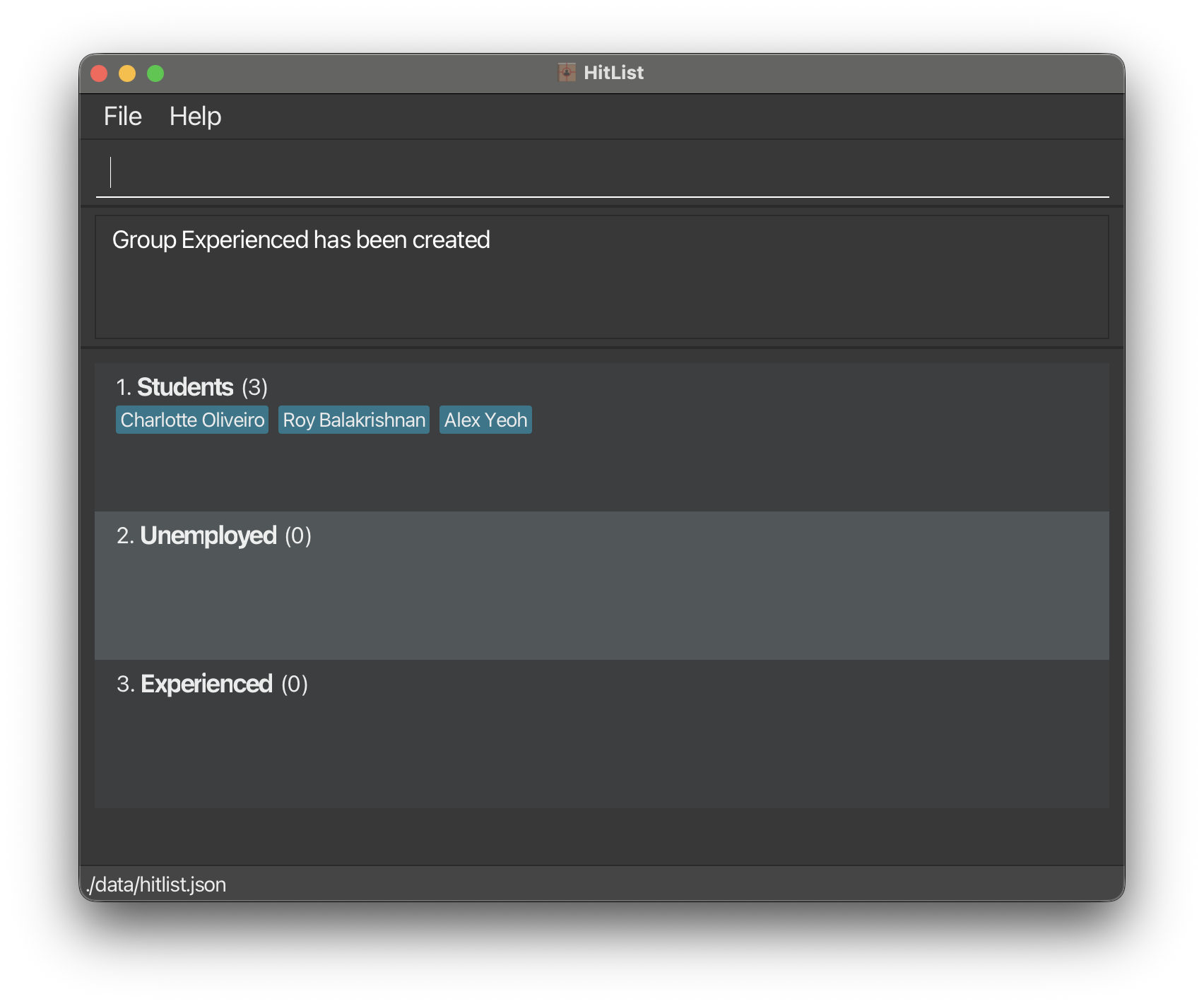
grplistfollowed bygrpadd /g Experienced
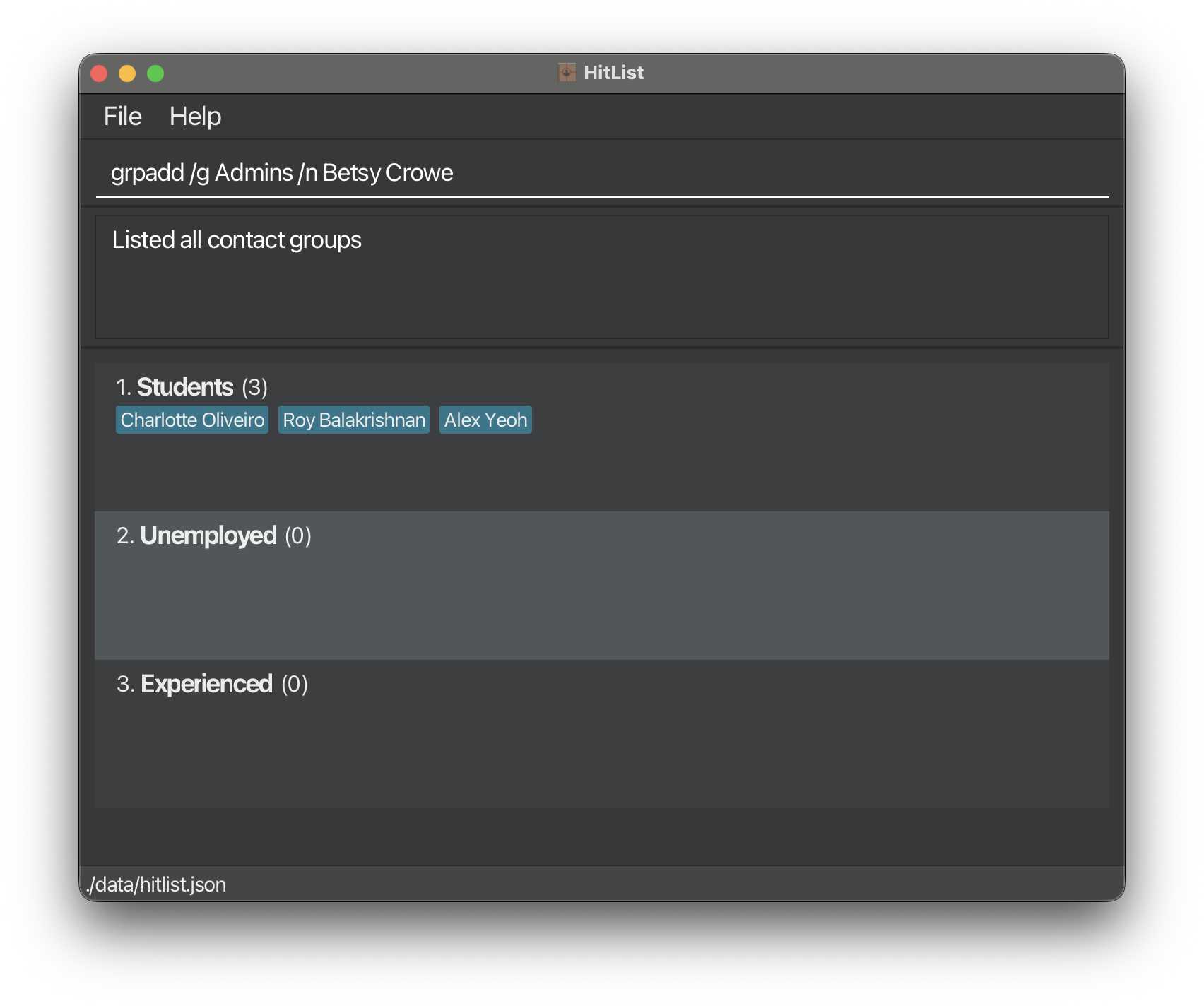
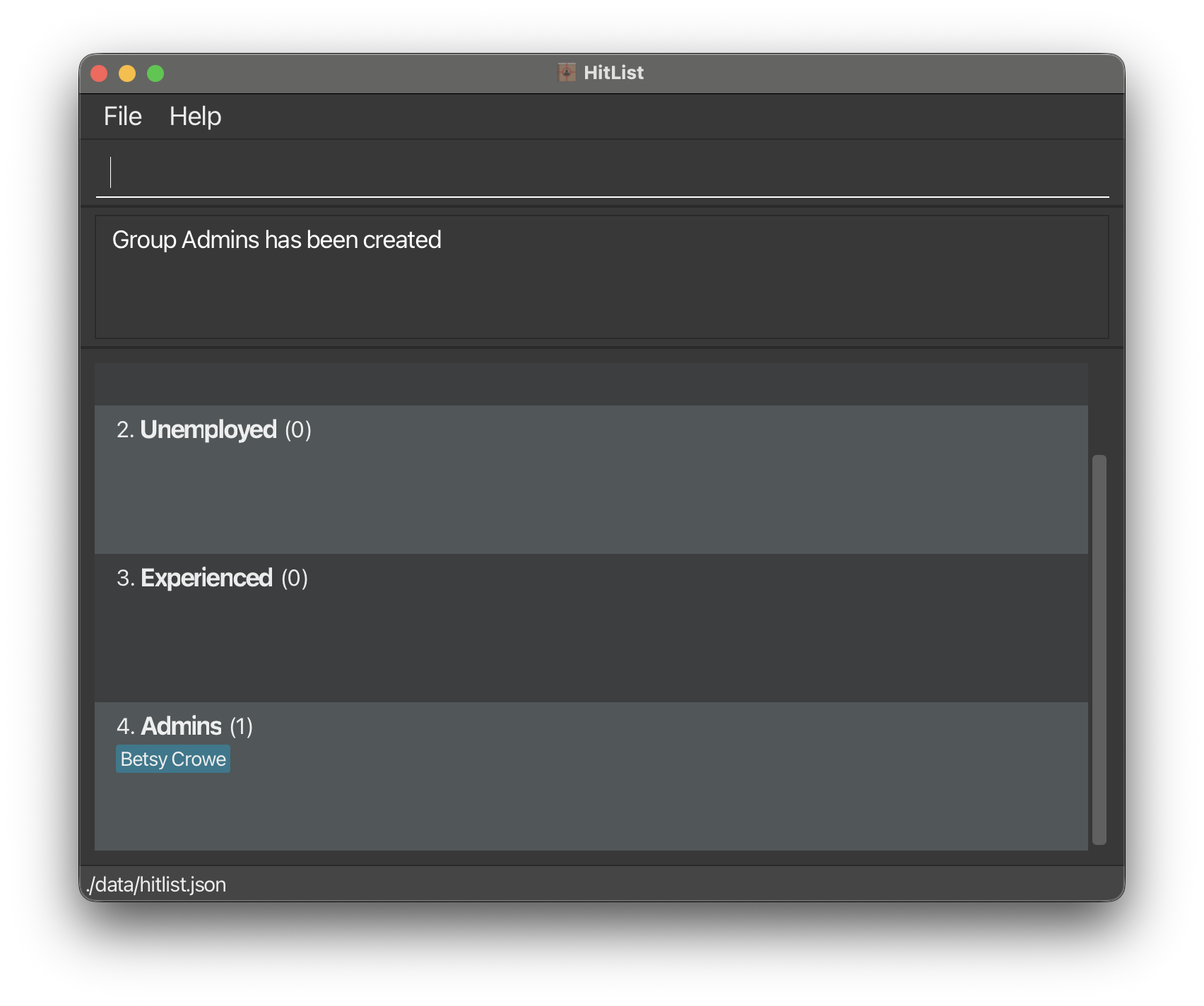
grplistfollowed bygrpadd /g Admins /n Betsy Crowe
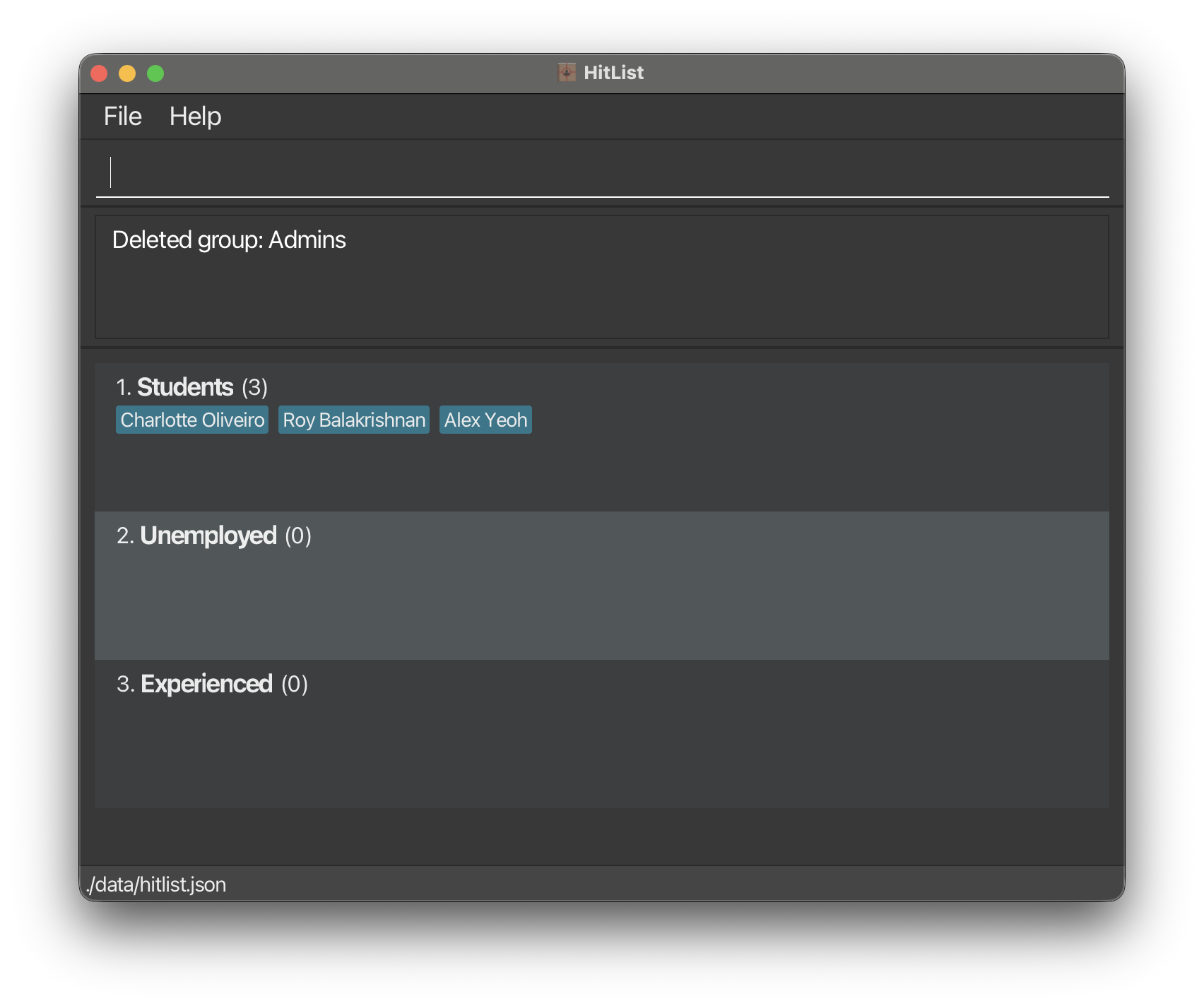
Deleting a contact group : grpdel
Deletes the specified contact group from HitList.
CAUTION: Irreversible Action
INFO: Good to know
Format: grpdel /g GROUP_NAME
Examples:
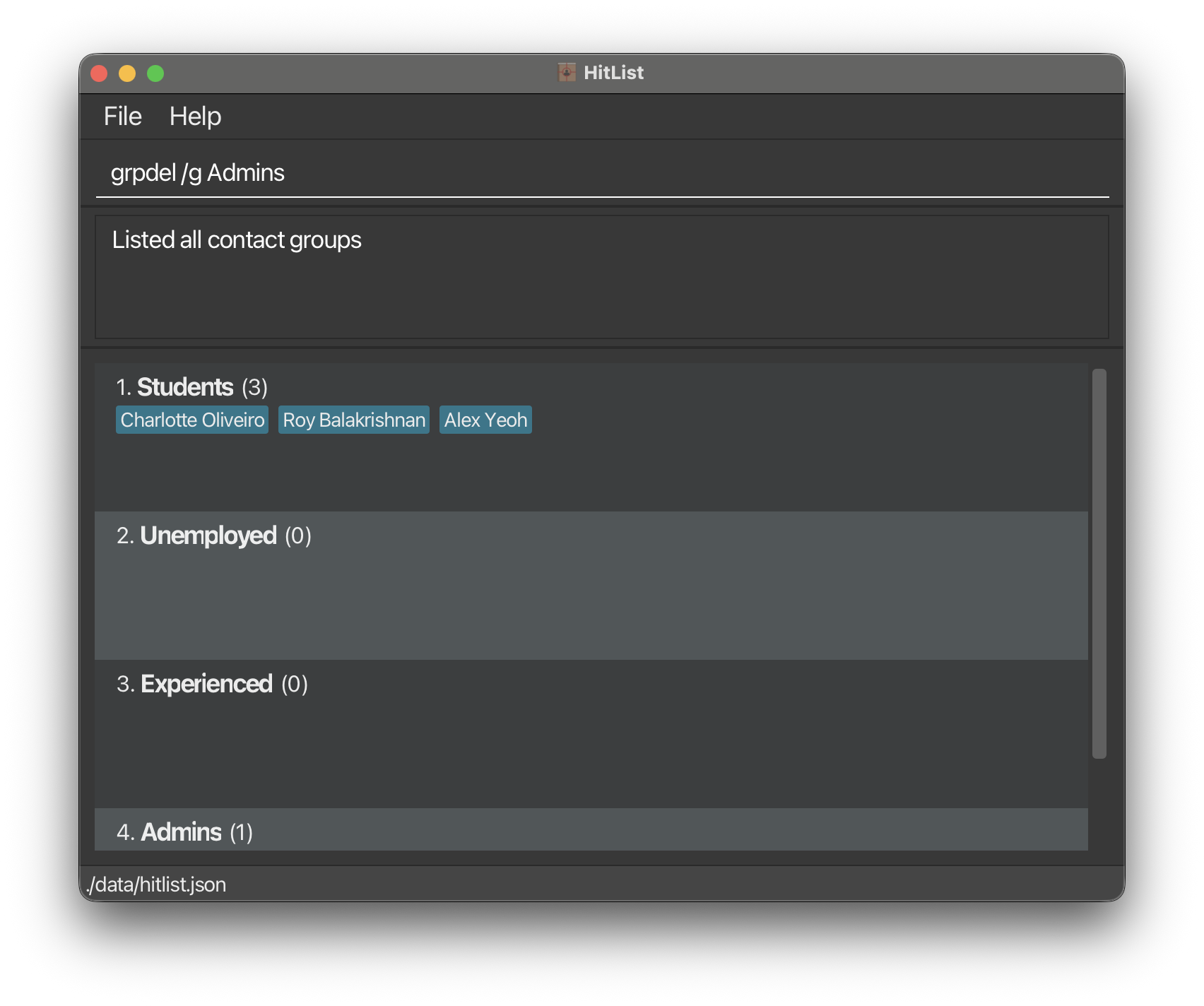
grplistfollowed bygrpdel /g Admins
Listing contacts in a contact group : grplist
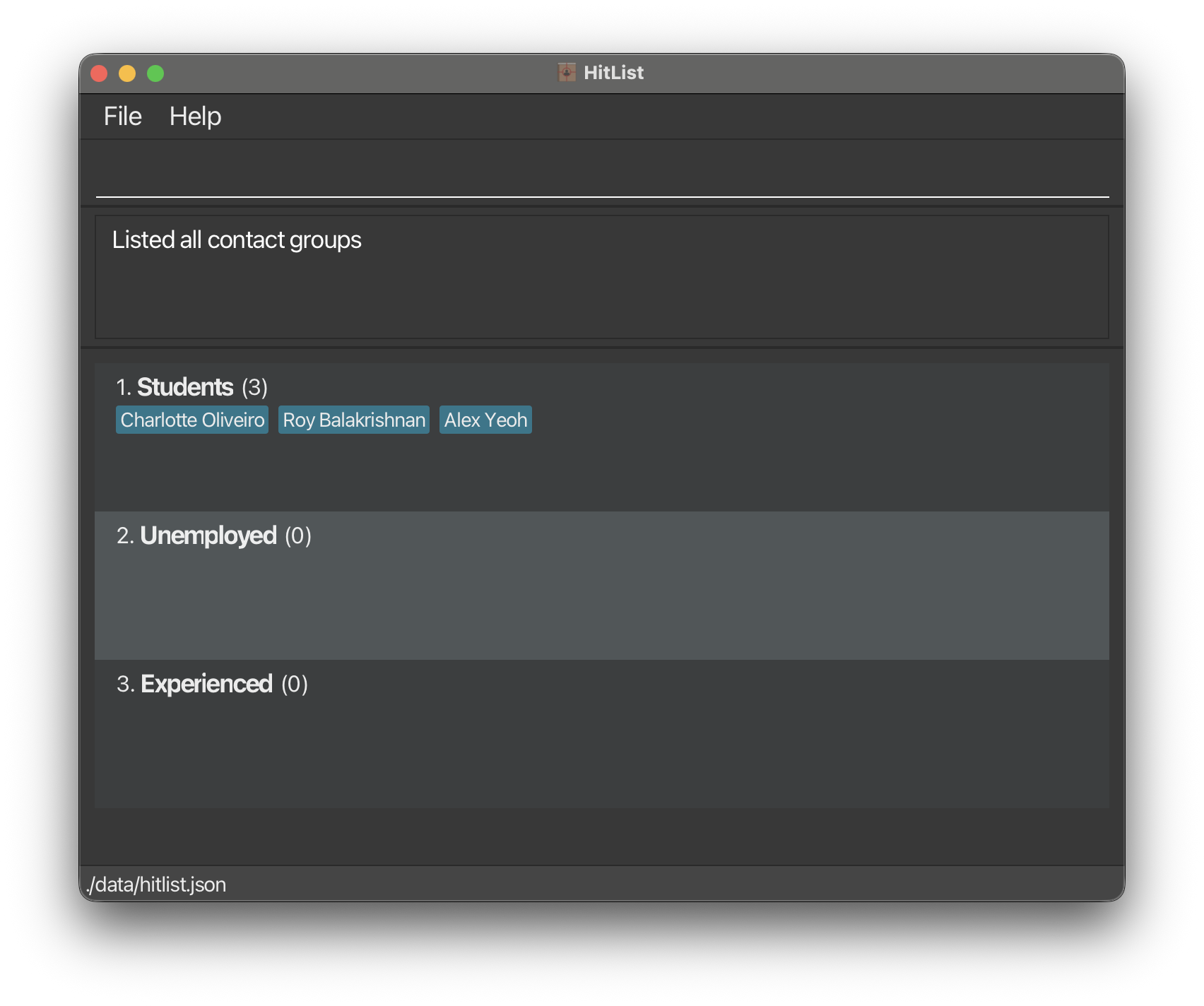
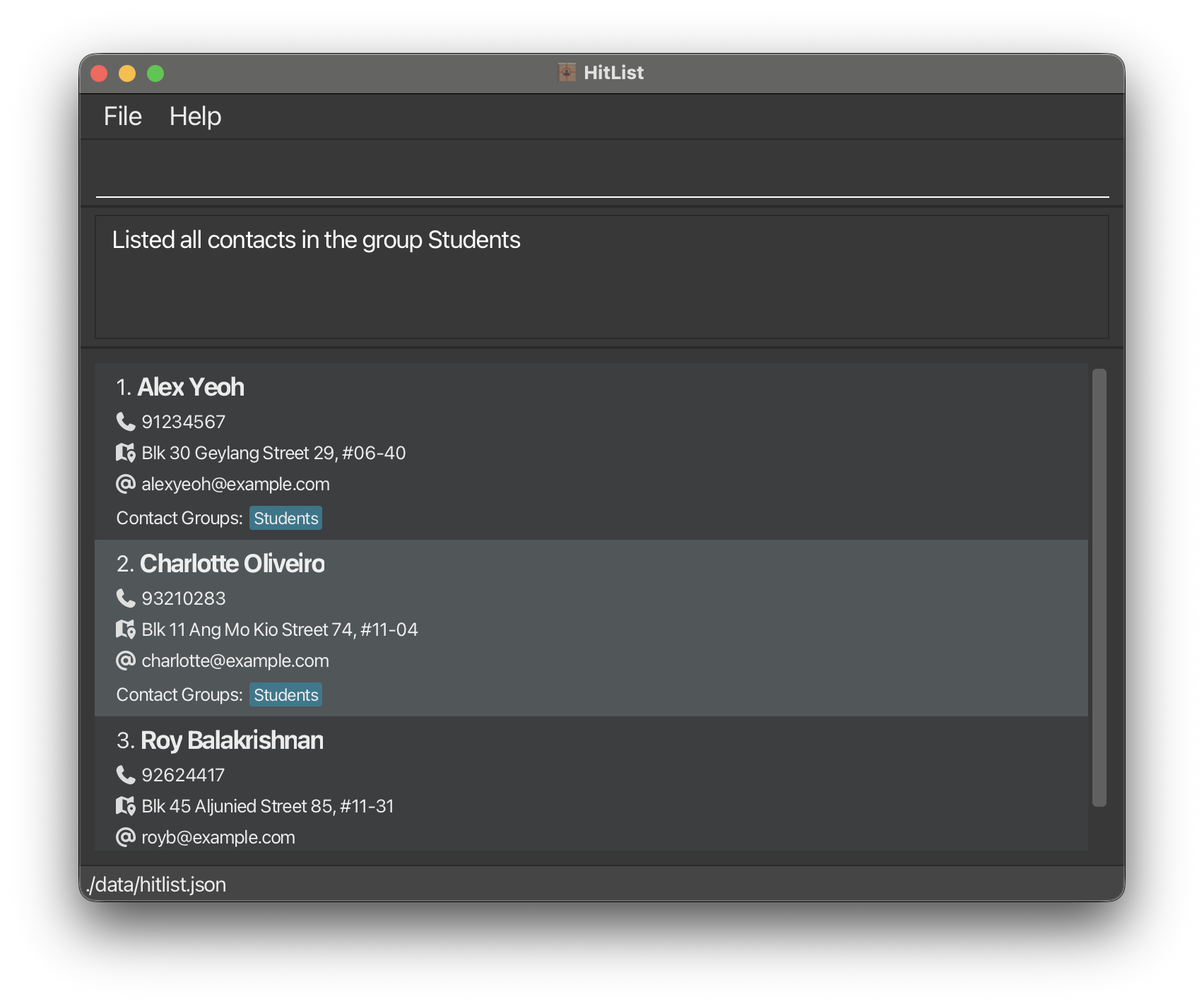
List all contact groups in HitList. Optionally, if a group name is specified, shows a list of contact members in that group.
Format: grplist [/g GROUP_NAME]
Examples:
grplist
grplist /g Students
Assigning a contact to a contact group : grpassign
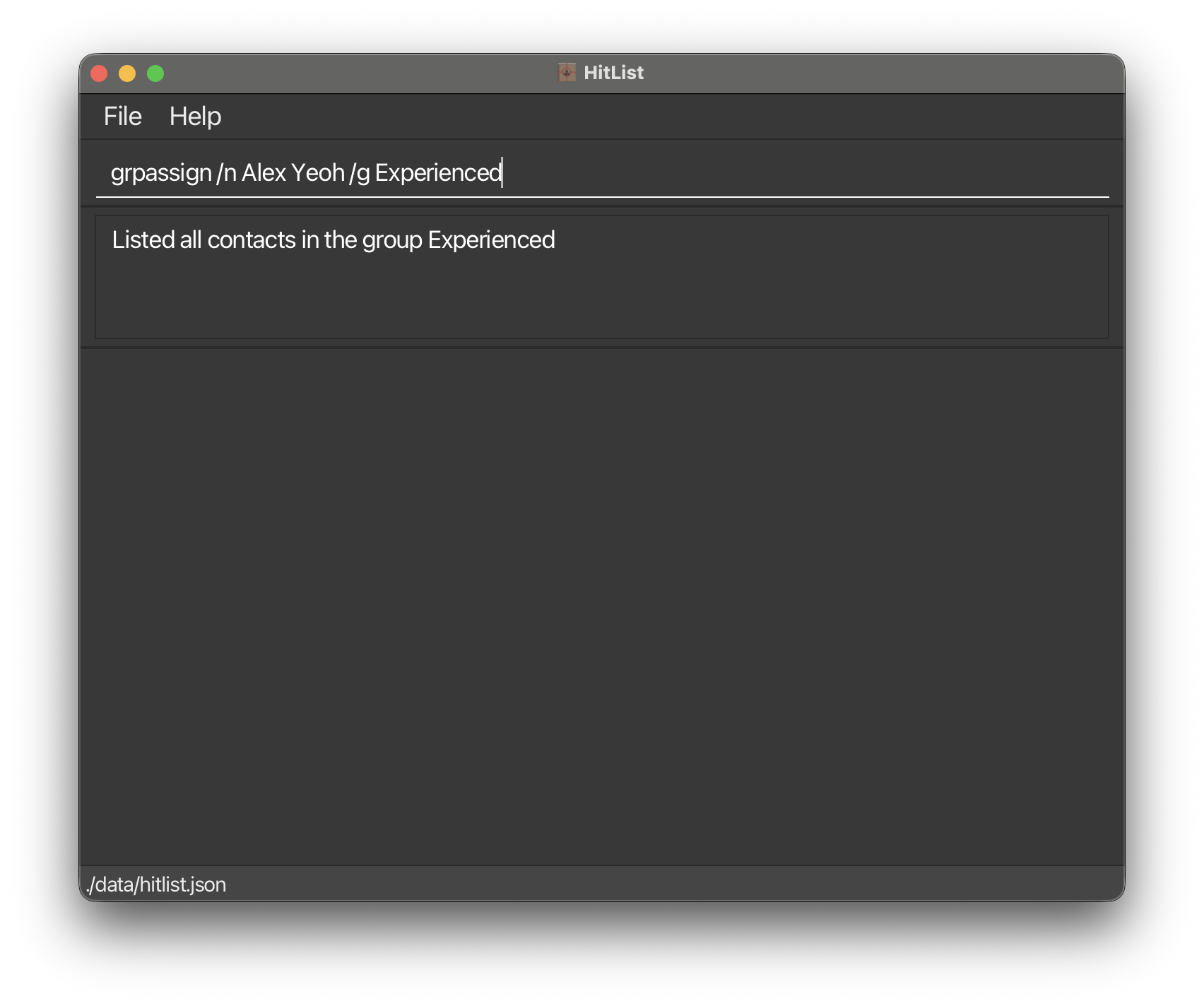
Adds an existing contact to an existing contact group.
Format: grpassign /n NAME /g GROUP_NAME
- The contact name must exactly match an existing contact in HitList.
- The group name must exactly match an existing contact group in HitList.
Examples:
grplist /g experiencedfollowed bygrpassign /n Alex Yeoh /g Experienced
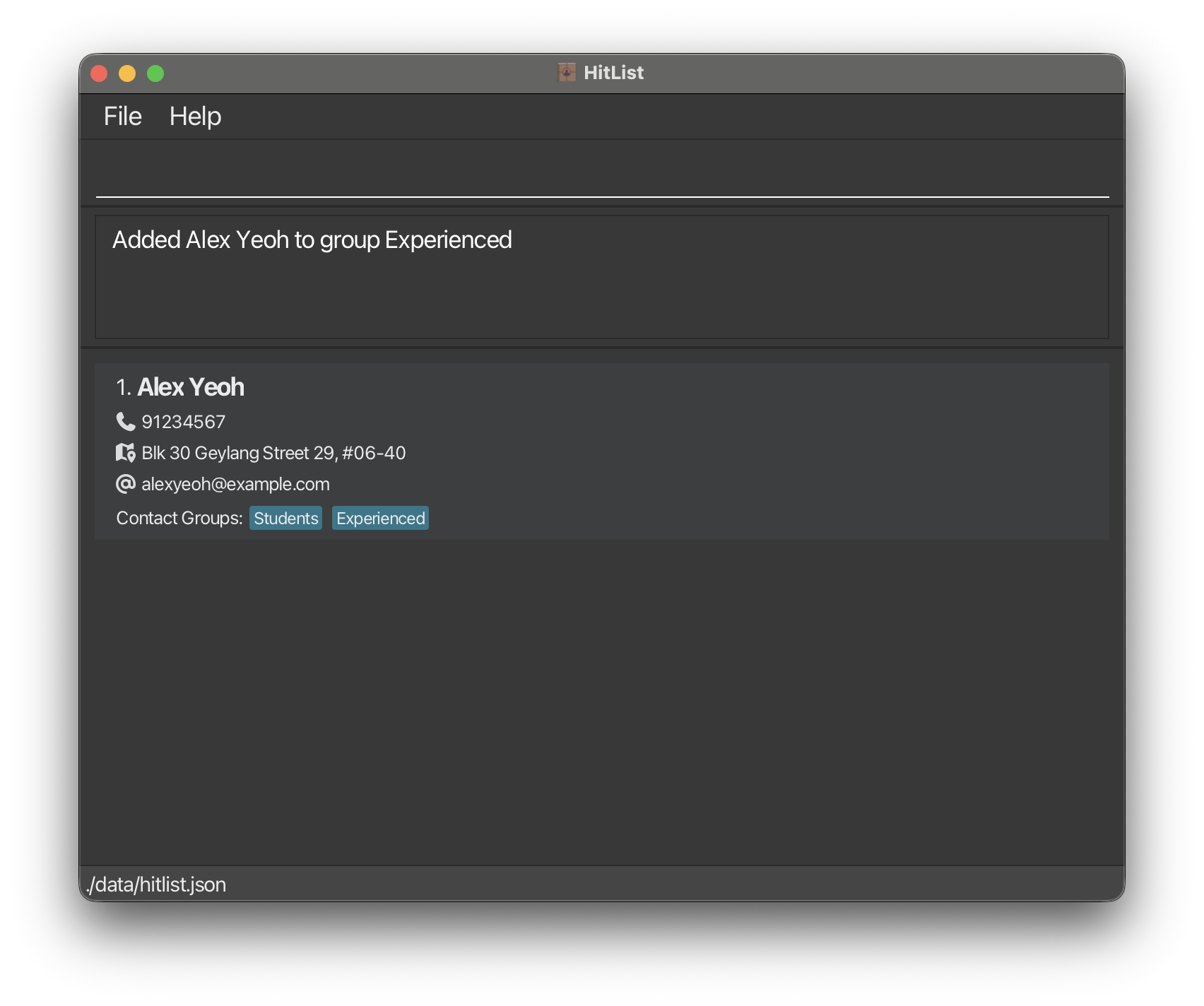
Unassigning a contact from a contact group : grpunassign
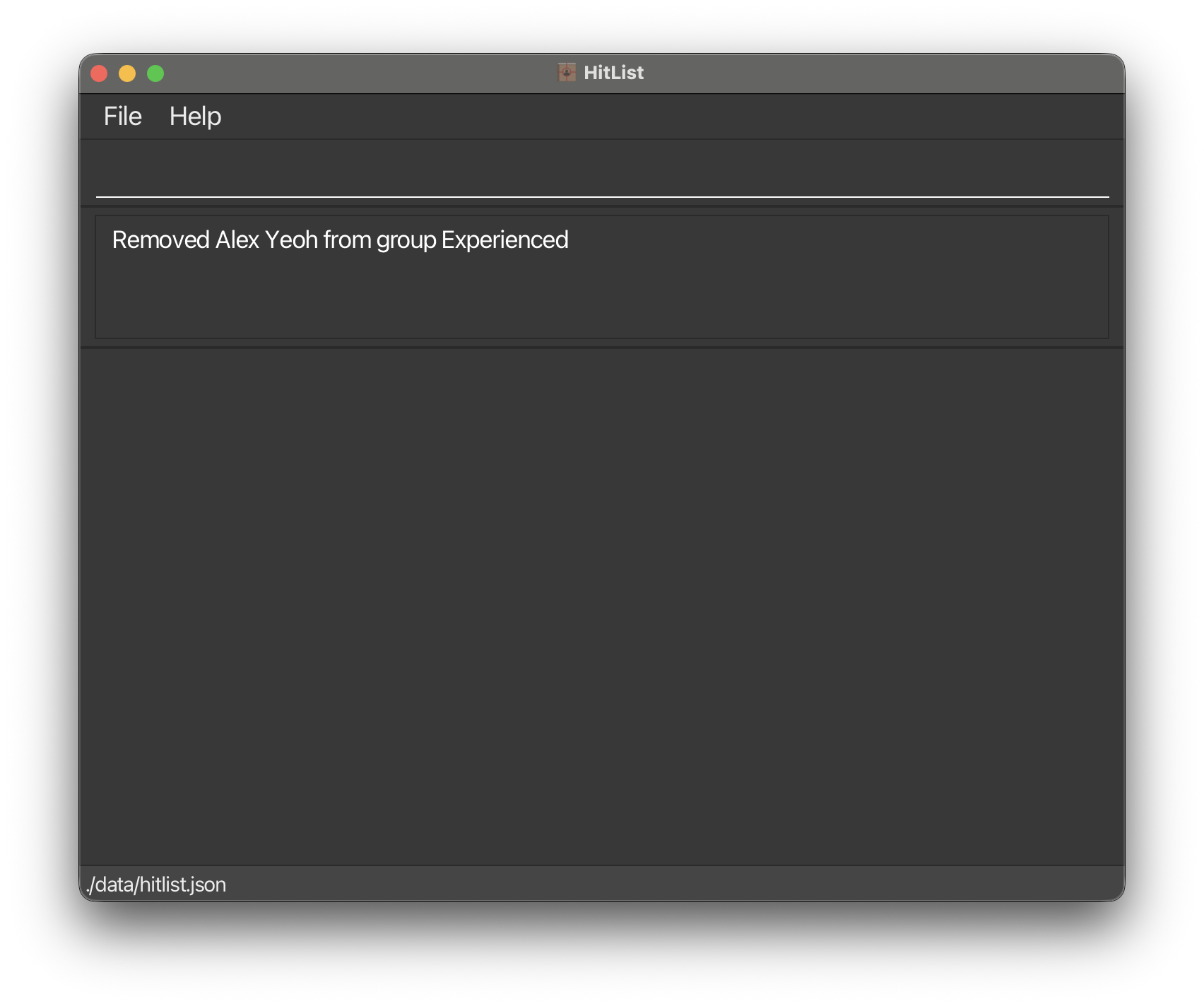
Removes an existing contact from an existing contact group.
Format: grpunassign /n NAME /g GROUP_NAME
- The contact name must exactly match an existing contact in HitList.
- The group name must exactly match an existing contact group in HitList.
- The contact must already belong to the specified group.
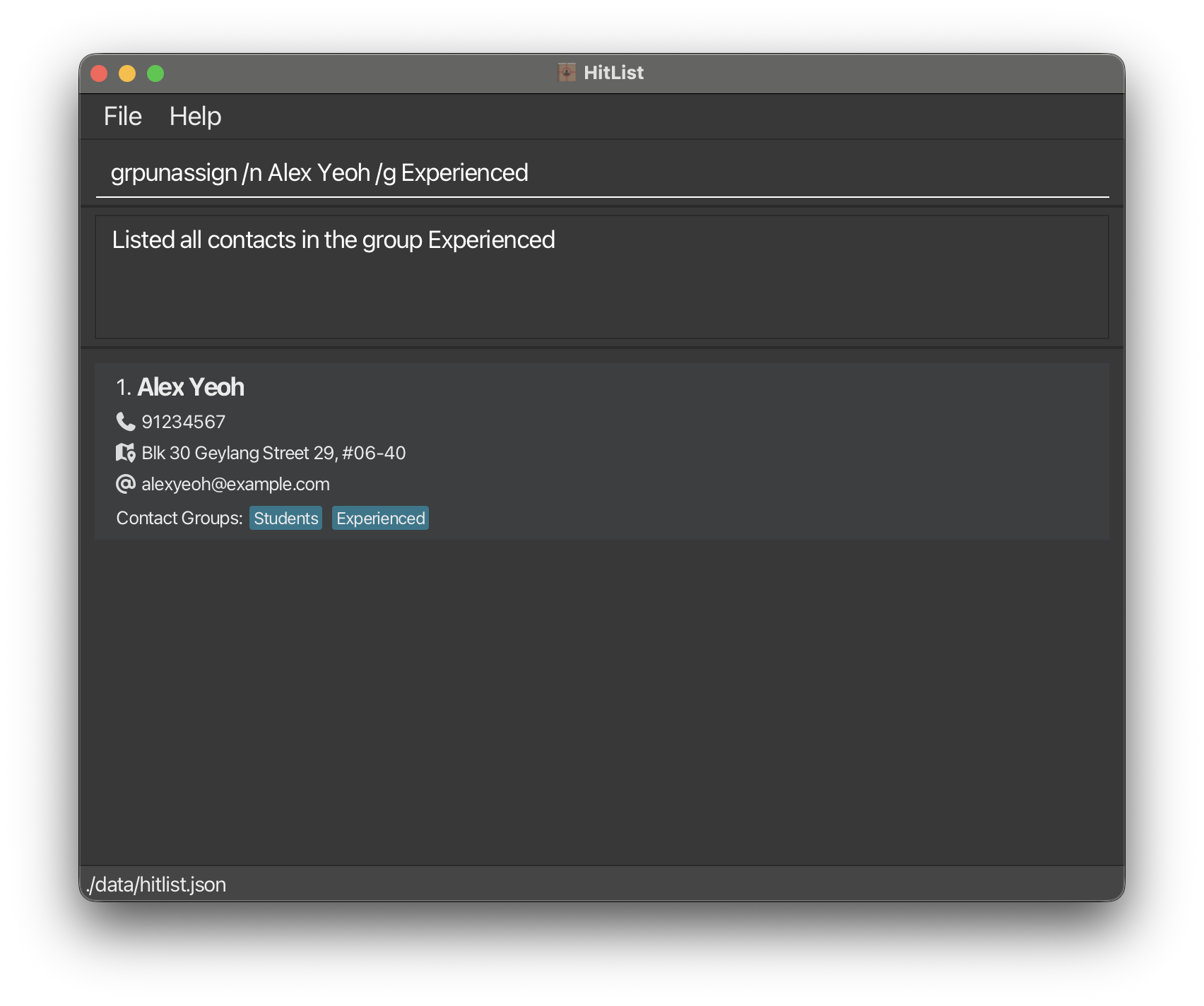
Examples:
grplist /g experiencedfollowed bygrpunassign /n Alex Yeoh /g Experienced
Adding a company : cmpadd
Adds a company to the HitList.
Format: cmpadd /c COMPANY_NAME /d COMPANY_DESCRIPTION
- The company name must be unique and not the same as any existing company in HitList.
- The company name can be any string which does not include
/or invisible characters. - The company description can be any string which does not include
/or invisible characters.
Limitations:
- Company name is restricted to a maximum of 30 characters.
- Company description is restricted to a maximum of 100 characters.
- No full support for languages other than English.
Examples:
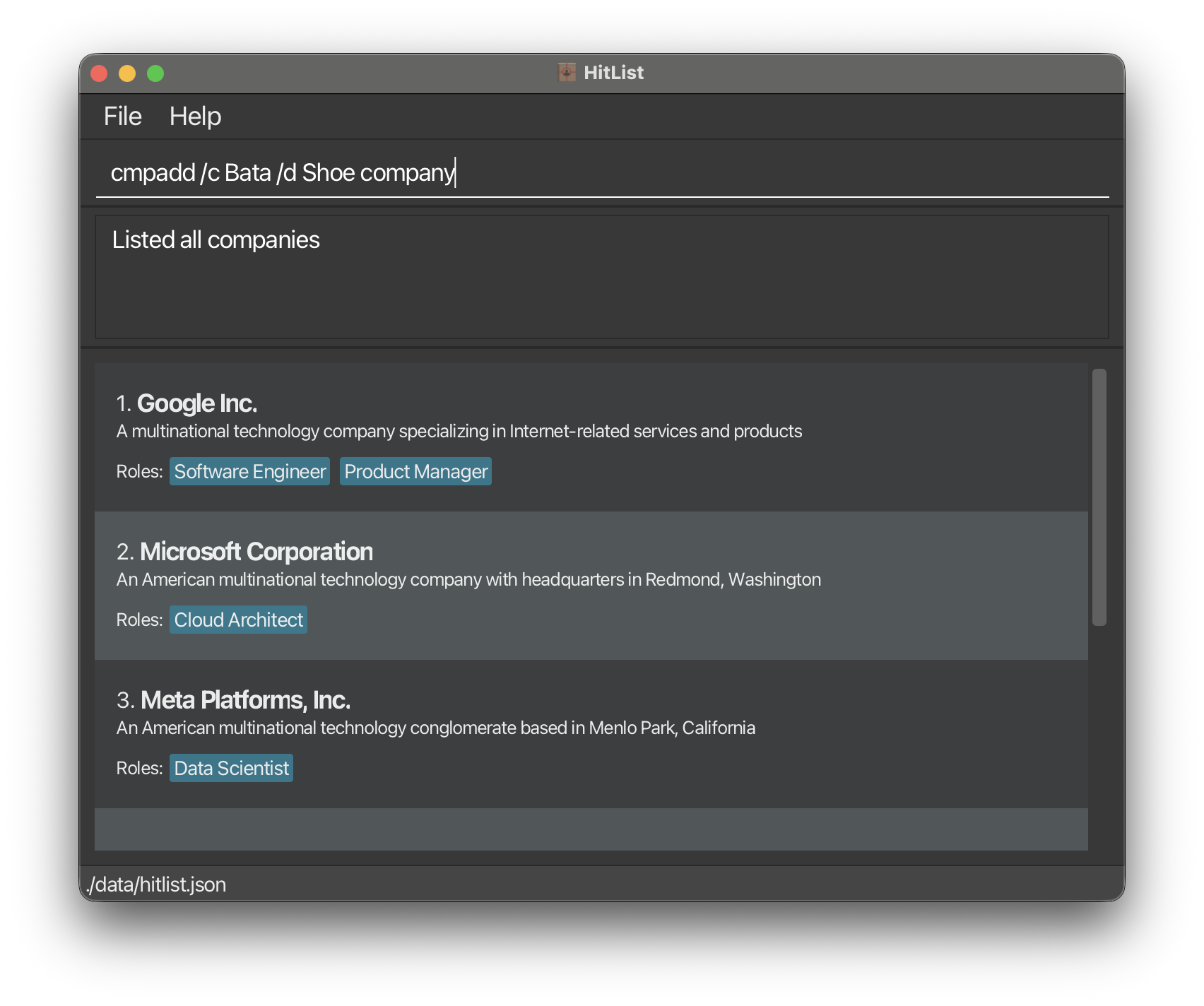
cmplistfollowed bycmpadd /c Bata /d Shoe company
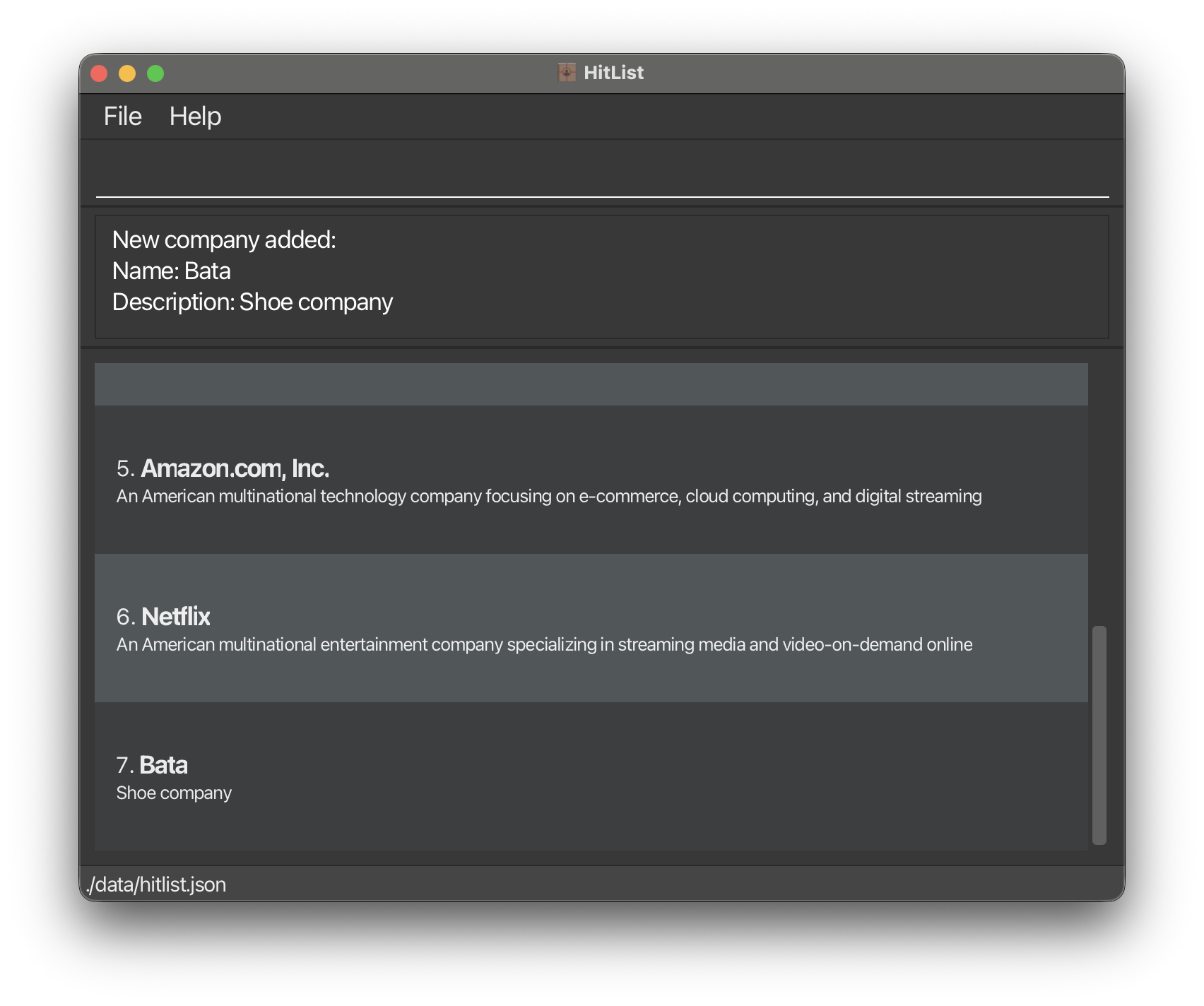
Deleting a company : cmpdel
Deletes the specified company from HitList.
CAUTION: Cascading Deletion
Format: cmpdel /c COMPANY_NAME
- The company name must be an existing company in HitList.
- The company name search is case-insensitive (e.g.,
googlematchesGoogle/GoOgLe/GOOGLE). - The search matches the exact company name as stored in HitList. For example,
cmpdel /c googlewill match a company named exactlyGoogle, but will not matchGoogle Inc.orgoogle.comsince those are different company names. - The company will be displayed with its original registered name (e.g.,
Google) after the operation.
Example:
cmplistfollowed bycmpdel /c Bata
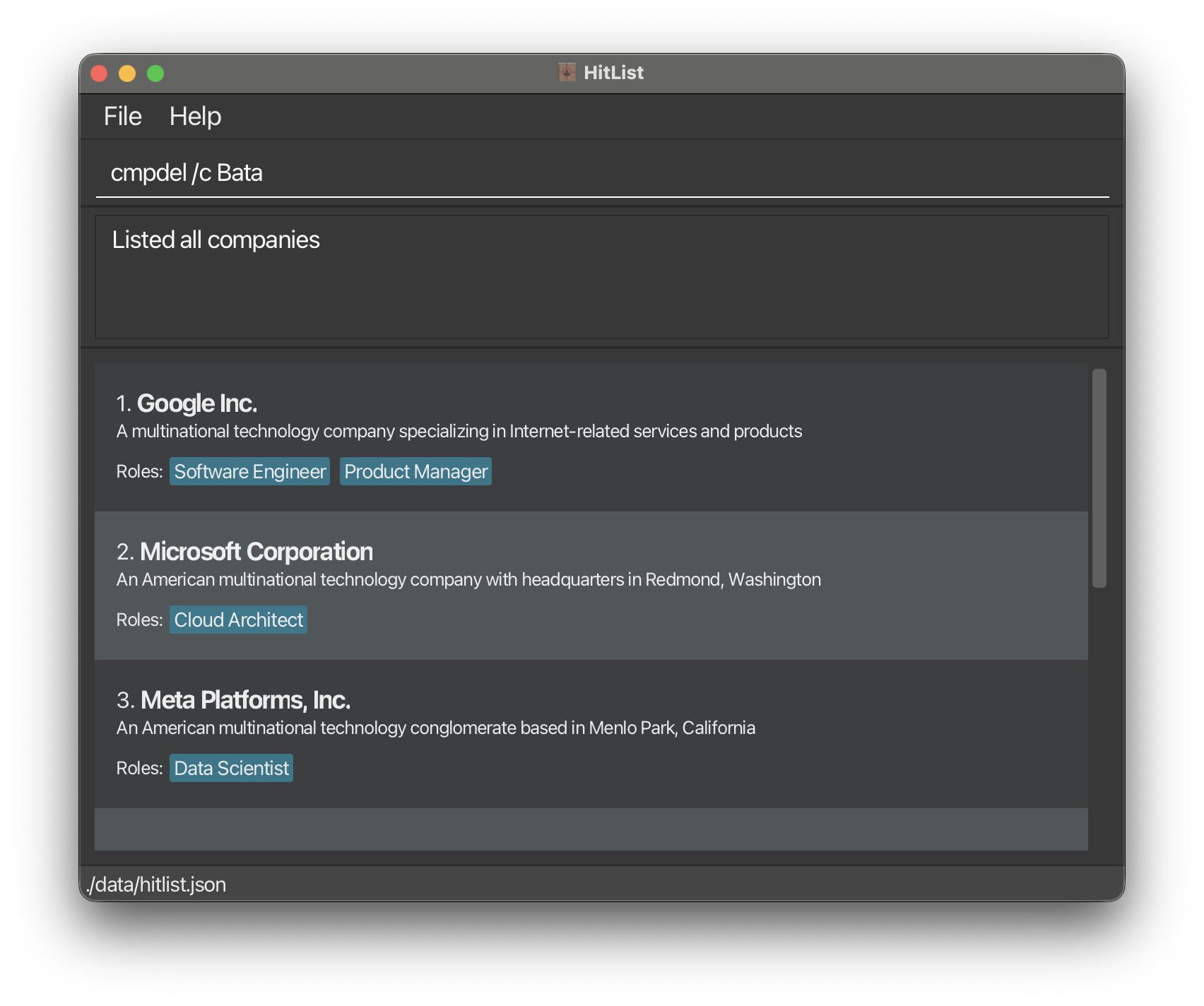
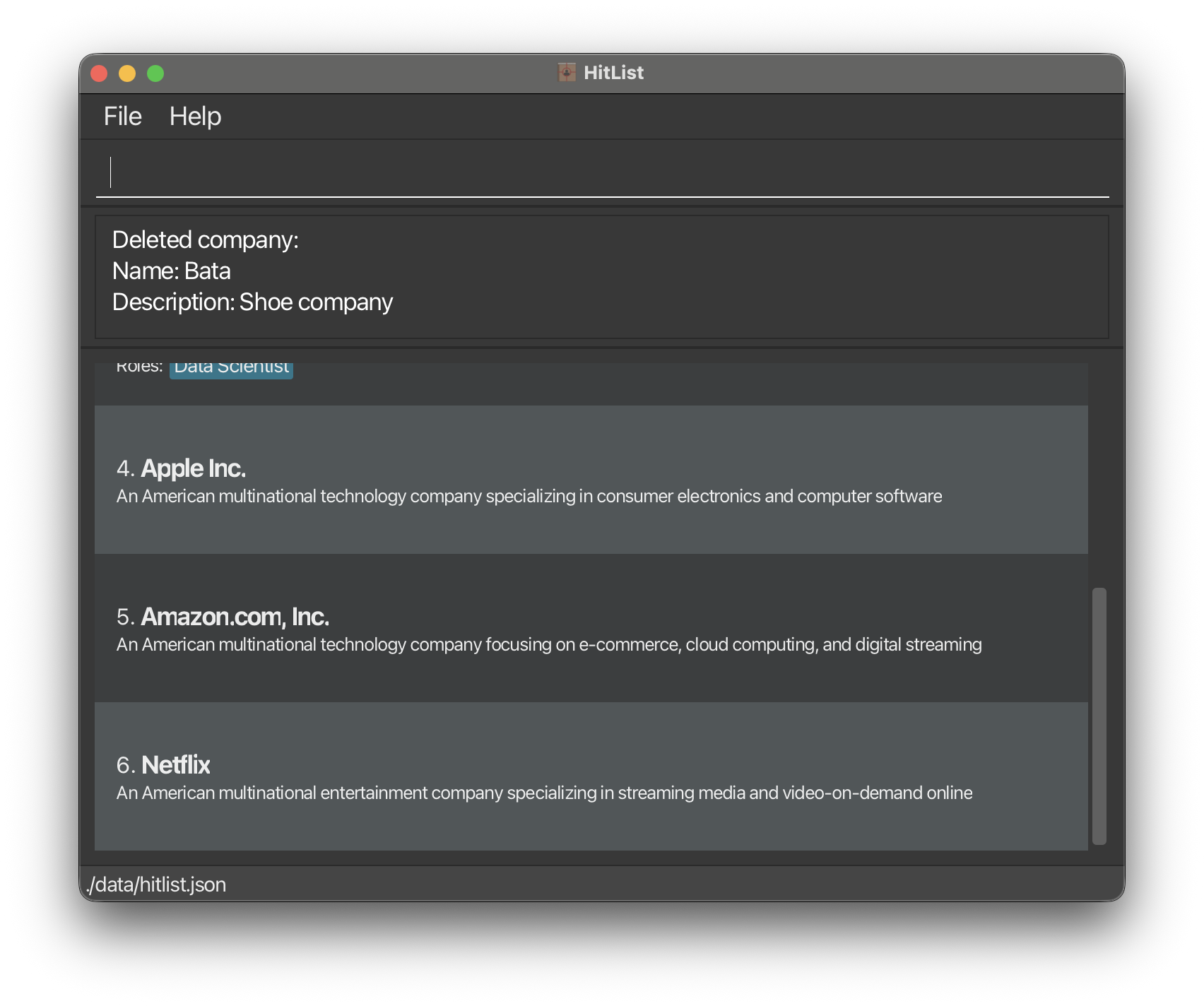
Listing all companies : cmplist
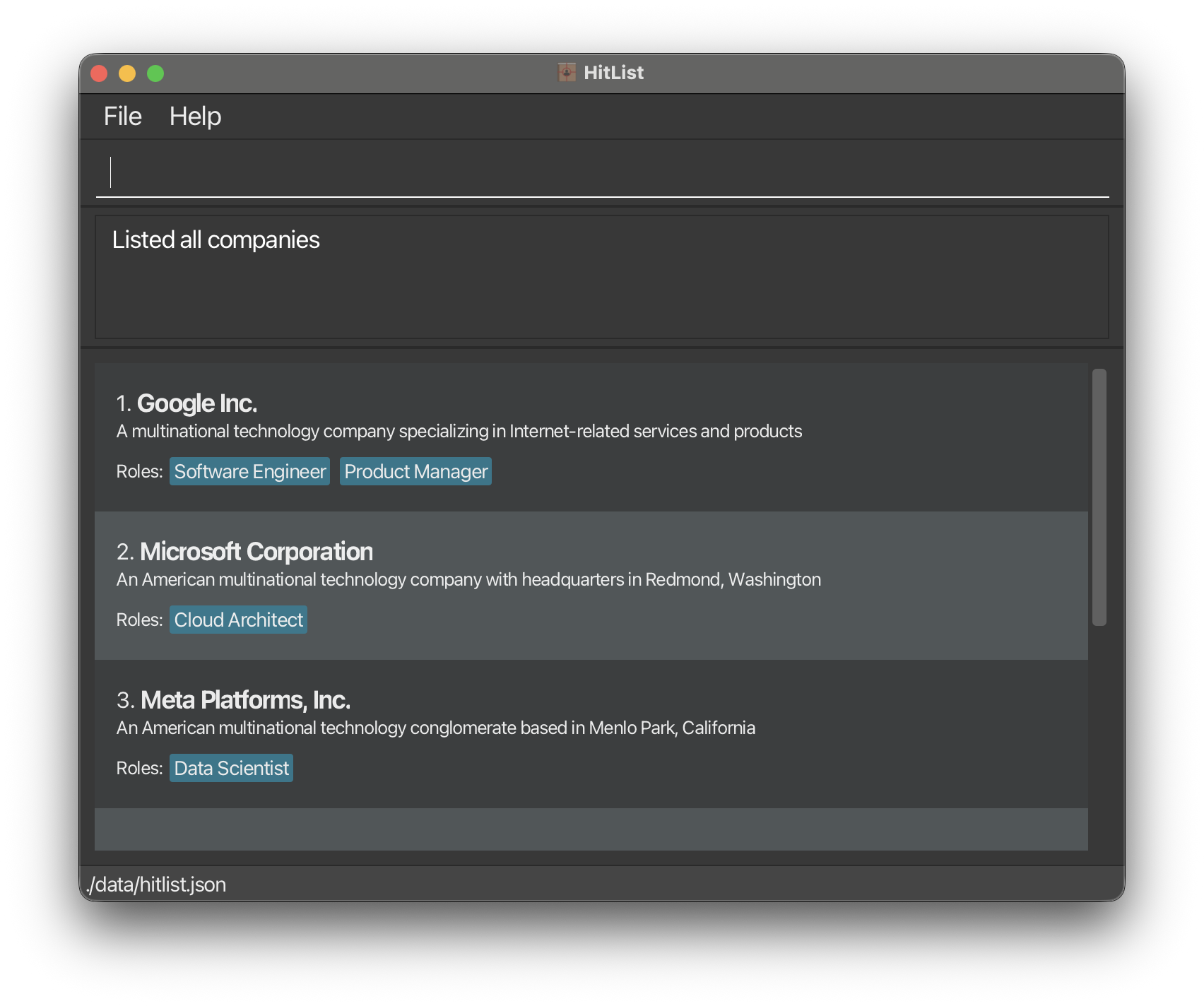
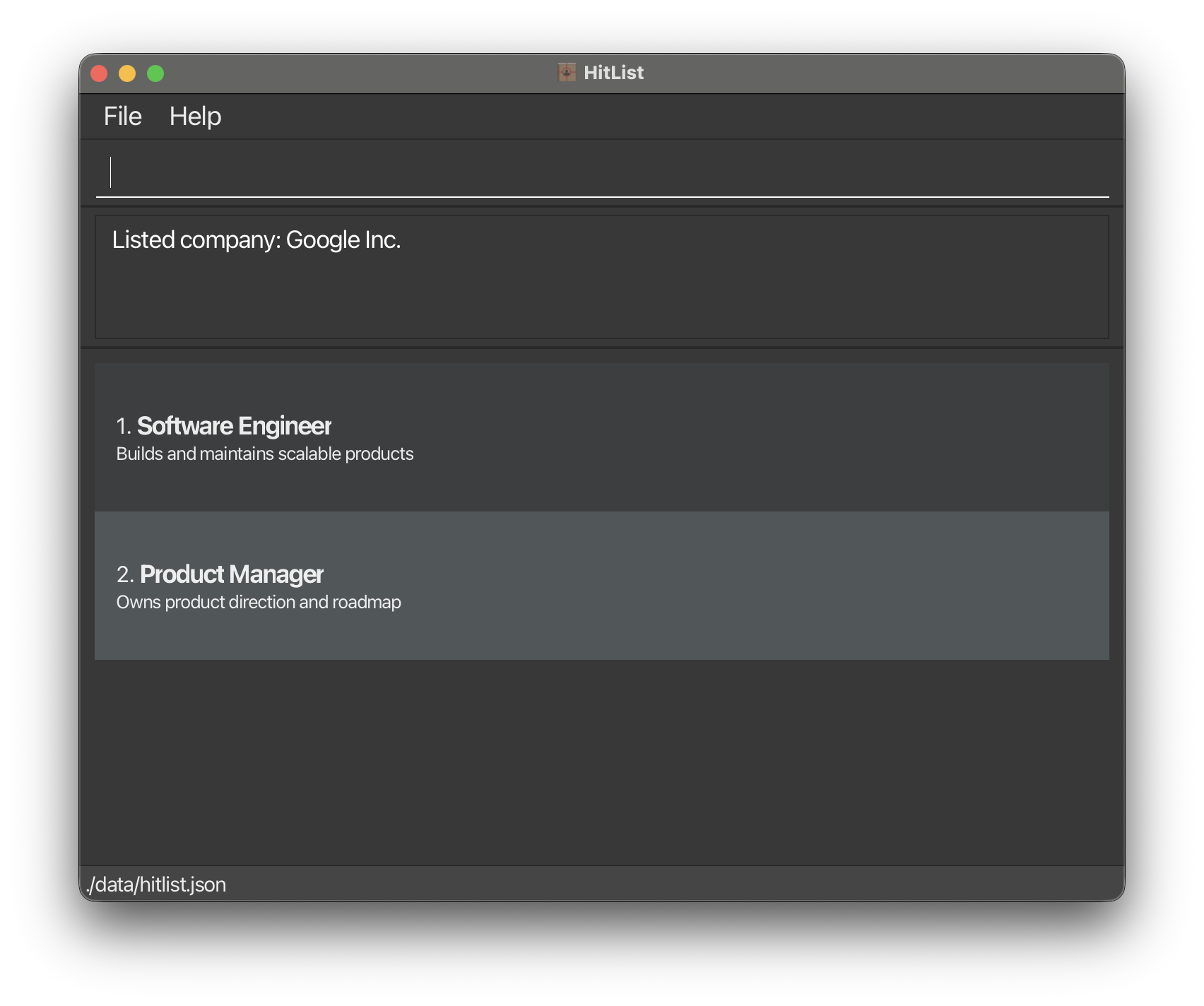
Shows a list of all companies and the description in the HitList. Optionally, if a company name is specified, shows the roles of the company.
Format: cmplist [/c COMPANY_NAME]
- If the company name is specified, shows the roles of the company.
- If the company name is not specified, shows a list of all companies with its description in HitList.
Example:
cmplist
cmplist /c Google Inc.
Locating companies : cmpfind
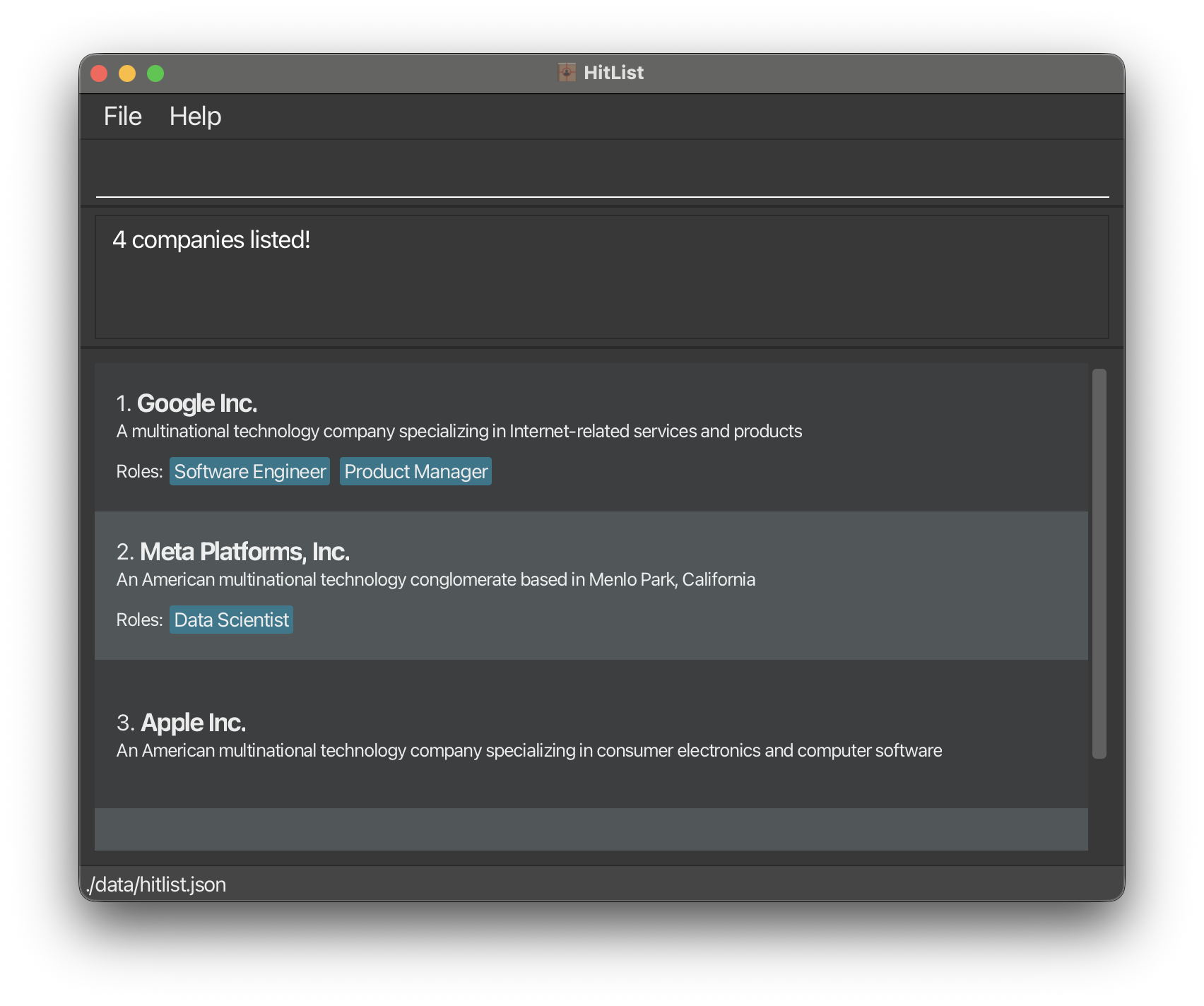
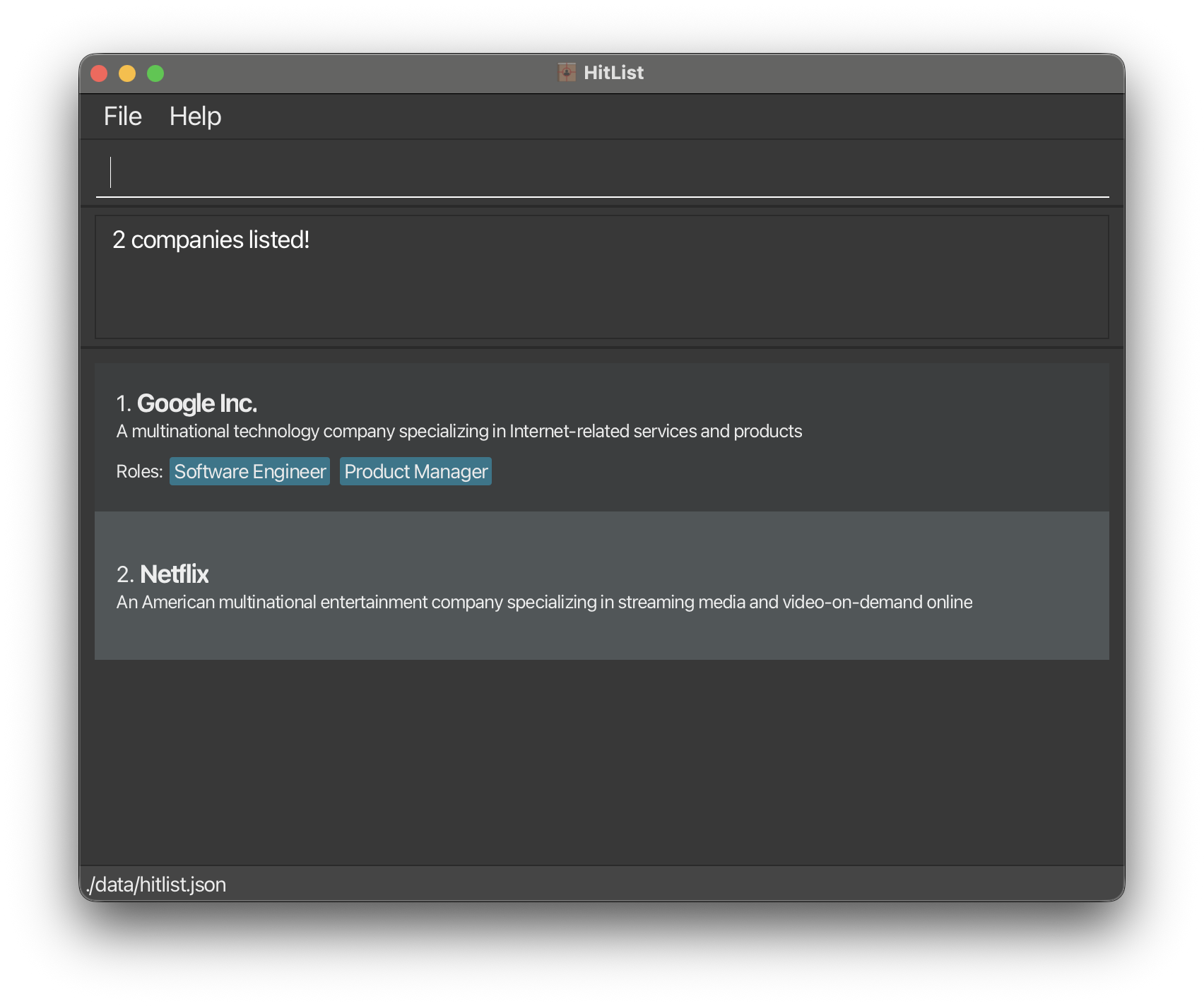
Finds companies whose names match any given substring.
Format: cmpfind KEYWORD...
- Company name search is case-insensitive.
e.g.
googlematchesGoogle - Company name search uses substring matching.
e.g.
flimatchesNetflix - If multiple company name keywords are given, a Company matching any one of them is returned.
Examples:
cmpfind inc
cmpfind google flix
Adding a role to a company : roleadd
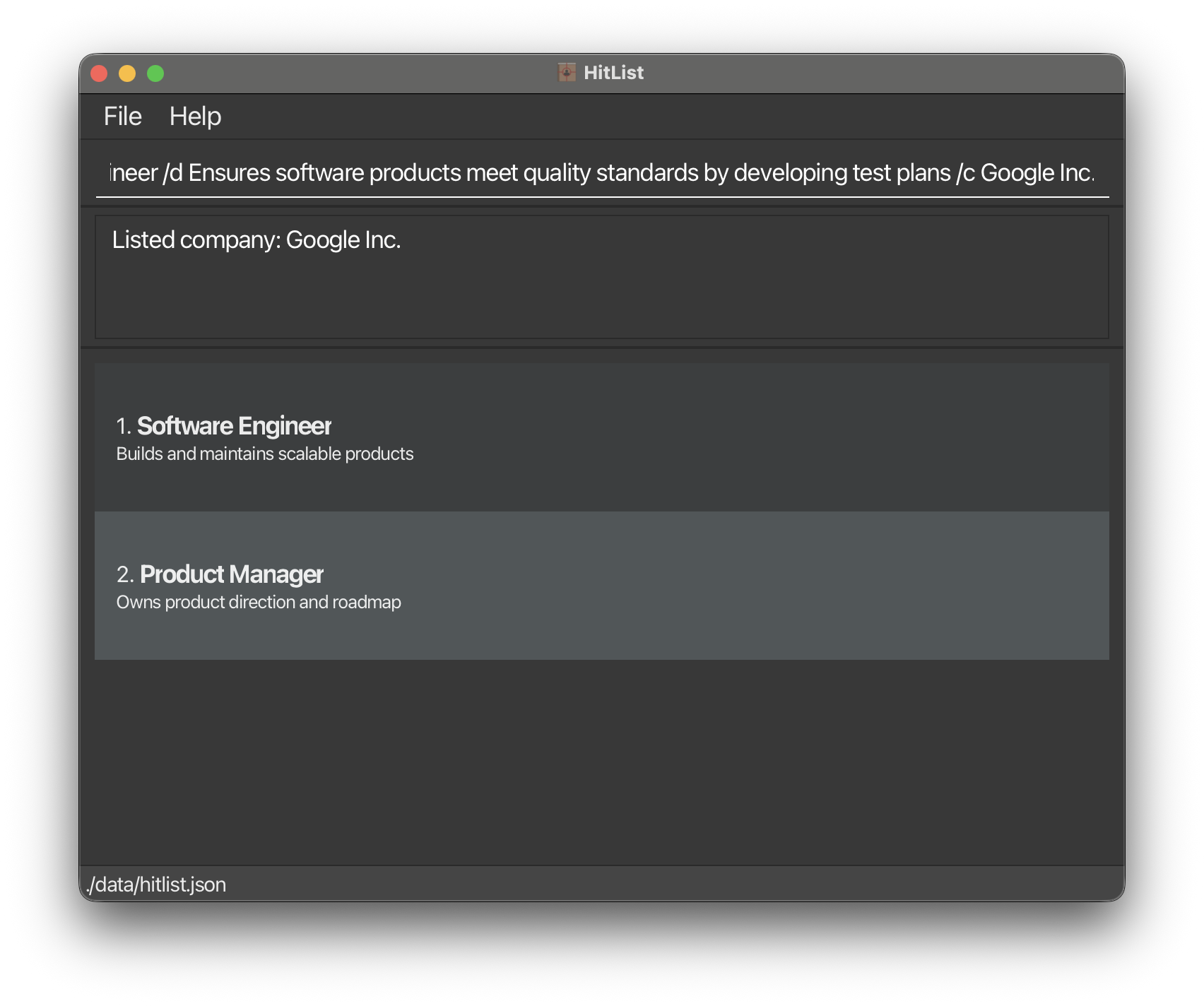
Adds a role to a specified existing company in the HitList.
Format: roleadd /r ROLE_NAME /d ROLE_DESCRIPTION /c COMPANY_NAME
- The role name must be unique within the company and not the same as any existing role in that company.
- The role name can be any string which does not include
/or have invisible characters. - The role description can be any string which does not include
/or have invisible characters. - The company name must be an existing company in HitList.
- The company name search is case-insensitive (e.g.,
googlematchesGoogle/GoOgLe/GOOGLE). - The search matches the exact company name as stored in HitList. For example,
roleadd /c googlewill match a company named exactlyGoogle, but will not matchGoogle Inc.orgoogle.comsince those are different company names. - The company will be displayed with its original registered name (e.g.,
Google) after the operation.
Limitations:
- Role name is restricted to a maximum of 50 characters.
- Role description is restricted to a maximum of 100 characters.
- No full support for languages other than English.
Examples:
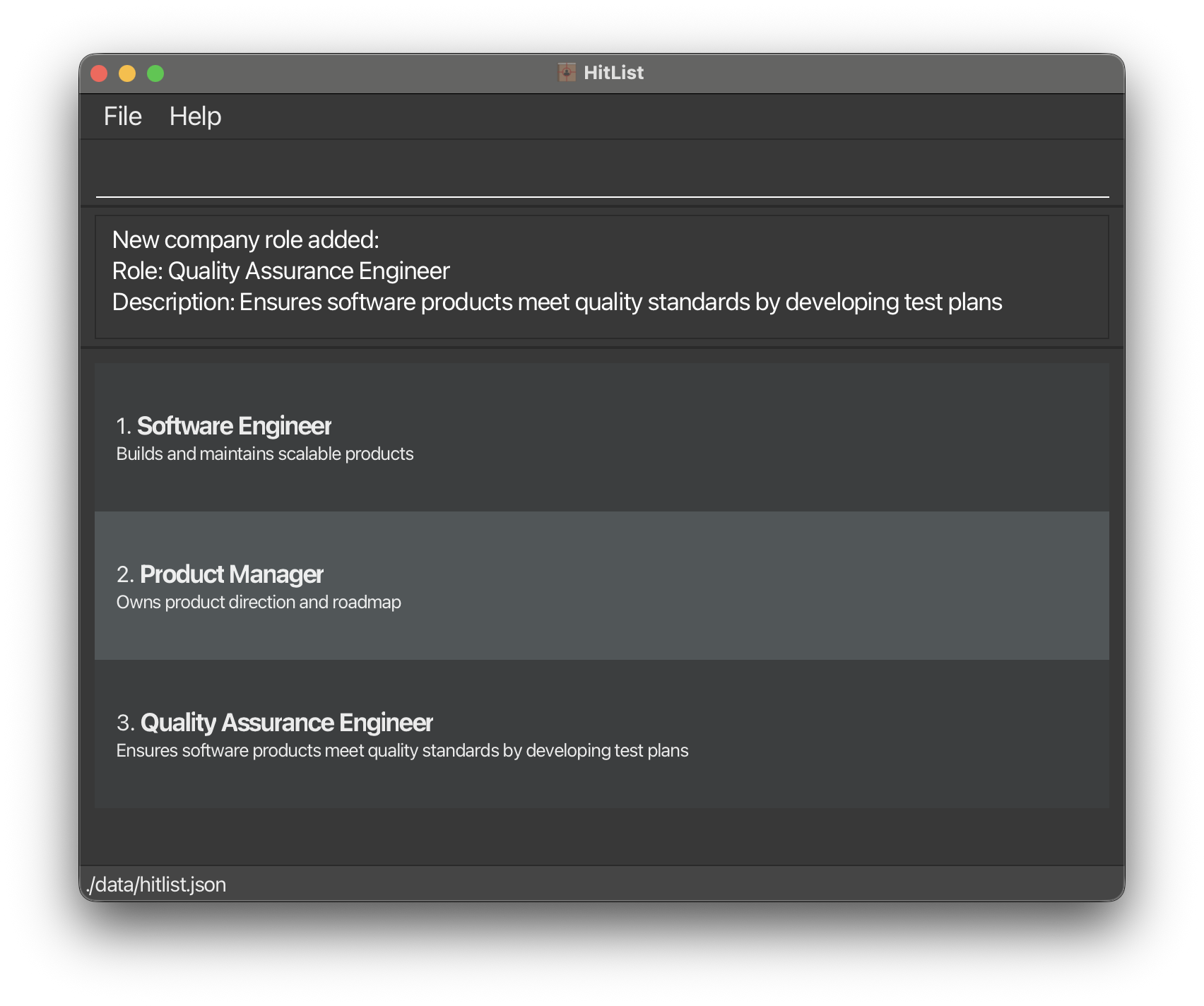
cmplist /c Google Inc.followed byroleadd /r Quality Assurance Engineer /d Ensures software products meet quality standards by developing test plans /c Google Inc.
Deleting a role from a company : roledel
Deletes a role from a specified existing company in the HitList.
CAUTION: Irreversible Action
Format: roledel /r ROLE_NAME /c COMPANY_NAME or roledel INDEX /c COMPANY_NAME
- Deletes a role from the company by either specifying the role name or the role's index number.
- The role name must be an existing role within the company.
- The index refers to the position of the role in the company's role list (1-based indexing).
- The company name must be an existing company in HitList.
- The company name search is case-insensitive (e.g.,
googlematchesGoogle/GoOgLe/GOOGLE). - The search matches the exact company name as stored in HitList. For example,
roledel /c googlewill match a company named exactlyGoogle, but will not matchGoogle Inc.orgoogle.comsince those are different company names. - The company will be displayed with its original registered name (e.g.,
Google) after the operation.
Examples:
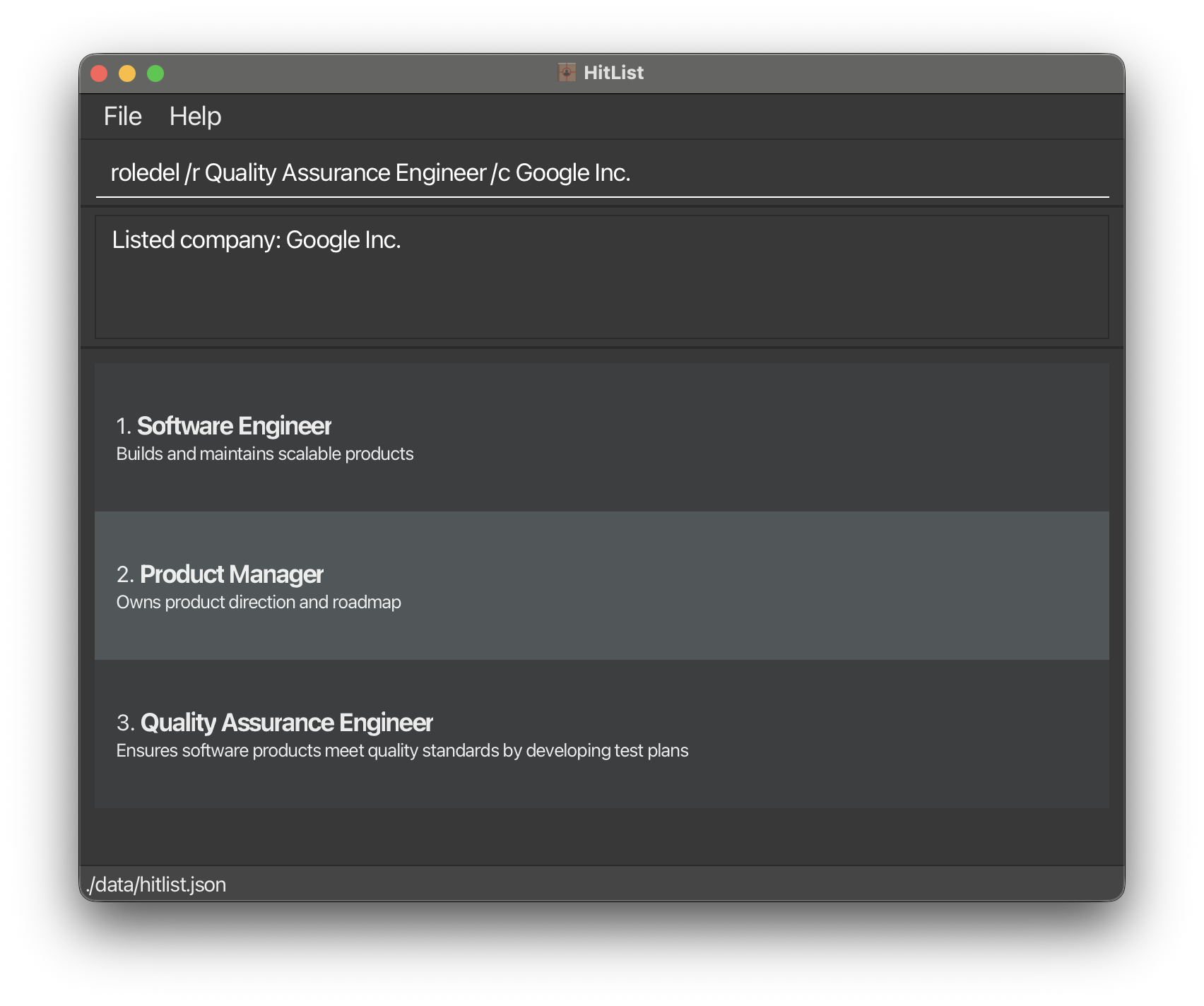
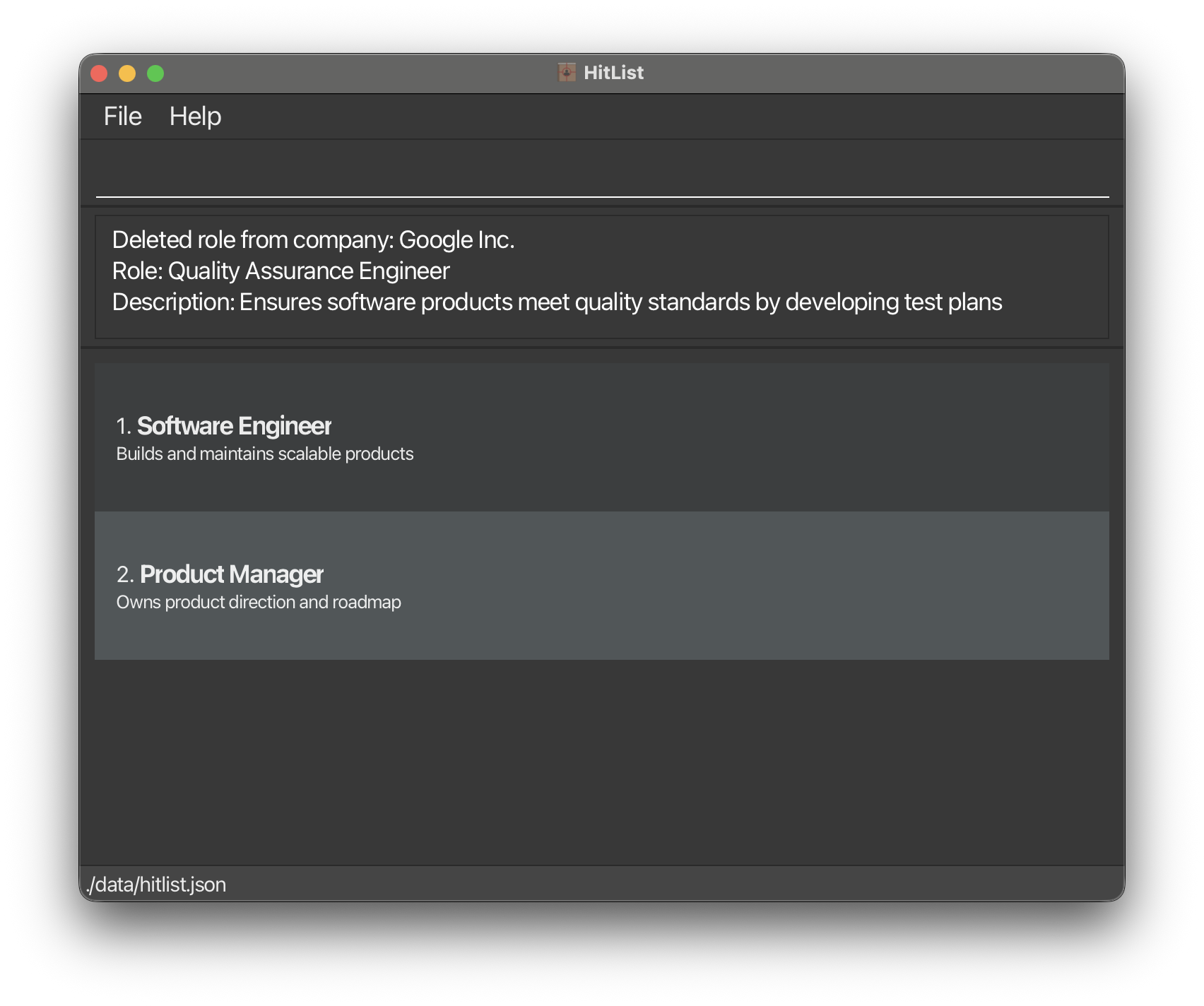
cmplist /c Google Inc.followed byroledel /r Quality Assurance Engineer /c Google Inc.
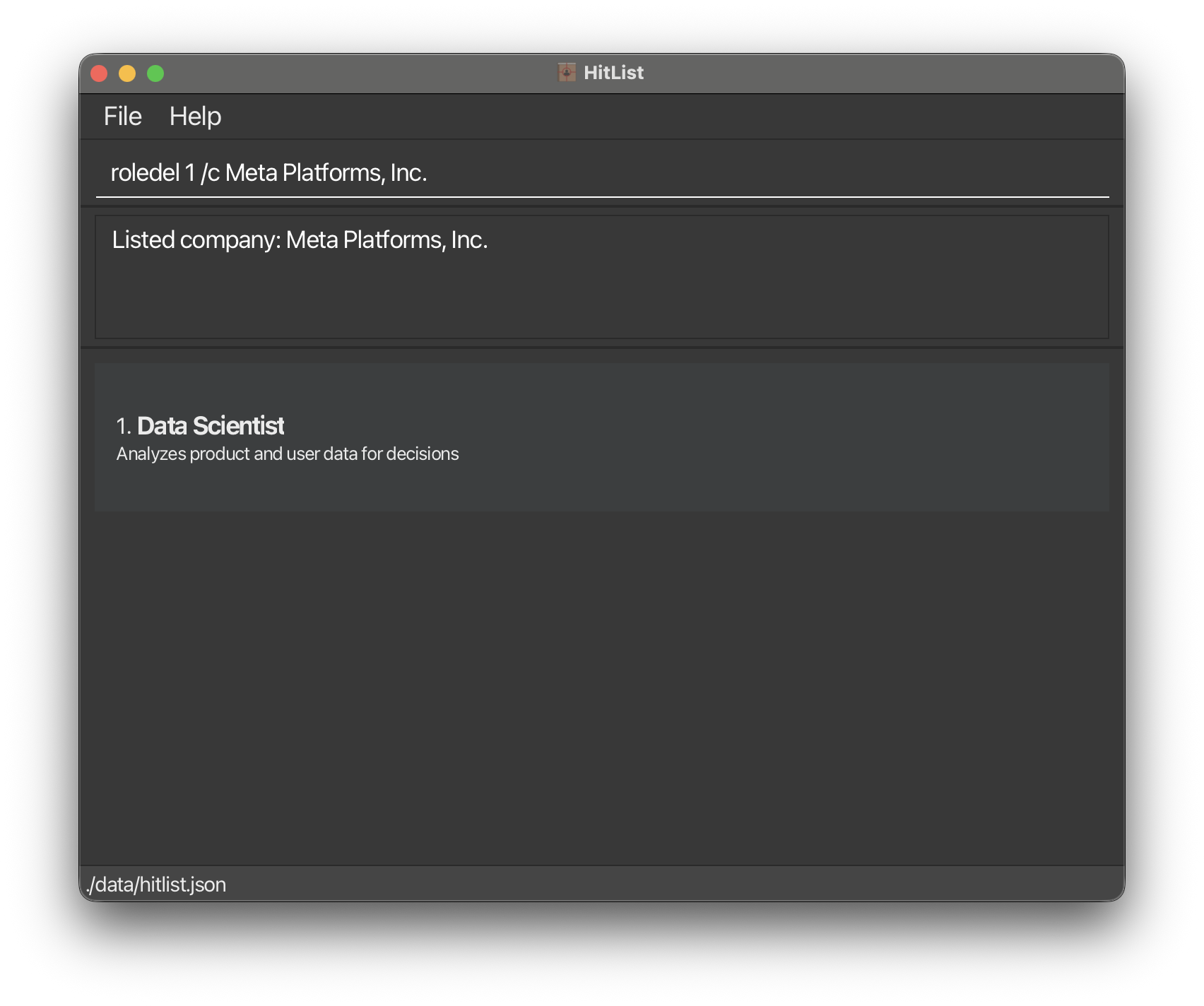
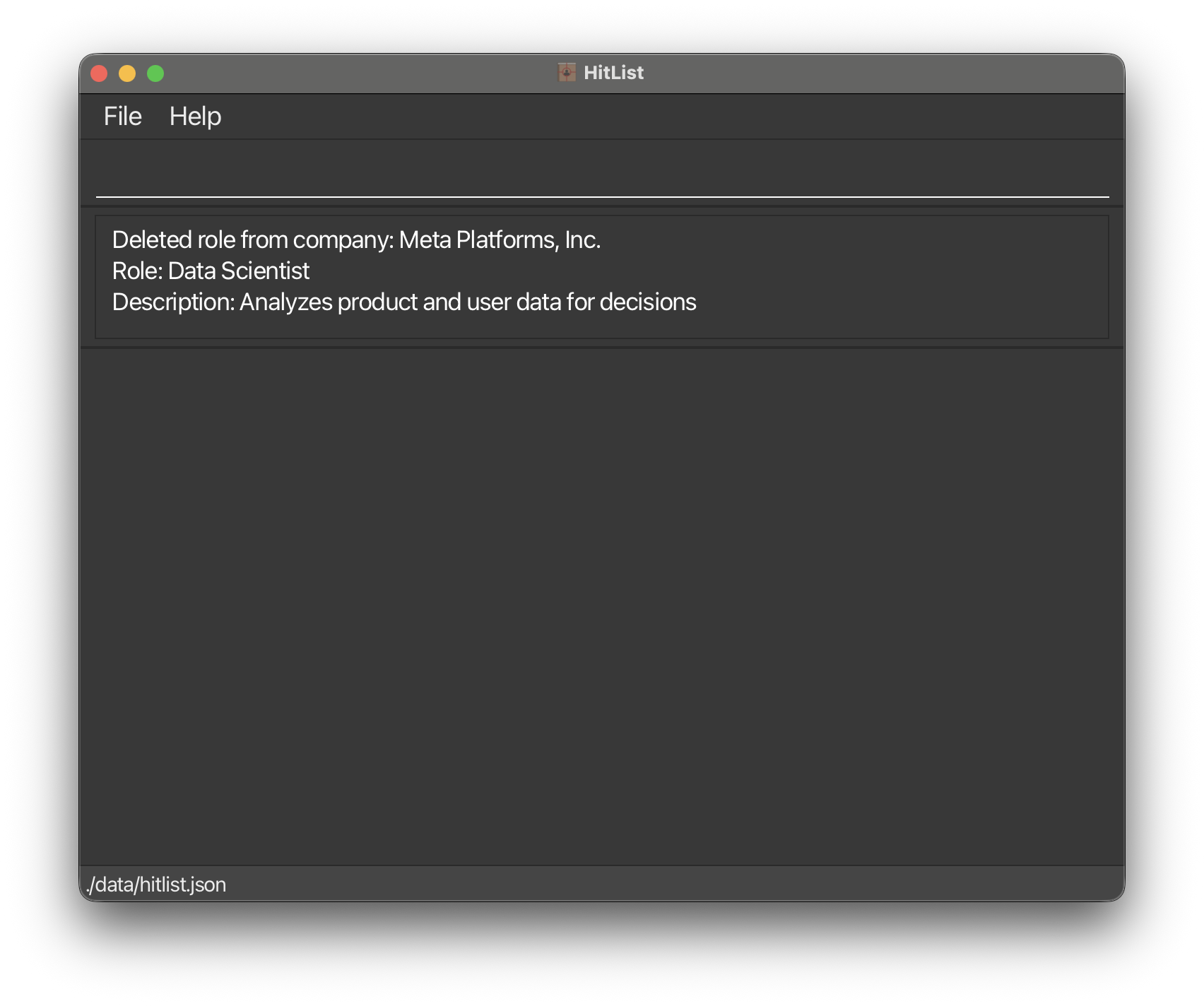
cmplist /c Meta Platforms, Inc.followed byroledel 1 /c Meta Platforms, Inc.
Clearing all entries : clear
Clears all entries from the HitList.
CAUTION: Complete Data Wipe
Format: clear
Exiting the program : exit
Exits the program.
Format: exit
Saving the data
HitList data are saved in the hard disk automatically after any command that changes the data. There is no need to save manually.
Editing the data file
HitList data are saved automatically as a JSON file [JAR file location]/data/hitlist.json.
Advanced users are welcome to update data directly by editing that data file.
CAUTION: Manual Modification
Furthermore, certain edits can cause HitList to behave in unexpected ways, for example, if a value entered is outside the acceptable range. Therefore, edit the data file only if you are confident that you can update it correctly.
Archiving data files [coming in v2.0]
Details coming soon ...
Glossary
CLI (Command Line Interface): A text based interface where you interact with the application by typing commands.GUI (Graphical User Interface): A visual interface allowing users to interact with the software through graphical icons and visual indicators.JAR (Java ARchive): The file format used to distribute the HitList application.JDK (Java Development Kit): The software development environment required to run the Java application.JSON (JavaScript Object Notation): The lightweight data format used by HitList to save your contacts and preferences automatically.Parameter: Specific data provided alongside a command to tell the application exactly what to do (for example, supplying a name or phone number).Index: The positive integer corresponding to an item in the currently displayed list, used to target specific records for editing or deletion.Substring Matching: A search behavior where typing a sequence of letters matches any word that contains those letters anywhere inside it (beginning, middle, or end).
FAQ
Who is the intended user for HitList?
How do I save my progress?
Can I undo a deletion?
How do I transfer my data to another computer?
Can I edit the data file directly?
Known issues
- When the hitlist.json file is corrupted, HitList will wipe the file and start with an empty data file. The application does not show visual feedback to the user regarding the error. The error is generically logged in the log file. Users may not understand that their data file has been wiped and that they have lost all their data. A better implementation would be to show a pop-up message to the user when this error occurs, informing them of the issue and the loss of data.
Command summary
| Action | Format | Examples |
|---|---|---|
| Getting help | help | help |
| Add contact | add /n NAME /p PHONE_NUMBER [/e EMAIL] [/a ADDRESS] | add /n Betsy Crowe /p 87654321 /e betsy.crowe@gmail.com /a 321, Clementi Rd, 123465 |
| Delete contact | del INDEXor del /n NAMEor delete INDEXor delete /n NAME | del 3or del /n David Lior delete 3or delete /n David Li |
| Edit contact | edit INDEX [/n NAME] [/p PHONE_NUMBER] [/e EMAIL] [/a ADDRESS] | edit 2 /n James Lee /e jameslee@example.com |
| List contacts | list | list |
| Find contact(s) | find KEYWORD... | find John |
| Add contact group | grpadd /g GROUP_NAME | grpadd /g Students |
| Delete contact group | grpdel /g GROUP_NAME | grpdel /g Students |
| List contact groups | grplist | grplist |
| List contacts in group | grplist /g GROUP_NAME | grplist /g Students |
| Assign contact to group | grpassign /n NAME /g GROUP_NAME | grpassign /n Alex Yeoh /g Students |
| Unassign contact from group | grpunassign /n NAME /g GROUP_NAME | grpunassign /n Alex Yeoh /g Students |
| Add company | cmpadd /c COMPANY_NAME /d COMPANY_DESCRIPTION | cmpadd /c Google /d Tech giant |
| Delete company | cmpdel /c COMPANY_NAME | cmpdel /c Google |
| List companies | cmplist | cmplist |
| Find company | cmpfind KEYWORD... | cmpfind inc |
| Add role to company | roleadd /r ROLE_NAME /d ROLE_DESCRIPTION /c COMPANY_NAME | roleadd /r Software Tester /d Tests provided software /c Google Inc. |
| Delete role from company | roledel /r ROLE_NAME /c COMPANY_NAMEor roledel INDEX /c COMPANY_NAME | roledel /r Software Engineer /c Google Inc.or roledel 1 /c Google Inc. |
| Clear | clear | clear |
| Exit | exit | exit |